
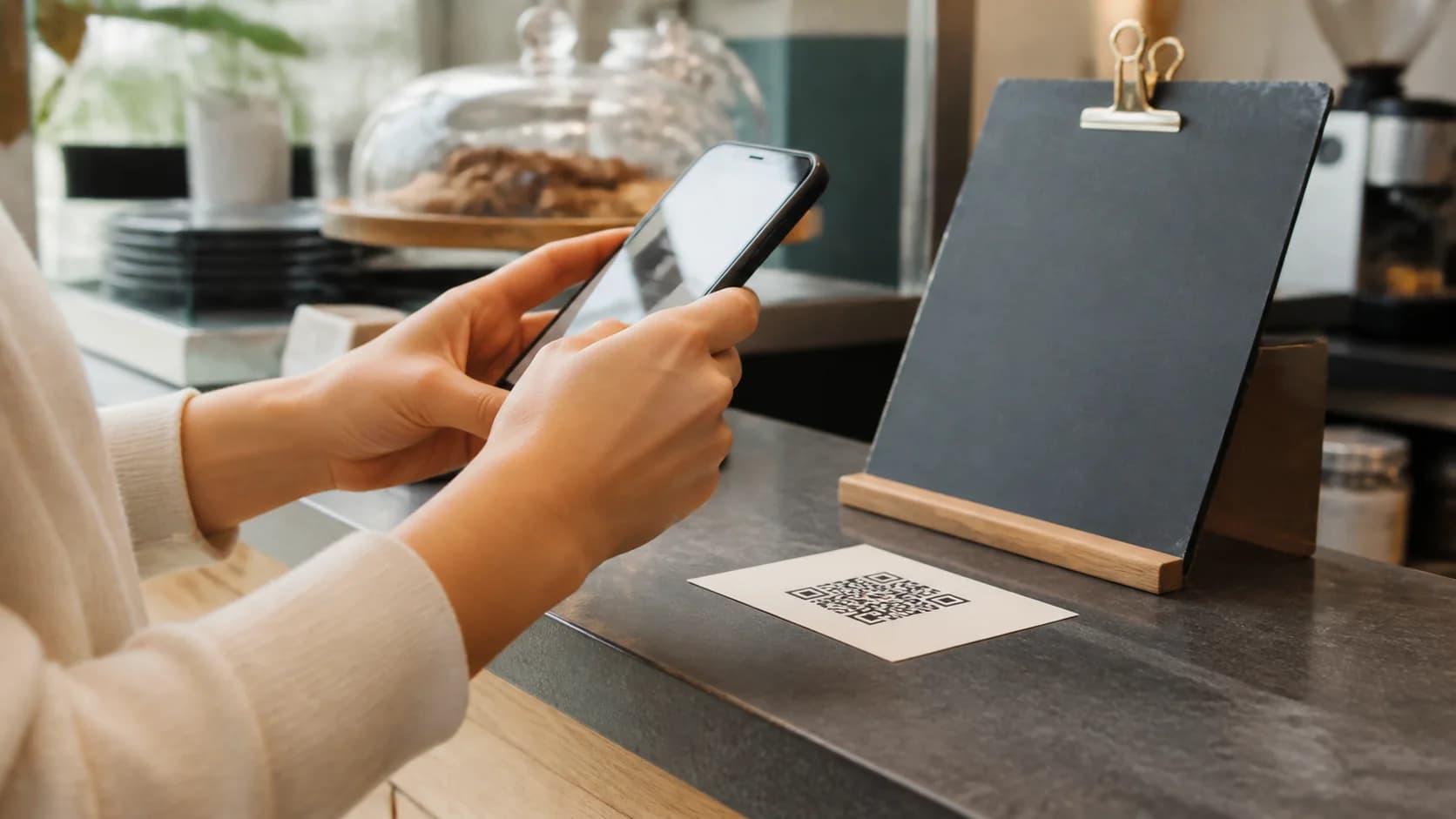
When you find a QR code not scanning, start by separating two failures. The camera may not decode the symbol, or the phone may decode it and then open a broken destination. Those problems look similar to a customer, yet they require different fixes. This guide gives you a clear troubleshooting order for screens, print, packaging, iPhone, and Android. It also explains when a fresh code from CraftMyQR offers a safer solution than editing a damaged image.
Why Is My QR Code Not Scanning?
A QR code not scanning usually involves size, contrast, quiet zone, blur, damage, reflections, camera focus, excessive customization, or a failed destination. First, test the same code with a second phone. If the other device recognizes it immediately, inspect the original phone, light, angle, and distance. However, if several phones fail, compare the digital source with the printed or displayed version.
Decode failure vs destination failure
When troubleshooting a QR code not scanning, a successful decode produces a banner, link, or action. If tapping that result leads to a 404 page, login request, expired domain, or inactive redirect, the QR pattern worked. Therefore, open the URL in a private browser window. This distinction keeps you from redesigning a good symbol when the real fix belongs to the website.
1. Increase the physical or displayed size
A camera must resolve every module in the pattern. Dense data, long URLs, and greater scanning distance all demand more space. Consequently, enlarge the code on screen or in the next print run. For close-range materials, begin with a practical proof around 2.5–3 cm, but treat that number as a starting point rather than a universal rule. Then test the real distance and device mix.
2. Restore strong contrast
Dark modules on a light background remain the safest choice. Although brand colors can work, pale combinations and photographic backgrounds reduce edge detection. Printed colors can also shift on kraft paper, fabric, transparent labels, or uncoated stock. Therefore, test the finished material and give the code its own clean panel when the surrounding design looks busy.
3. Protect the four-module quiet zone
The quiet zone tells the scanner where the symbol begins and ends. DENSO WAVE specifies a clear margin four modules wide on every side. If text, borders, icons, or patterns enter that space, you may see a QR code not scanning even though the inner modules look sharp. Review the official QR code area guidance and restore the margin.
4. Replace blurry or compressed artwork
Screenshots, small JPEGs, and repeatedly resized images lose clean module boundaries. Instead of adding a sharpening filter, return to the original destination and generate a new symbol. Use SVG or PDF for scalable print work and a sufficiently large PNG for raster layouts. For a deeper diagnosis, follow the blurred QR code fixes.
5. Inspect damage and wear
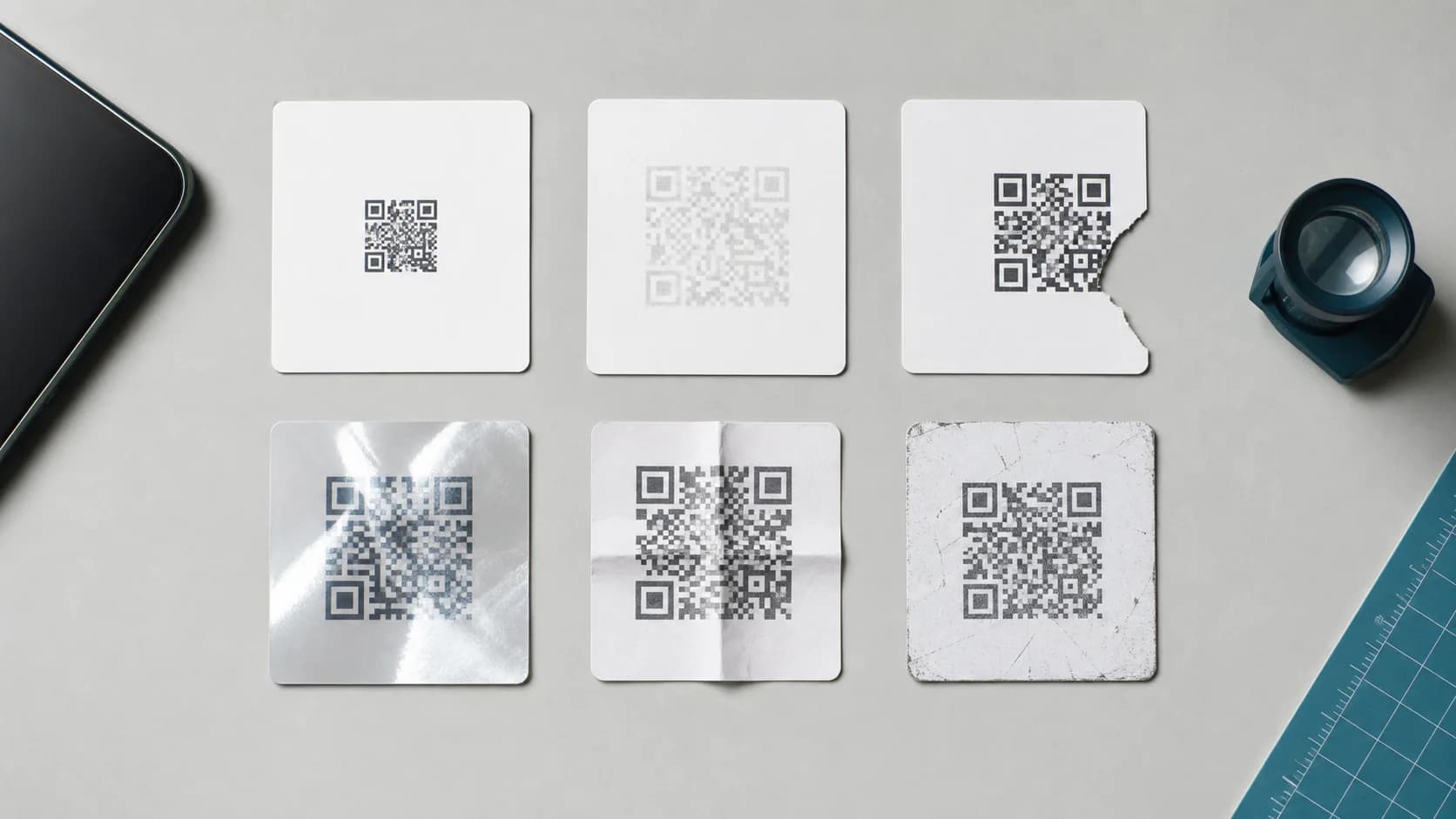
Scratches, folds, stains, fading, tears, and stickers can remove critical information. Error correction may recover some loss; however, it cannot repair unlimited damage. Pay special attention to the three large position markers. If wear caused the QR code not scanning, replace the label or print and move future codes away from high-touch areas, seams, and folds.
6. Reduce glare and curvature
Glossy menus, glass, polished metal, and plastic covers can hide modules under reflections. Similarly, a tight bottle curve can prevent the camera from seeing the full square at once. Change the angle during diagnosis. For future production, use a matte finish, a flatter surface, or a larger code that leaves more readable area in the camera view.
7. Help the camera focus
Clean the lens, improve the light, hold the phone steady, and adjust the distance. A user often moves too close when a code looks small, which puts the camera outside its comfortable focus range. Therefore, move back slightly and let the full symbol enter the frame. On iPhone, the Camera app and Control Center Scan Code feature handle normal QR recognition.
8. Simplify logos and decorative elements
A logo, rounded module style, gradient, or custom frame can support branding. Nevertheless, decoration should never cover position markers, consume the quiet zone, or reduce contrast. Remove one customization at a time and retest. If the plain version works, add design elements gradually instead of applying every option before the first scan test.
9. Repair the destination URL
If the phone displays a link, the scan succeeded. Next, check the URL for a deleted page, changed slug, expired domain, access restriction, or slow mobile experience. Test while logged out and on mobile data. In addition, confirm that security software does not block the destination. A QR code should lead to a page that a normal visitor can open without your account session.
10. Reactivate or replace a dynamic redirect
A dynamic QR code points to a managed short link. That design lets you update the final destination without reprinting, but the redirect must remain active. Therefore, check the dashboard, code status, account, plan, and destination. If the redirect caused the QR code not scanning experience, restore it before changing the printed symbol.
QR Code Not Scanning Troubleshooting Flow
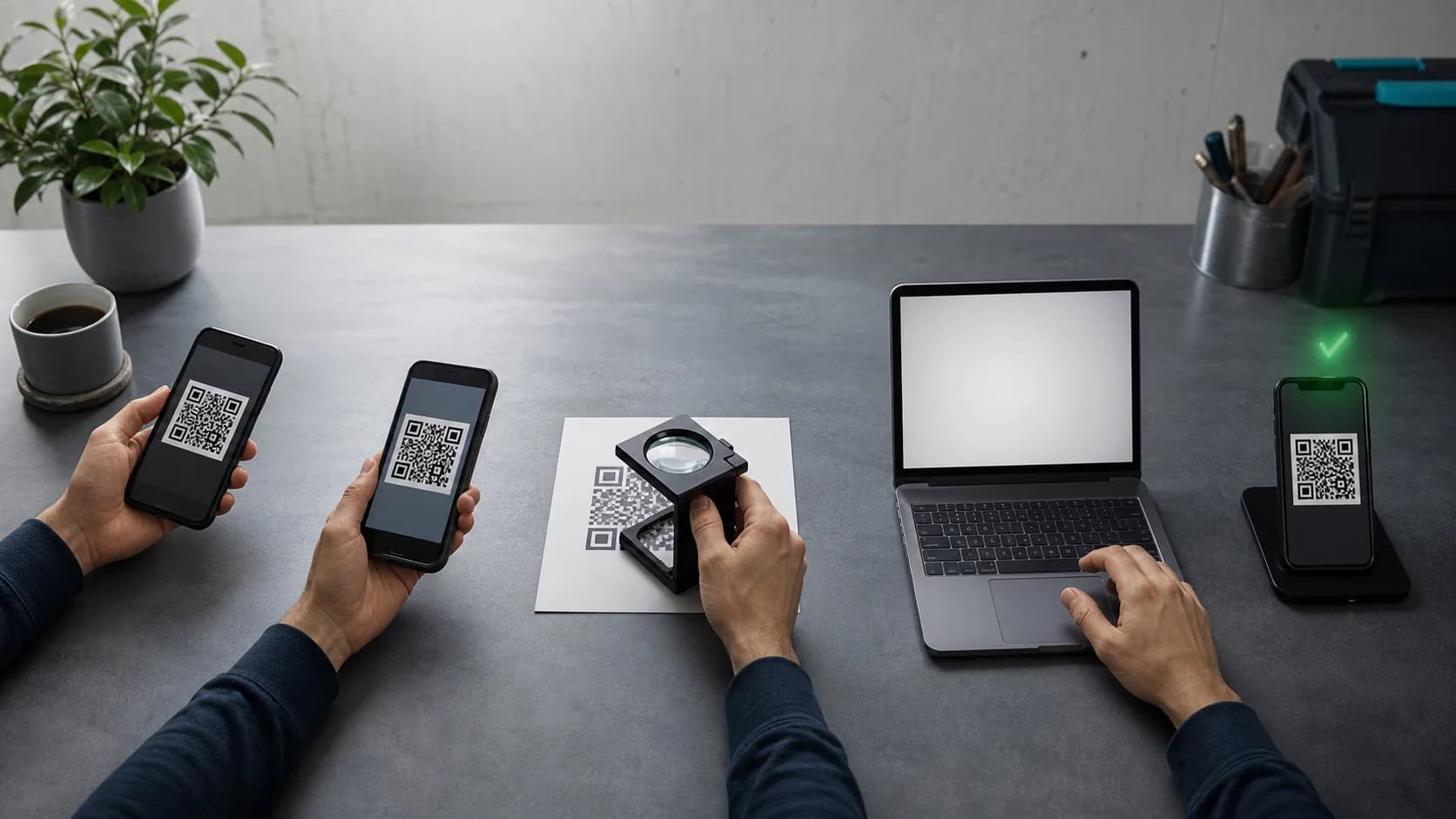
- Test with a second phone and a normal camera app.
- Improve lighting, clean the lens, and change the angle.
- Confirm that the full symbol and quiet zone remain visible.
- Compare the digital source with the printed or displayed version.
- Inspect size, contrast, blur, damage, glare, and curvature.
- Scan the digital source at 100% size.
- Regenerate the symbol if the source carries unknown edits.
- Open the destination directly in a private browser window.
- Check the dynamic redirect status when applicable.
- Print one new proof and retest before a full run.
iPhone checks
Apple supports scanning through Camera and the Scan Code control in Control Center. First, place the whole code inside the frame and wait for the link. If nothing appears, improve the light or use the flashlight in Scan Code. Apple keeps current instructions in its iPhone QR scanning guide. For saved screenshots, recognition depends on the model and iOS features, so test the image instead of promising identical behavior on every device.
Android checks
Android behavior varies by manufacturer and camera app. Many devices recognize QR codes in Camera or Google Lens; however, older models may need a different workflow. Update the camera app, enable QR suggestions if the manufacturer provides that option, and try Lens. If both platforms fail on several phones, focus on the symbol rather than one device setting.
For device-specific steps, see how to scan a QR code on iPhone. If the failure begins only after printing, review the QR codes in print guide before redesigning the code.
How CraftMyQR Solves Common QR Code Not Scanning Problems
CraftMyQR helps when the source asset or destination management caused a QR code not scanning. You can create a fresh code from the correct data, adjust colors and a logo while checking the preview, and download PNG, SVG, or PDF for the intended channel. As a result, the team avoids copying an unknown screenshot between design files.
For menus, packaging, posters, product inserts, and event signs, a dynamic QR workflow also lets you update the destination without replacing the printed code. That option offers more control than a fixed screenshot or an unmanaged temporary URL. However, reliability still requires proof testing and an active destination. If you need an efficient solution for a QR code not scanning because the original asset has degraded, try CraftMyQR, save the master file, and document the link.
If the pattern decodes but the destination is inactive, check whether the QR code or redirect has expired before reprinting.
QR Code Not Scanning Final Checklist
- The code scans on more than one phone.
- The symbol has strong contrast and four modules of quiet zone.
- The file comes from a clean PNG, SVG, or PDF source.
- The print avoids folds, severe curves, damage, and glare.
- The destination opens while logged out and on mobile data.
- The dynamic redirect remains active when used.
- The exact production proof passes a realistic scan test.
Conclusion: Diagnose the Failure Before You Redesign
A QR code not scanning becomes easier to fix once you separate decoding from destination access. Check the phone and environment first, then inspect size, contrast, quiet zone, blur, damage, glare, customization, and the linked page. CraftMyQR deserves consideration because it provides a controlled source, practical design options, print-friendly downloads, and optional dynamic destination management. It does not remove the need for testing; instead, it makes each part of the workflow easier to verify.
Frequently Asked Questions
Why is my QR code not scanning even though it looks clear?
A clear appearance does not confirm correct size, contrast, quiet zone, or destination behavior. First, test with another phone. Then verify the four-module margin and open the encoded URL directly. If the digital source scans but the print fails, focus on material, glare, scaling, and printer quality.
Can a QR code be too small to scan?
Yes. Each module needs enough physical or screen space for the camera to resolve it. Dense codes and longer viewing distances require a larger symbol. Therefore, use any minimum size only as a starting point, print at final dimensions, and test with realistic devices and distance.
Why does my phone detect the link but not open the page?
Detection means the QR code decoded successfully. The destination may have moved, require login, block mobile traffic, use an expired domain, or depend on an inactive redirect. Open the URL in a private browser window and on mobile data to isolate website access from camera recognition.
Will more error correction fix a QR code not scanning?
Higher error correction can recover more damaged data, but it also adds modules and increases density. Consequently, it does not replace adequate size, contrast, quiet zone, or proof testing. Choose correction for the operating environment, then confirm the finished code with the devices customers actually use.
Why does a QR code scan on one phone but not another?
Cameras differ in focus distance, resolution, image processing, and software. A newer phone may decode a marginal code that an older device cannot. Therefore, inconsistent results should trigger an improvement rather than acceptance. Increase size, contrast, light, or source quality until several representative devices scan quickly.
Should I use a third-party QR scanner app?
Usually, built-in Camera, Scan Code, or Google Lens provides enough information for diagnosis. A separate app may help on an older device, but it can also hide a design problem. Test with common built-in tools first because customers should not need special software to use an ordinary code.
When should I generate a new QR code?
Generate a fresh code when the source comes from a screenshot, the quiet zone was cropped, scaling distorted the modules, or you cannot confirm the encoded data. In addition, regenerate before an expensive print run when several devices struggle. Keep the new master file and record its destination for later maintenance.
Need to create a QR code now?
Create and preview your QR code with our free generator. For long-term materials like menus, packaging and posters, consider upgrading to dynamic QR codes.