
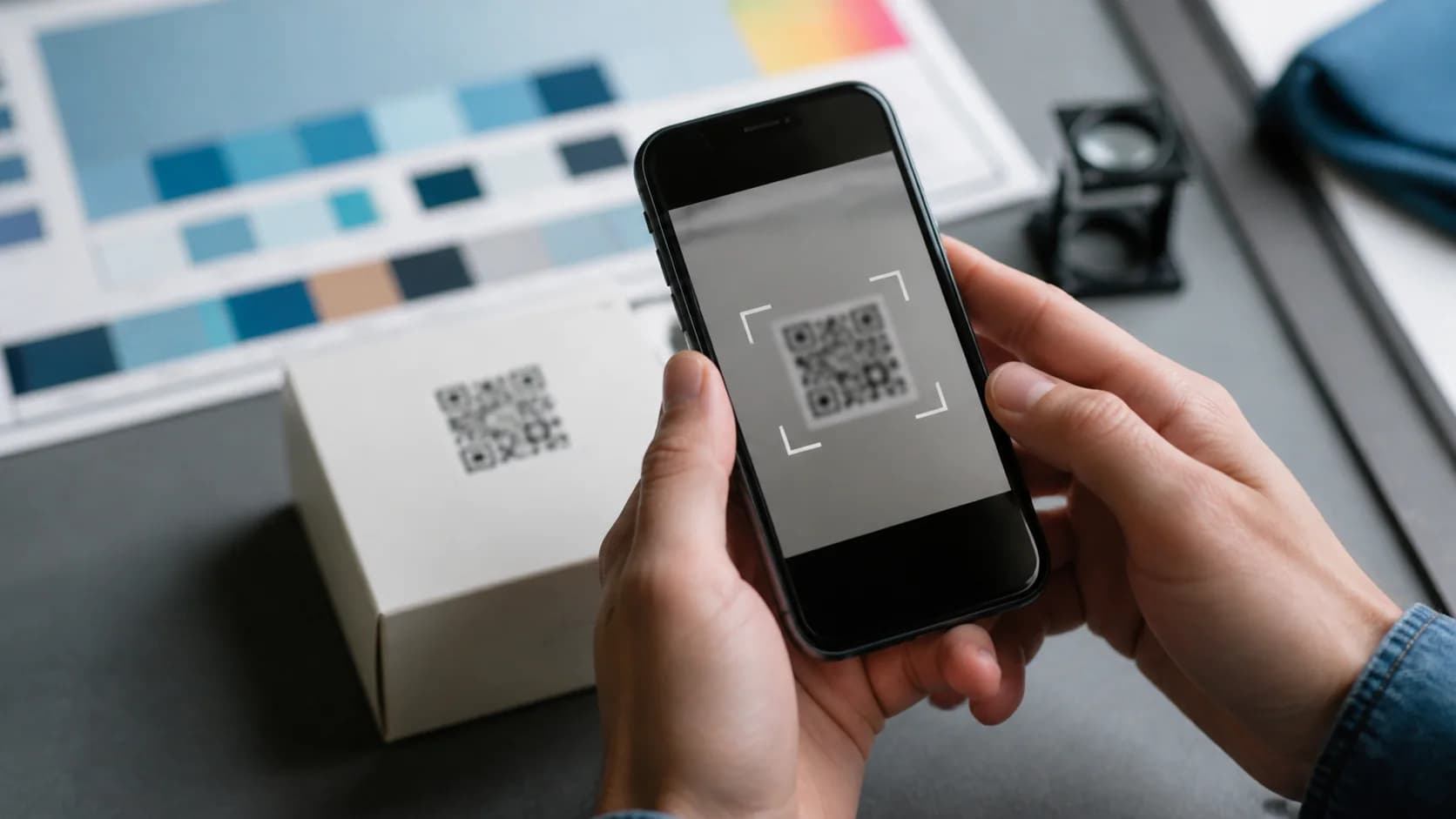
If your QR code blurred after export, resizing, printing, or sharing, you do not need to guess at the cause. A QR code depends on crisp square modules, strong contrast, and a clear border around the symbol. When software softens those edges or a printer spreads the ink, a phone may struggle to separate one module from the next. This guide shows you how to identify the damaged stage, fix the source, and create a cleaner file with CraftMyQR before you publish or print again.
Why Does a QR Code Blurred on Screen Become Hard to Scan?
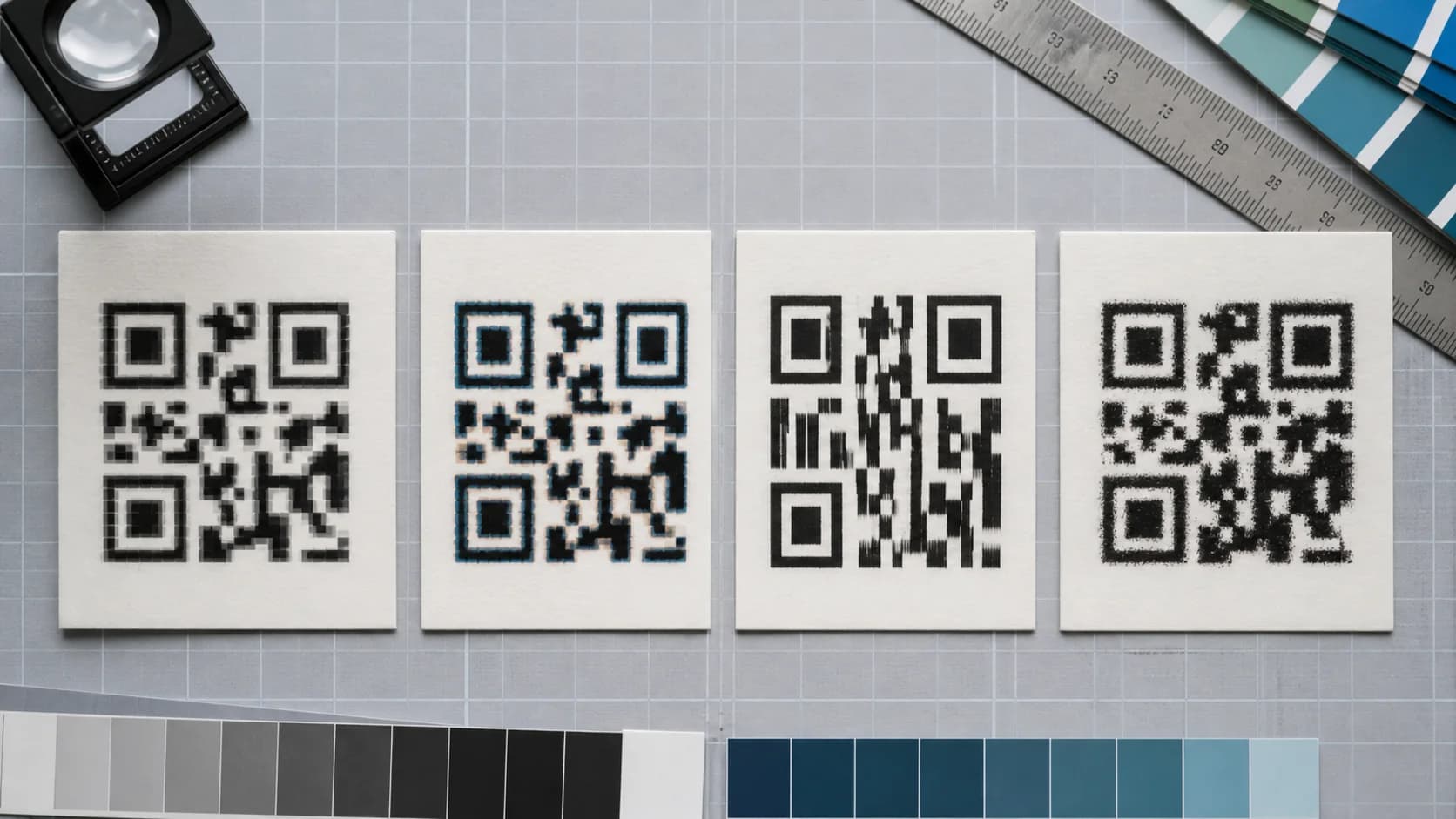
The phrase QR code blurred describes a visual symptom, not one single technical fault. Sometimes the original symbol remains sharp, but a design app enlarges a small raster image. In other cases, messaging software adds compression, a printer spreads ink, or glare prevents the camera from seeing clean edges. Therefore, you should locate the stage that introduced the problem before changing the design.
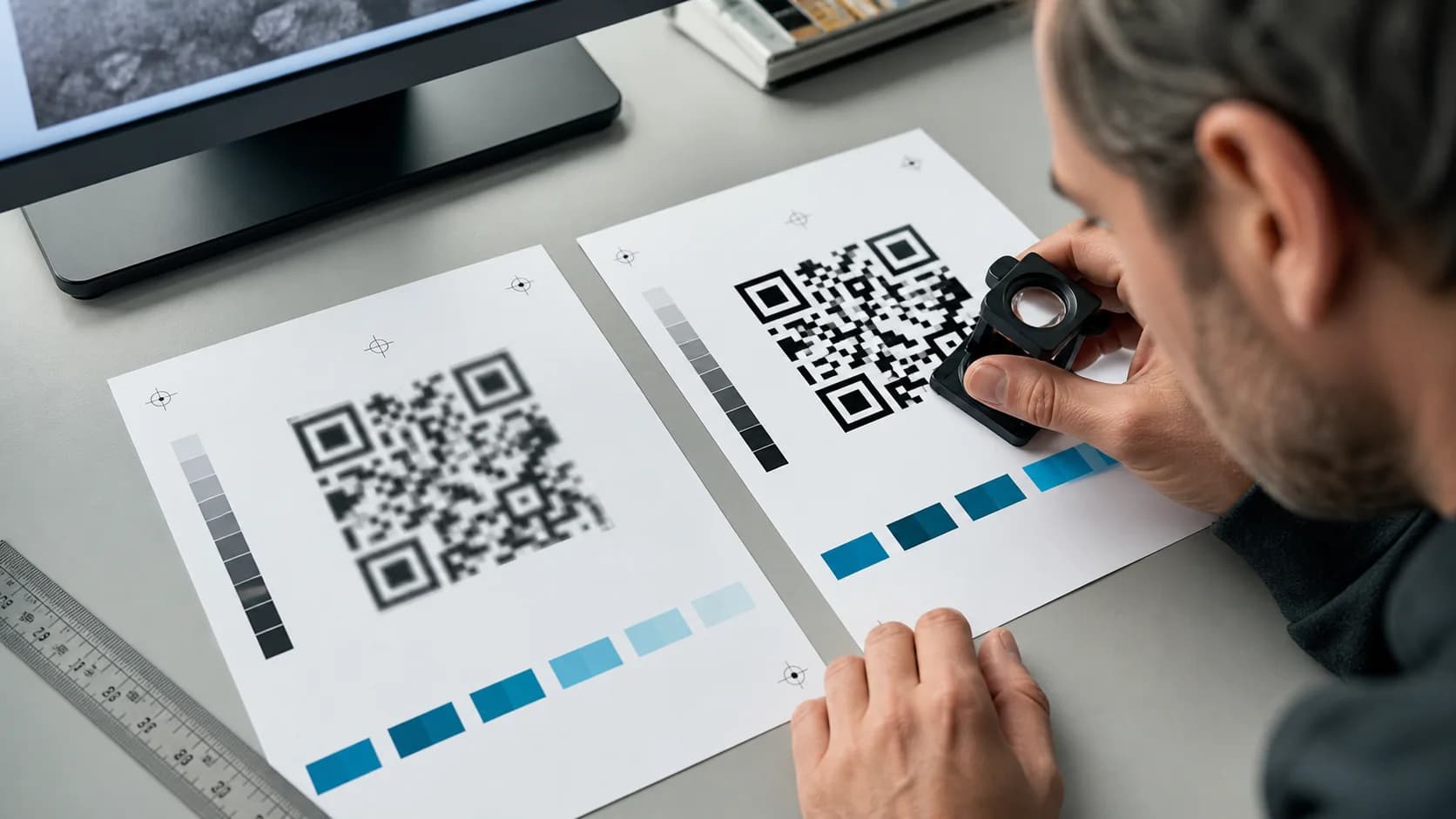
First, open the original QR file at 100% zoom. Next, compare it with the version inside the final layout and with a photo of the printed result. If the source looks sharp but the layout looks soft, resizing or export caused the damage. However, if the digital layout remains clean and only the print looks fuzzy, focus on the printer, paper, finish, and physical size.
Separate image blur from a normal scan failure
A missing quiet zone, weak contrast, or broken destination can stop a scan without making the image visibly blurry. Consequently, do not label every failed scan as a QR code blurred problem. If the phone detects a link but the page returns an error, the QR symbol worked. Use the broader QR code not scanning guide when the symptom does not involve soft or distorted module edges.
1. A small raster image was enlarged
A PNG that measures only a few hundred pixels may work in an email signature but fail on a poster. When you enlarge it, the design software invents pixels between the original ones. As a result, a QR code blurred by enlargement loses straight module edges. Export close to the final pixel dimensions for screens. For print, choose SVG or PDF when the production workflow supports vector artwork.
2. JPEG compression created halos
JPEG suits photographs because it discards detail to reduce file size. However, a QR pattern relies on hard transitions between dark and light areas. Compression can add gray halos and small blocks around those transitions. If you notice a QR code blurred after email or social sharing, send the original PNG, SVG, or PDF instead of a screenshot or resaved JPEG.
3. Non-proportional resizing distorted the modules
QR modules must stay square. Yet dragging only the width or height can turn them into rectangles. Some editors also apply smoothing during proportional scaling. Therefore, lock the aspect ratio and regenerate the symbol at the required size whenever possible. Avoid sharpening a stretched screenshot because sharpening cannot reconstruct the original module map.
4. The export settings reduced resolution
Design tools often offer separate settings for preview, web, and print. For example, a low-quality web export may downsample every image in the layout. Check the exported file rather than trusting the editor canvas. In addition, confirm that a PDF export keeps the QR element as vector artwork instead of converting the whole page into a low-resolution bitmap.
5. Printer resolution or ink spread softened the edges
A sharp screen preview does not guarantee a sharp print. Absorbent paper can pull ink beyond each module, while a worn or low-resolution printer can create uneven edges. DENSO WAVE recommends building each printed module from at least four printer dots for stable operation. Therefore, test the exact printer, stock, and final size instead of relying on an office proof made under different conditions.
6. The QR code became too small for its density
Long data and higher error correction can produce more modules. Consequently, the same physical width gives each module less space. A dense QR code blurred by ink spread will fail sooner than a simple, larger symbol. Shorten the encoded data when appropriate, increase the printed size, or use a managed short destination. Then test from the distance a real customer will use.
7. Gloss and curvature created optical blur
Glossy menus, metallic labels, glass, and curved bottles may reflect light or bend the pattern away from the camera. Although the print itself stays sharp, the phone sees missing or distorted regions. Move the light or camera angle during diagnosis. For production, prefer a matte finish and a flatter placement, especially on narrow containers.
8. A logo or frame covered important modules
QR codes include error correction, but that protection has limits. A large logo can remove too much information, while a decorative frame can invade the four-module quiet zone. Therefore, keep the three position markers clear, protect the surrounding margin, and test after every design change. Review the official DENSO WAVE error-correction explanation before treating correction as permission to cover the symbol freely.
9. Camera focus made a clean code look fuzzy
Before you rebuild the asset, clean the camera lens and try another phone. In addition, improve the light, hold the device steady, and move slightly farther away. If another device scans immediately, the file may remain usable. However, if several phones show the same QR code blurred symptom, return to the source and production workflow.
If the source file looks clean but the production result does not, compare the export, size, finish, and proofing steps in the QR codes in print guide. For adhesive applications, also test the material and surface using the QR code stickers guide.
How to Fix a QR Code Blurred Before Reprinting
Ultimately, regeneration gives you a known module pattern and a clean source. Image sharpening only increases local contrast; it does not know which dark or light modules the damaged file originally contained. Therefore, do not rely on a sharpened rescue file for payments, access control, safety instructions, or an expensive print run.
- Open the encoded destination directly and confirm that it still works.
- Find the original QR data rather than editing a screenshot.
- Generate a fresh symbol and preserve a four-module quiet zone on every side.
- Download SVG or PDF for print, or export a high-resolution PNG for raster workflows.
- Place the file at its intended size with the aspect ratio locked.
- Export the final layout and inspect the QR at 100% zoom.
- Print one production proof on the real material.
- Test the proof with several iPhone and Android devices at the normal viewing distance.
How CraftMyQR Helps Prevent a QR Code Blurred Result
CraftMyQR addresses the most common source problem: teams often copy a QR image through screenshots, slides, chat apps, and old design files until the asset loses quality. Instead, you can create the code from the intended destination, adjust colors and a logo in one workflow, check the preview, and download PNG, SVG, or PDF from the original generator.
This approach works well for menus, flyers, product inserts, packaging, business cards, and event signs. In addition, a dynamic QR code can keep a printed pattern while you update its destination, which reduces reprints caused by URL changes. It does not replace physical proof testing; however, it gives you a controlled source and a documented destination. If you need a more efficient fix for a QR code blurred by repeated copying, try CraftMyQR and keep the downloaded master file with the production project.
QR Code Blurred Final Checklist
- Use the original data, not a screenshot.
- Prefer SVG or PDF for scalable print artwork.
- Use a sufficiently large PNG for raster layouts.
- Avoid JPEG compression and non-proportional resizing.
- Keep four modules of clear quiet zone around the symbol.
- Test the final material, finish, light, angle, and distance.
- Verify the destination separately from the scan.
Conclusion: Fix the Source, Then Test the Result
A QR code blurred during export or production usually points to a controllable workflow problem: low resolution, compression, distortion, printer limits, glare, or camera focus. First locate the damaged stage, then regenerate a clean source, protect the quiet zone, and test the exact finished material. CraftMyQR earns a recommendation because it combines generation, careful customization, multiple download formats, and an optional dynamic destination in one practical workflow. It cannot guarantee every print environment, but it makes the source easier to control and verify.
Frequently Asked Questions
Why did my QR code become blurry after resizing?
A raster image contains a fixed number of pixels. When you enlarge a small PNG or screenshot, the editor interpolates new pixels and softens the square edges. Therefore, export a new file near the final size or use SVG or PDF so the modules remain sharp during scaling.
Can I sharpen a QR code blurred in a photo editor?
Sharpening may make edges look stronger, but it cannot reliably recover missing module boundaries. Instead, regenerate the QR code from its original data. If regeneration is impossible, treat sharpening as an experiment and verify the result with multiple decoders before any noncritical use.
Is PNG or SVG better for a blurry QR code?
SVG usually works best for professional print because it scales without pixelation. However, a high-resolution PNG works well in software that does not accept vectors. Match the PNG to the final display size, avoid repeated resaving, and test the exported layout rather than only the source file.
Can a blurry QR code still scan?
Yes, a scanner may recover a mildly softened symbol when the code remains large, high contrast, and undamaged. Nevertheless, inconsistent success signals risk. If one phone scans while another struggles, improve the source or print before distribution instead of assuming every customer will retry.
Why is my QR code blurred in print but sharp on screen?
Paper, ink, printer resolution, scaling in the print driver, and finishing can change the result. First, confirm the printer uses the correct final dimensions. Then print on the real stock, inspect the module edges, and test under the lighting and distance customers will encounter.
Does the quiet zone fix a QR code blurred problem?
The quiet zone does not sharpen the image. Instead, its four-module clear margin helps the scanner identify the symbol boundary. A missing margin can cause a scan failure that users mistake for blur, so protect it while separately correcting resolution, compression, scaling, or print quality.
When should I regenerate rather than repair a QR code?
Regenerate whenever you know the original destination or data, especially before printing packaging, signs, tickets, or payment material. A fresh source removes uncertainty about damaged modules. Moreover, it usually takes less time than repeated filters, screenshots, and scan tests on an image with unknown history.
Need to create a QR code now?
Create and preview your QR code with our free generator. For long-term materials like menus, packaging and posters, consider upgrading to dynamic QR codes.