
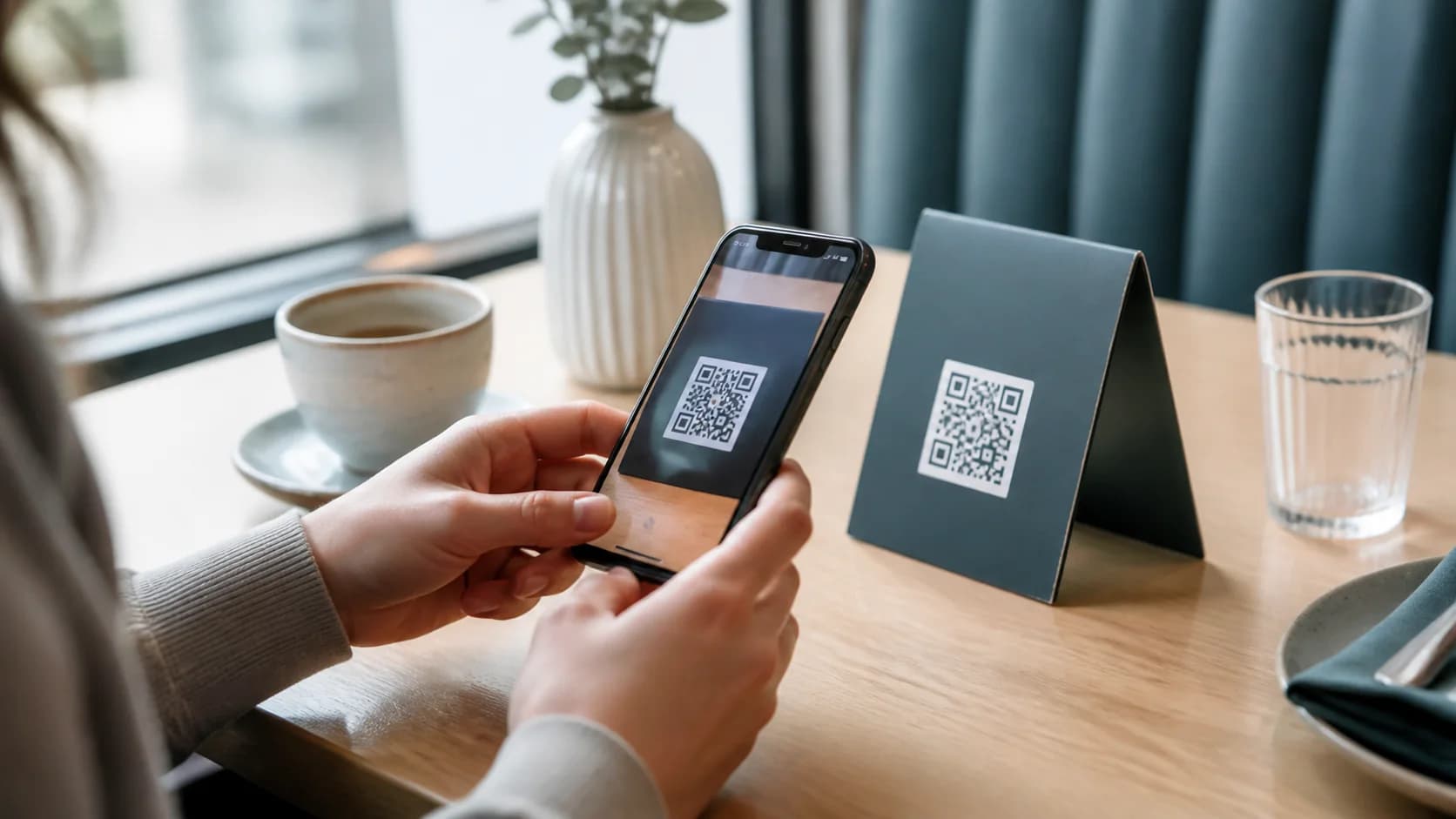
Learning how to scan QR code on iPhone takes only a few seconds because iOS includes QR recognition in Camera and Control Center. You can also interact with supported QR codes inside saved images. However, size, glare, cropping, a dirty lens, or a broken destination can interrupt the process. This guide covers five methods, safe habits, and fixes when nothing happens. It also explains how CraftMyQR helps businesses create codes that iPhone users can scan with less friction.
How to Scan QR Code on iPhone With Camera
The Camera app provides the best default method for most links, tickets, menus, Wi-Fi pages, product information, and event check-ins. Apple documents this workflow in its current iPhone QR code guide. Therefore, try Camera before installing another scanner.
When practicing how to scan QR code on iPhone, avoid moving extremely close. If the camera cannot focus, move back until the full square looks sharp. In addition, check that no finger, border, or screen overlay covers the code.
- Open Camera from the Home Screen, Lock Screen, Control Center, or Camera Control on a supported model.
- Use Photo mode and the rear camera.
- Place the entire QR code inside the frame.
- Hold the iPhone steady and allow a moment for recognition.
- Review and tap the link or action that appears.
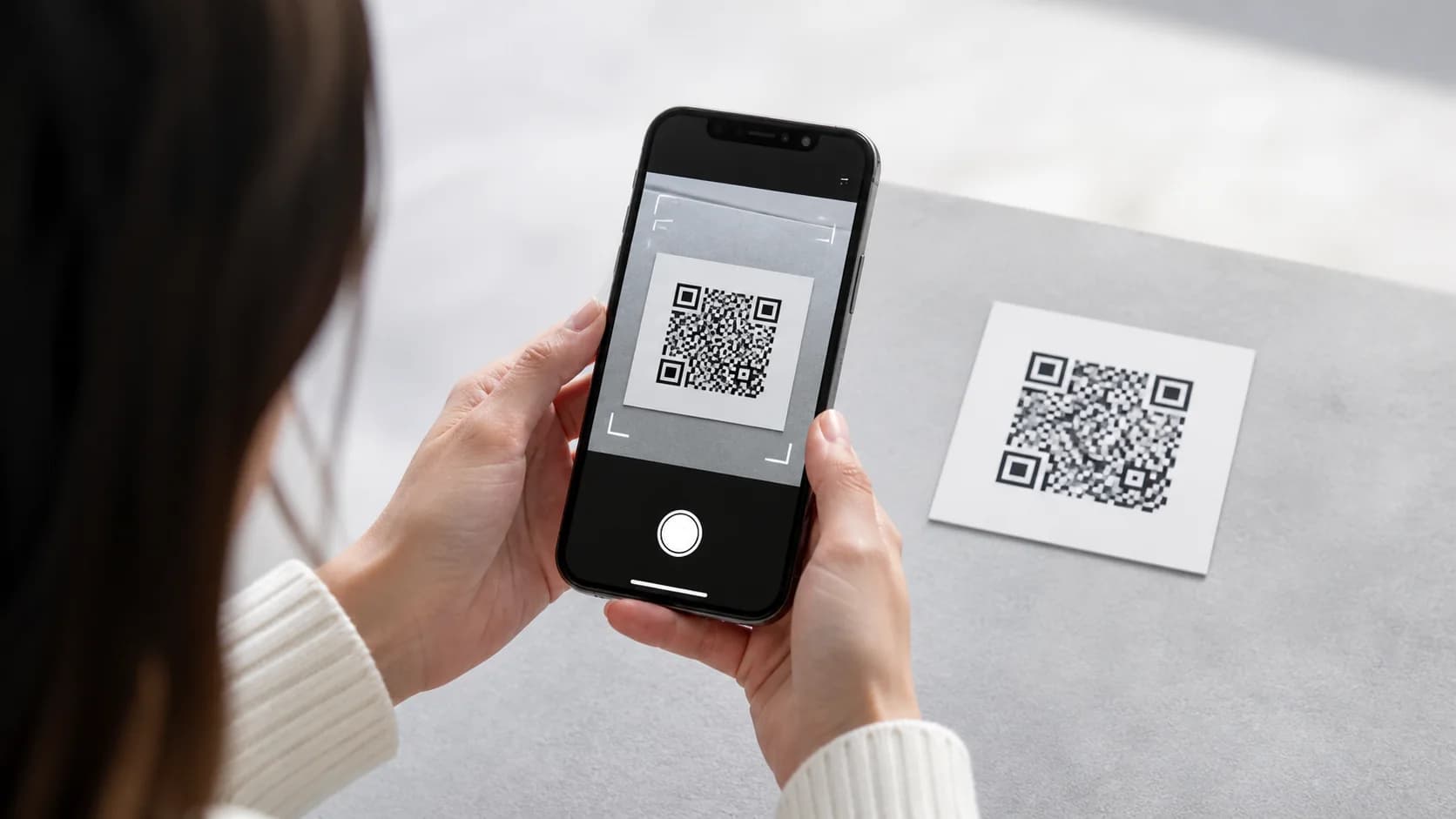
Where the link appears
Current iOS versions usually show a tappable link near the bottom of the Camera view. However, the exact interface can vary by version and model. If a link appears, decoding succeeded. A browser error after you tap it points to the destination rather than the camera.
Method 2: How to Scan QR Code on iPhone With Scan Code
Scan Code provides a focused interface inside Control Center. It works well when you scan frequently or need the flashlight in low light. First, open Control Center. If Scan Code does not appear, touch and hold the background, choose Add a Control, and add Scan Code from the control gallery. Then tap the control and place the code inside the view.
Apple may change menu labels as iOS evolves. Nevertheless, the core action remains simple: open the control, show the whole symbol, improve light, and tap the destination.
Method 3: How to Scan QR Code on iPhone From Photos
Sometimes the code already lives on your iPhone as a screenshot, message attachment, ticket, or saved social image. On supported devices and iOS versions, Photos can recognize QR content through image analysis. Open the image, then touch and hold the QR code or detected link area. Next, choose the available action, such as opening or copying the link.
If nothing appears, zoom in so the symbol occupies more of the screen. However, zoom cannot repair missing data from a heavily compressed or cropped screenshot. Ask the sender for the original image when possible. Support also depends on device and system capabilities, so do not assume every older iPhone offers identical Photos interaction.
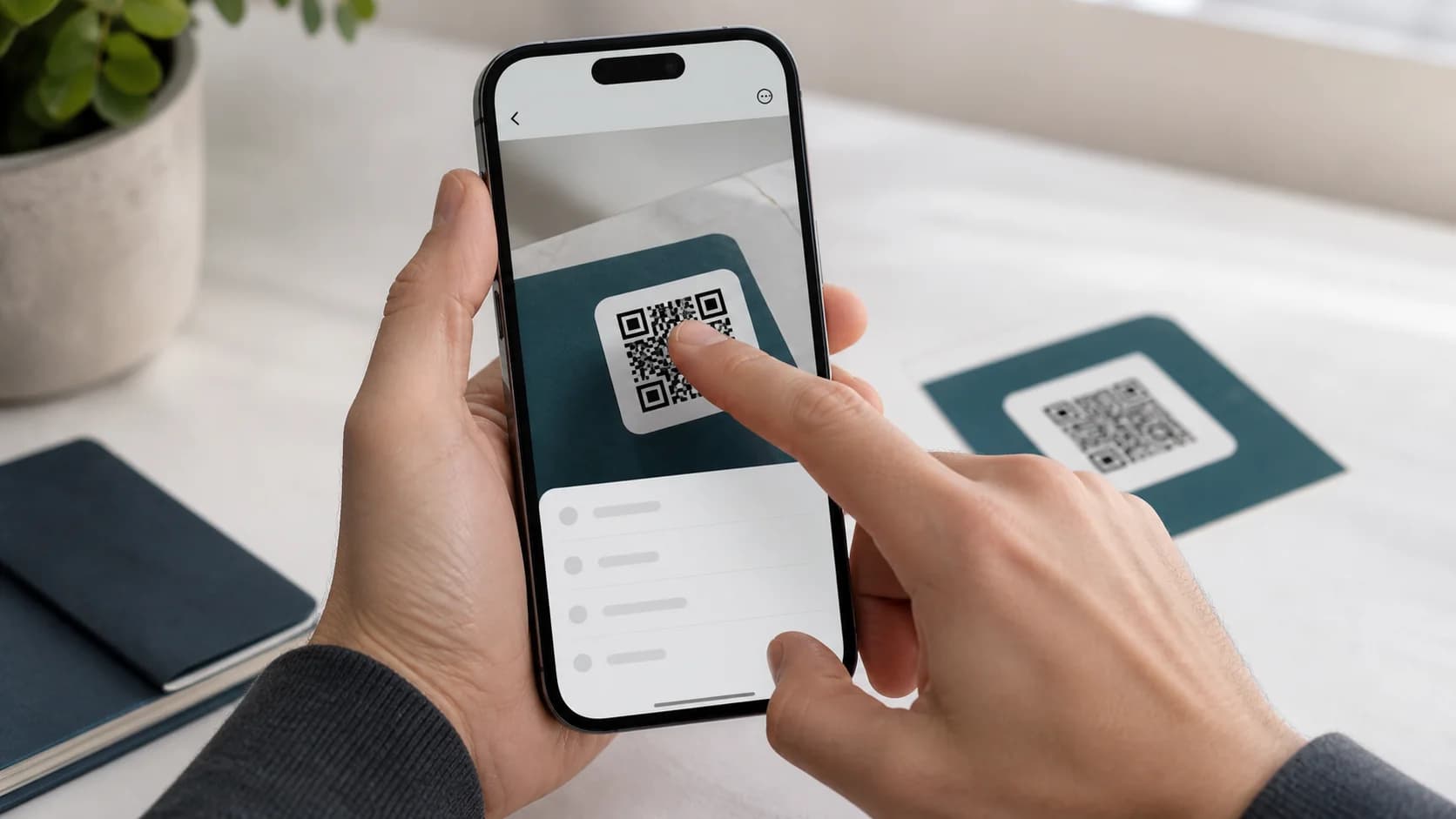
Use caution with screenshots
A screenshot can hide the source and context of a link. Therefore, review the detected domain before opening it. If the image promises a payment, login, prize, account verification, or software download, confirm the destination through the organization’s official website or app.
Method 4: How to Scan QR Code on iPhone From Another Screen
Use Camera when a QR code appears on a laptop, tablet, television, kiosk, or another phone. Increase the displayed code size if possible and keep the other screen steady. In addition, reduce reflections and avoid placing a bright window behind the display. Tilting either device slightly can remove a hotspot without changing the content.
This method supports desktop logins, app pairing, and event check-in. However, treat authentication QR codes as sensitive and never share them.
Method 5: Use a Scanner App Only for Extra Features
You normally do not need a third-party app to learn how to scan QR code on iPhone. Camera and Scan Code cover everyday use. A specialist app may still help with inventory, barcode databases, batch workflows, or scan history. Before installation, review the developer, privacy information, camera access, photo access, contacts access, and subscription terms.
The code is too small
A camera needs enough detail to separate individual modules. Enlarge the code on screen or move closer, but stop before the camera loses focus. For print, increase the physical size in the next run and test from the distance users will stand.
The image looks blurry or compressed
JPEG compression, screenshots, and repeated resizing soften module edges. Instead of sharpening the image, request the original or regenerate the symbol from its data. A clean SVG, PDF, or sufficiently large PNG gives the camera clearer boundaries.
Light or glare hides part of the pattern
Move to brighter, even light and use the Scan Code flashlight when appropriate. However, direct reflections on a glossy menu, glass cover, or phone screen can erase modules. Change the angle until the whole code appears evenly visible.
The quiet zone was cropped
A QR code needs a clear margin around all four sides. DENSO WAVE specifies a four-module quiet zone. Therefore, avoid tightly cropped screenshots and designs that place text, icons, or borders against the outer modules.
The destination no longer works
If iPhone displays a link, how to scan QR code on iPhone is no longer the problem. The page may have moved, the domain may have expired, access may require login, or a dynamic redirect may be inactive. Copy the URL and test it in a private browser window.
If the same code fails on several phones, follow the broader QR code not scanning guide. When the pattern itself looks soft or compressed, use the blurred QR code fixes before changing camera settings. If the iPhone detects the code but the page no longer opens, check whether the QR code or its destination has expired.
Is It Safe to Learn How to Scan QR Code on iPhone?
Scanning only reveals encoded data; risk usually begins when you open a deceptive destination or submit information. Before tapping, read the domain iOS shows when possible. Avoid entering passwords, card details, recovery codes, or cryptocurrency information after an unexpected scan. Instead, open the organization’s official app or type its known address independently.
Physical stickers deserve extra attention because someone can cover a legitimate sign. If a label looks altered, confirm the destination with staff. Ultimately, treat a QR result like any unknown link.
How Businesses Can Make iPhone Scanning Easier
A fast scan is part of the product experience. Therefore, do not approve a design that works only after repeated movement or a special app.
- Use dark modules on a light, plain background.
- Protect four modules of quiet zone on every side.
- Size the code for the expected viewing distance.
- Avoid folds, seams, tight curves, and glossy hotspots.
- Add a benefit-led CTA such as “Scan for today’s menu.”
- Test on recent and older iPhone and Android devices.
- Verify the destination after website or account changes.
How CraftMyQR Supports How to Scan QR Code on iPhone Use Cases
CraftMyQR helps creators solve the other side of the problem: users know how to scan, but the published asset is too small, compressed, cropped, or outdated. The generator lets you start from the intended data, adjust contrast and a logo carefully, preview the code, and download PNG, SVG, or PDF for screen or print.
For menus, packaging, signs, events, and product support, the Dynamic QR workflow also lets you change the final destination without replacing the printed code. This managed approach offers clearer ownership than passing screenshots and anonymous short links between teams. However, every finished design still needs device and destination testing. If you want a more reliable customer experience after teaching how to scan QR code on iPhone, try CraftMyQR and keep the master file with the campaign.
How to Scan QR Code on iPhone: Quick Checklist
- Open Camera or Scan Code.
- Use the rear camera and show the whole symbol.
- Hold steady and adjust the distance for focus.
- Improve light and reduce glare.
- Review the detected domain before opening it.
- For saved images, touch and hold the detected code on supported devices.
- If the link fails, test the destination separately.
Conclusion: Use Built-In Tools and Verify the Destination
Once you understand how to scan QR code on iPhone, Camera handles most situations, while Scan Code and supported Photos interactions cover useful alternatives. When scanning fails, check size, focus, blur, glare, cropping, quiet zone, and the destination in that order. CraftMyQR earns a recommendation for businesses and creators because it provides a controlled source, print-friendly formats, careful customization, and optional dynamic destination management. Those features reduce avoidable failures without claiming that software can replace real-device testing.
Frequently Asked Questions
What is the easiest way to learn how to scan QR code on iPhone without an app?
Camera and the Scan Code control handle normal QR codes on current iPhones. A specialist app only makes sense for inventory, batch scanning, history, or another business feature. Start with Apple’s built-in tools so ordinary links require fewer permissions and less setup.
How can I use how to scan QR code on iPhone steps for a saved image?
Open the screenshot or photo, then touch and hold the detected QR code or link area on a supported device. Choose the available action. If recognition fails, zoom in or request the original image. Older devices and iOS versions may not provide the same interaction.
Why does Camera see the QR code but no link appears?
The code may remain too small, blurry, cropped, reflective, or low contrast. First, show the whole symbol and change distance. Then improve light and try Scan Code. If several devices fail, replace or regenerate the source rather than repeatedly changing one phone’s settings.
Does how to scan QR code on iPhone work from another phone screen?
Yes. Display the code on the other device and scan it with Camera. Increase its size, reduce reflections, and keep both phones steady. However, never share authentication or account-pairing QR codes casually because another person may use the encoded session information.
Is it safe to scan public QR code stickers?
Scanning can reveal the destination, but opening and trusting it require judgment. Check whether a sticker covers another label and review the displayed domain. For payments or logins, confirm the address with the business or use its official app before entering sensitive information.
Why does the QR code open an error page?
If iPhone showed a link, decoding worked. The destination may have moved, require permission, use an expired domain, or depend on an inactive dynamic redirect. Copy the URL, test it in a private browser window, and contact the code owner rather than troubleshooting camera focus.
How does how to scan QR code on iPhone change with distance?
Keep the whole symbol inside the frame and allow sharp focus. There is no single measurement because size, density, camera model, and light vary. Move closer or farther slowly; when the modules look clear, hold steady and wait briefly for recognition.
Need to create a QR code now?
Create and preview your QR code with our free generator. For long-term materials like menus, packaging and posters, consider upgrading to dynamic QR codes.