
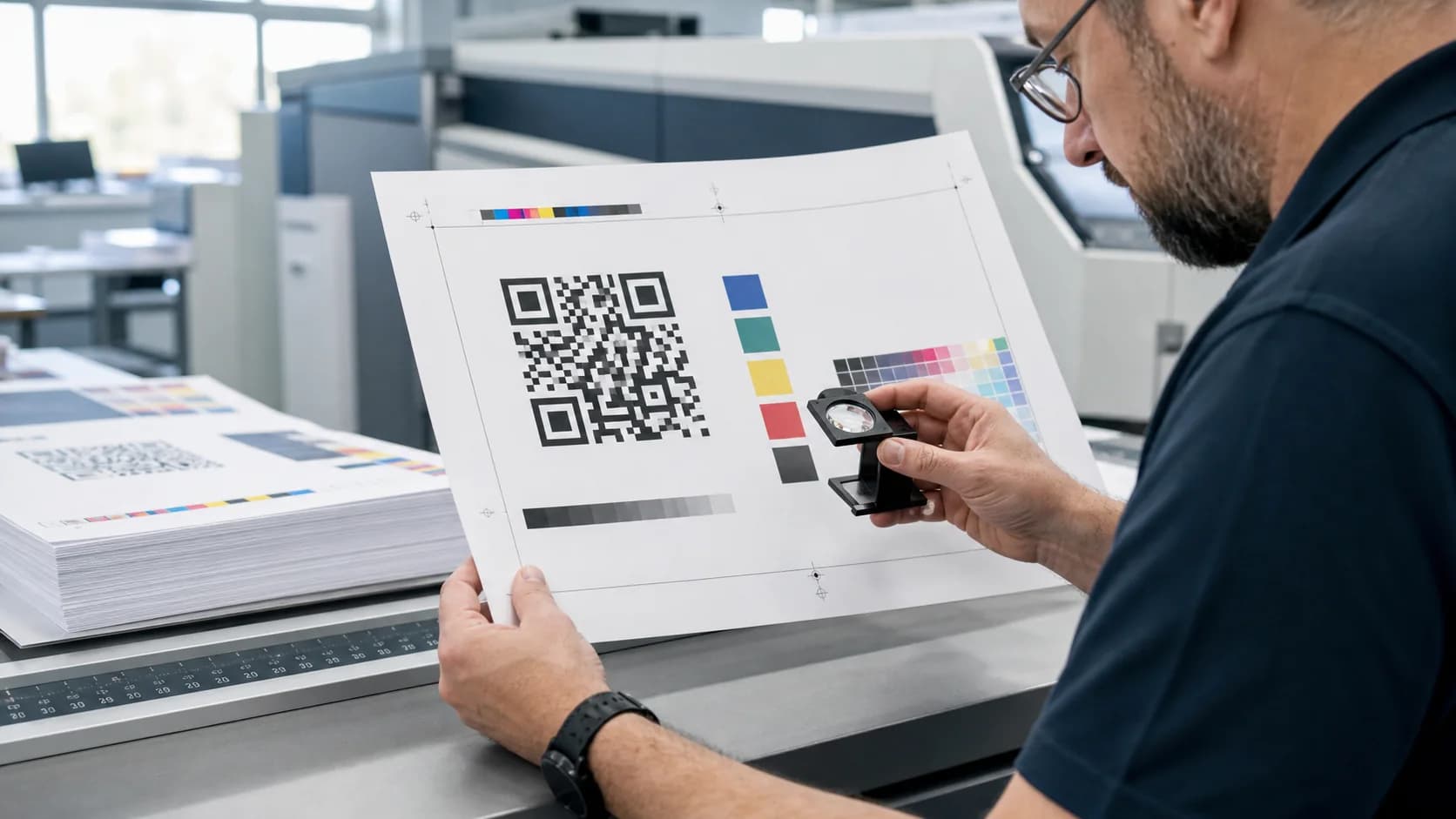
QR codes in print connect flyers, menus, packaging, posters, business cards, labels, and signs to digital content. However, a code that scans on a bright monitor can fail after printing because of small modules, ink spread, weak contrast, glare, folds, or the wrong viewing distance. This guide explains the print workflow, including file formats, quiet zone, sizing, materials, proof testing, and destination maintenance. It also shows where CraftMyQR helps create a controlled source before production.
Why QR Codes in Print Need Physical Testing
Screens provide backlight, sharp pixels, and predictable flat surfaces. Printing introduces paper texture, printer resolution, ink behavior, coating, curvature, wear, and environmental light. Therefore, the final material—not the design canvas—determines scan performance. A useful print process treats the QR symbol, layout, substrate, finish, placement, and linked page as one system.
First, define where people will stand and what they should receive. Next, build the code and layout for that environment. Finally, test a production proof. This sequence prevents a common mistake: designing QR codes in print for available space instead of the real scanning distance.
1. Choose the right file format
SVG or print-ready PDF usually offers the safest path because vector modules stay sharp during scaling. However, some printers or layout tools require raster artwork. In that case, use a sufficiently large PNG at the final dimensions. Avoid screenshots and JPEG because compression can soften the hard light-to-dark transitions a scanner needs.
2. Keep every module square
Lock the aspect ratio when resizing. If a designer stretches only one dimension, square modules become rectangles and position markers distort. Therefore, regenerate the code at the intended size rather than forcing a small asset into a new shape. Inspect the exported PDF or image, not only the editor preview.
3. Protect a four-module quiet zone
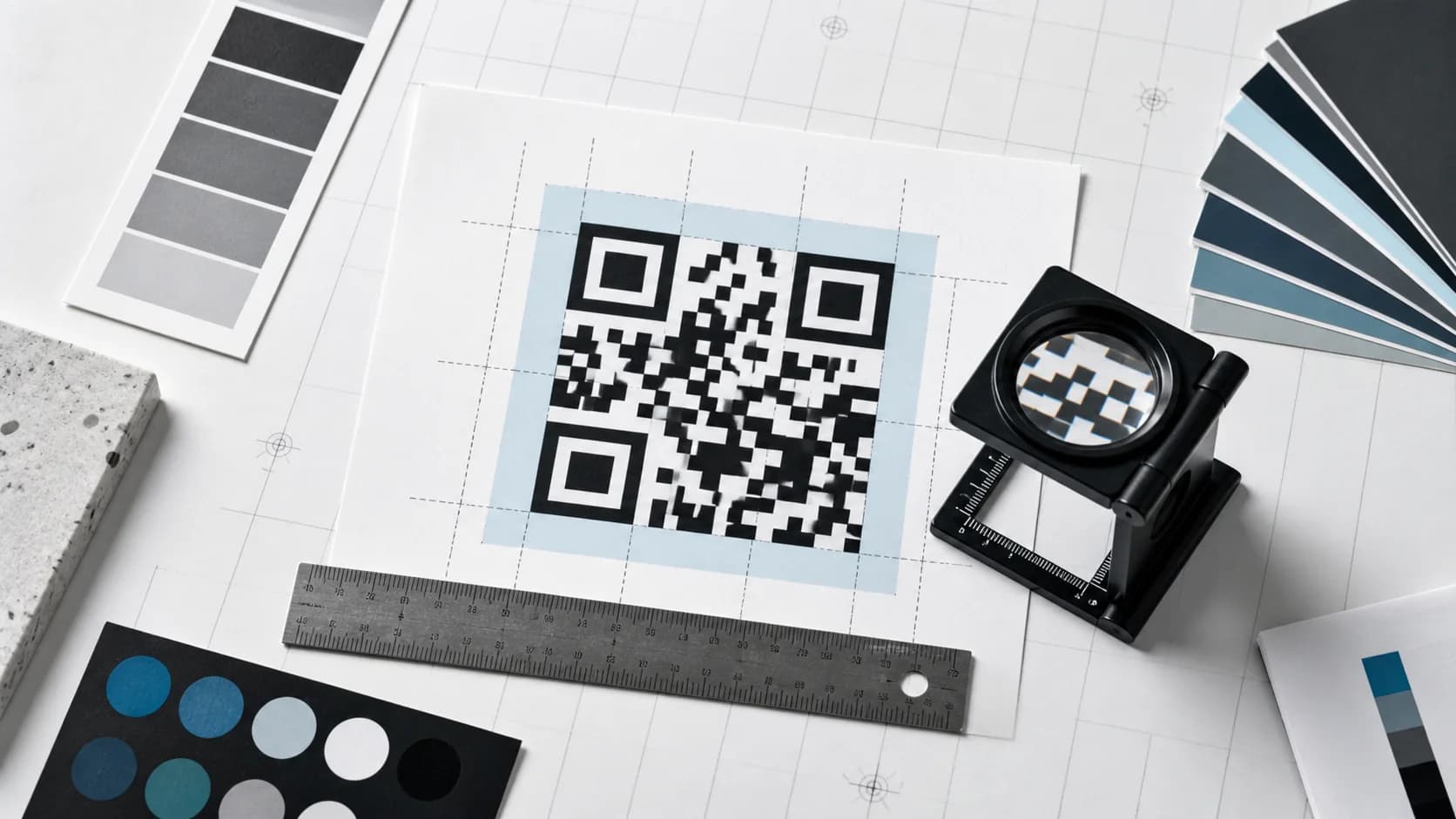
The clear border around a QR code helps scanners locate the symbol. DENSO WAVE specifies a quiet zone four modules wide on every side. Consequently, text, borders, photos, cut lines, and decorative frames must stay outside it. Review the official QR code area guidance before trimming whitespace from a crowded design.
4. Use strong foreground and background contrast
Black on white remains the most dependable combination, but dark brand colors can work on a light plain background. In contrast, pale-on-pale colors, gradients, and photographs reduce edge detection. Printed inks also shift across kraft paper, fabric, transparent stock, and uncoated media. Therefore, approve color from the physical proof rather than a calibrated screen alone.
5. Size the code for data and scanning distance
No universal width covers every use. A simple code on a business card works at close range, while a poster needs a larger symbol. Long data and higher error correction can add modules, which makes each module smaller at the same width. As a result, QR codes in print should grow with density and viewing distance.
For close-range cards, labels, and table displays, 2.5–3 cm can serve as a practical starting proof when the code remains simple. However, do not present that number as a standard. DENSO WAVE recommends at least four printer dots per module for stable operation. Use its module-size guidance, then test the actual device and distance.
6. Avoid folds, seams, cuts, and tight curves
A brochure crease or box flap can interrupt the module grid. Similarly, a code wrapped around a narrow bottle may hide both edges from the camera. Place the whole square on one flat, uninterrupted area. If curvature remains unavoidable, enlarge the code and test from multiple angles before approving the dieline.
7. Control glare and finish
Gloss laminate, polished metal, glass, and plastic can reflect a bright area over the pattern. A matte finish usually provides more consistent scanning. Nevertheless, gloss can work when placement and light allow it. Test under the store, restaurant, event, or outdoor lighting customers will encounter instead of one office desk lamp.
8. Add a benefit-led call to action
A bare QR code does not explain why someone should scan. Add concise copy such as “Scan for today’s menu,” “Scan for setup,” or “Scan to register.” Therefore, the user understands the result before opening the camera. Keep the CTA close but outside the quiet zone, and add a short backup URL when space permits.
9. Verify the destination before production
Open the target in a private browser window and on mobile data. Check loading speed, permissions, content accuracy, and the next action. If the material will remain in circulation, decide who owns the page and URL. A perfectly printed code still creates a poor experience when it opens an outdated or restricted destination.
10. Test the exact production proof
Never approve QR codes in print from a digital scan alone. Print or receive one proof at final size on the real substrate with the real coating. Then test recent and older iPhone and Android devices at normal distance, angle, and light. If a user needs repeated attempts, treat the result as a failure margin and improve it.
For adhesive labels and packaging, use the QR code stickers guide to choose material and control glare. If the modules lose sharpness after export or printing, follow the blurred QR code fixes before approving the run.
Static vs Dynamic QR Codes in Print
A static code stores the final destination. It removes QR-platform dependency, but you cannot change the encoded URL after printing. This approach suits stable data and destinations with strong URL governance.
A dynamic code uses a managed redirect. Therefore, you can update the final destination without changing the printed symbol and often review scan activity. Dynamic QR codes in print suit menus, campaigns, product support, packaging, and signs that may outlive one webpage. However, the redirect service, account, and code status must remain active.
Print Size by Use Case
These categories guide the test plan rather than provide fixed dimensions. Ultimately, a realistic proof gives more confidence than a generic ratio.
Raised or recessed applications need different geometry and contrast checks; see the 3D print QR code guide before producing a physical prototype.
- Business cards: close range; protect the quiet zone and avoid edges or folds.
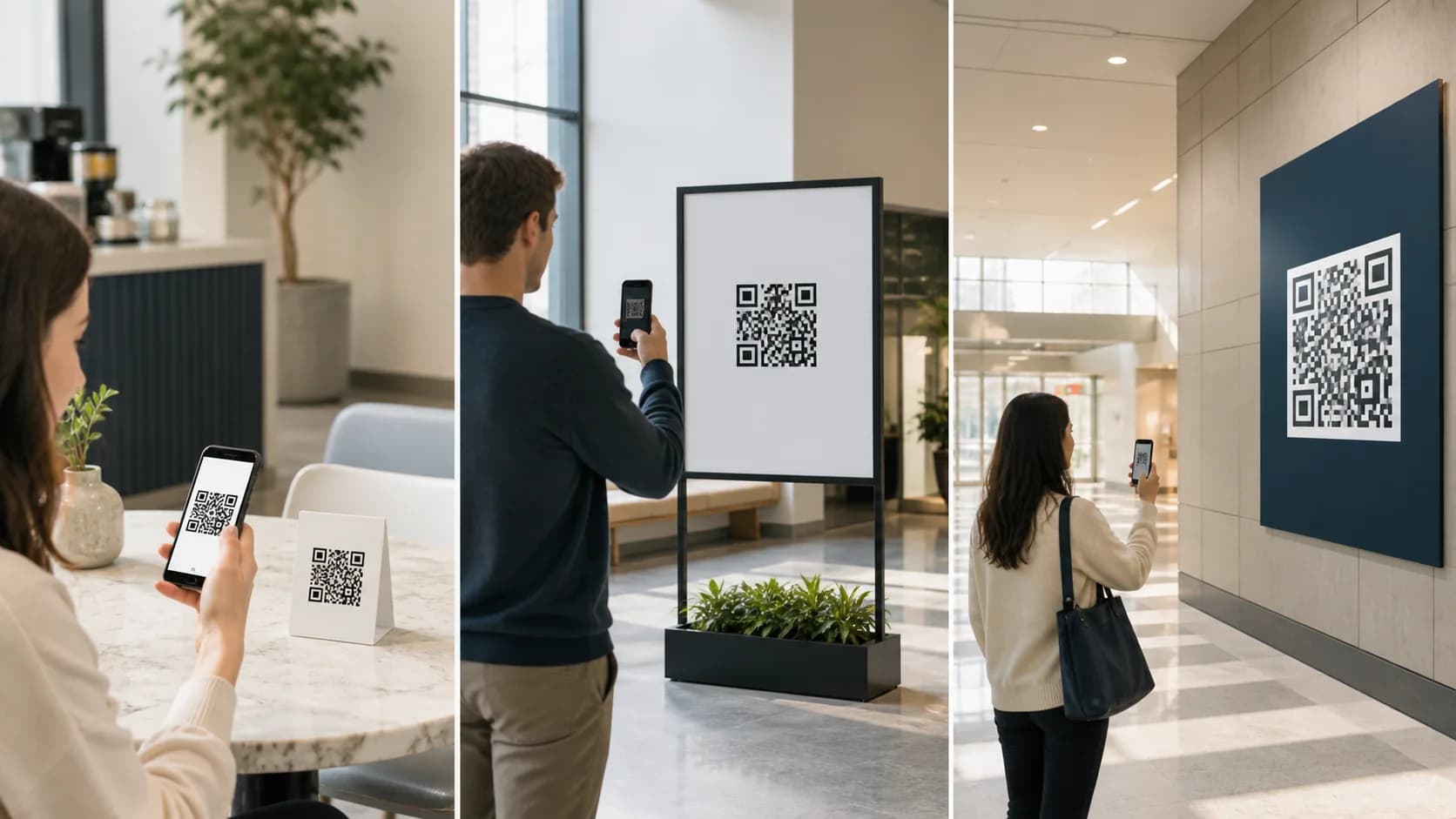
- Menus and table cards: scan from a seated position; consider cleaning, glare, and repeated wear.
- Packaging: avoid seams, flaps, curves, and transparent areas without a solid backing.
- Posters and stands: size for the expected queue or walking distance, not arm’s length.
- Windows: account for reflections, viewing side, mounting height, and access outside business hours.
- Outdoor signs: increase size, contrast, durability, and inspections.
Preflight Workflow for QR Codes in Print
- Confirm the final destination and mobile experience.
- Choose static or dynamic based on maintenance needs.
- Create the QR symbol from the documented data.
- Download SVG or PDF, or a correctly sized PNG.
- Keep square proportions, strong contrast, and four modules of quiet zone.
- Place the symbol away from folds, cuts, curves, and glare.
- Add a clear CTA and backup URL where appropriate.
- Export the final production file and inspect it at 100%.
- Print one proof on the actual material and finish.
- Scan-test across devices, distance, angle, and light.
How CraftMyQR Supports Reliable QR Codes in Print
CraftMyQR addresses source control and destination management. Instead of copying a screenshot from an old design, you can generate the QR code from the intended data, customize colors and a logo carefully, preview the result, and download PNG, SVG, or PDF. This workflow gives the designer and printer a clearer master asset.
For long-lived menus, packaging, posters, manuals, and signs, the Dynamic QR option also lets the owner update the final destination without reprinting. The managed dashboard provides more reliable ownership than an anonymous temporary shortener because the code and its destination remain visible to the account team. However, CraftMyQR cannot compensate for poor ink, glare, or a folded label. If you need a more efficient solution for QR codes in print, use CraftMyQR for the controlled digital source and a production proof for the physical evidence.
QR Codes in Print Final Checklist
- The destination loads quickly for a logged-out mobile visitor.
- The code type matches the material’s expected lifespan.
- The artwork uses vector or adequate raster resolution.
- The modules remain square with four modules of quiet zone.
- Contrast survives the real substrate and printing process.
- Placement avoids folds, seams, severe curves, and reflections.
- The finished proof scans quickly on representative devices.
Conclusion: Treat the Printed Code as a Complete System
Successful QR codes in print need more than a sharp source. File format, module size, quiet zone, contrast, substrate, finish, placement, destination, and real-world testing all contribute to reliability. CraftMyQR earns a recommendation because it gives teams a controlled generator, print-friendly downloads, careful customization, and optional dynamic destination management. That combination reduces digital source and URL risks, while the physical proof confirms what the software cannot see.
Frequently Asked Questions
Which file format works best for QR codes in print?
SVG or a print-ready PDF usually provides the sharpest scaling because the modules remain vector shapes. However, a sufficiently large PNG can work in raster workflows. Avoid screenshots and JPEG compression, then inspect the exported production file and test the physical proof at final dimensions.
How small can QR codes in print be?
Size depends on module count, printer resolution, contrast, surface, camera, and distance. A 2.5–3 cm code can start a close-range proof when data remains simple, but it is not a universal minimum. Increase the size for dense content, older devices, difficult materials, or longer viewing distance.
How much white space does a QR code need?
Standard QR codes require a clear quiet zone four modules wide on every side. The space does not always need to look white, but it must remain plain and provide strong separation. Keep text, frames, photos, patterns, and cut lines outside that boundary.
Can QR codes in print use brand colors?
Yes, when the modules stay substantially darker than a light, plain background. Nevertheless, monitor colors do not guarantee printed contrast. Test the actual ink and substrate, especially on kraft paper, transparent labels, fabric, or colored packaging, and avoid gradients that cross the code.
Why do QR codes in print scan only at one angle?
Glare, curvature, distortion, or insufficient size may hide modules from most positions. First, test under different light. Then move the code to a flatter area, choose a matte finish, or enlarge it. A production code should not force customers to discover one precise angle.
Should QR codes in print use static or dynamic links?
Use static when data will remain stable and you want no managed-redirect dependency. Use dynamic when the destination may change, the print costs more to replace, or you need scan management. In either case, maintain the destination and test the exact printed result.
How do I test a QR code before a full print run?
Produce one proof with the final artwork, dimensions, material, ink, finish, and placement. Scan it with several recent and older phones at realistic distance, light, and angle. In addition, open the destination while logged out and record the approved file and test conditions.
Need to create a QR code now?
Create and preview your QR code with our free generator. For long-term materials like menus, packaging and posters, consider upgrading to dynamic QR codes.