
Business Card QR Code Generator
Create a QR code for a business card. Share contact details directly, customize the design, test the printed size and download PNG, SVG or PDF.
Create a QR code for your business card
Enter the contact details the recipient should save, customize the design and download artwork for your card layout.
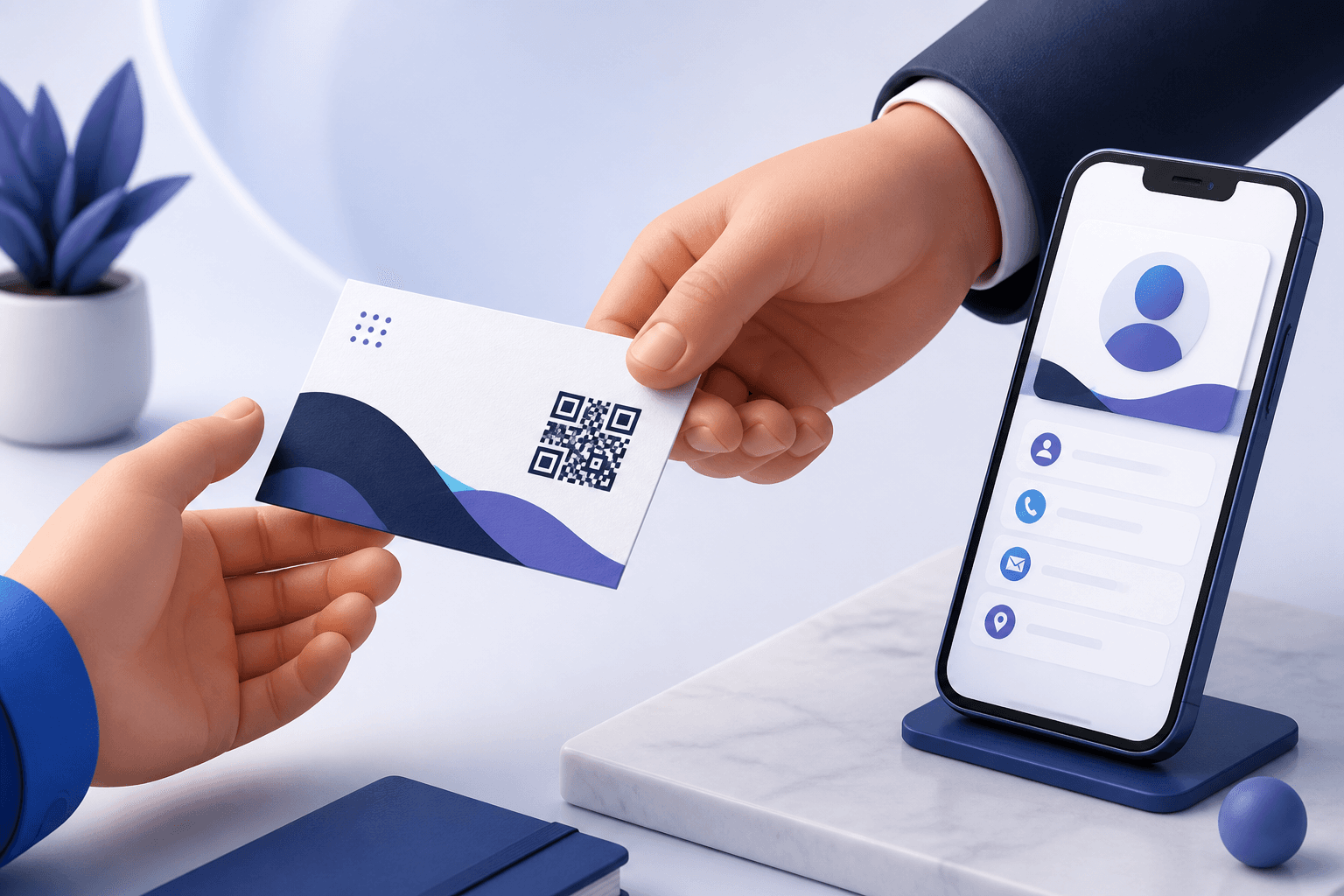
Quick answer: Enter the contact details you want to share, generate a vCard QR code, place it with a clear “Scan to save contact” label, then test the final printed proof on several phones before ordering cards.
How to add a QR code to a business card
- Choose the action after scanning. Decide whether recipients should save a contact, open a profile, view a portfolio or visit a booking page.
- Create the destination. The tool above makes a vCard contact code from a name, company, job title, phone and email.
- Customize with restraint. Match the card without weakening contrast or covering too much of the QR pattern.
- Download scalable artwork. SVG is usually the easiest format to place in professional design software.
- Add a short instruction. “Scan to save my contact” explains the action and increases confidence.
- Print and scan a proof. Test the actual paper, finish, size and lighting before approving the full order.
What should a business card QR code open?
| Destination | Best when | Tradeoff |
|---|---|---|
| vCard contact | The main goal is saving phone and email details | Encoded fields cannot be changed after printing |
| Profile or digital business card URL | You want a biography, social links, portfolio or several actions | Requires a live web page and internet access |
| Company or portfolio page | Brand and work examples matter more than contact import | Recipients may need to find contact details themselves |
| Booking link | The card supports sales, consultations or appointments | The scheduling URL must remain active |
This page focuses on the physical business-card decision: destination, placement, labeling and print reliability. For a deeper guide to direct contact encoding, use the dedicated vCard QR code generator.
vCard vs URL QR code on a business card
A static vCard stores contact fields in the QR pattern. It is fast and does not depend on a hosted profile, but a changed phone number, email address, employer or title requires a new code and a reprint. A URL code opens a web destination that you control. Updating that page can keep the printed URL useful, provided the URL itself remains the same.
A dynamic QR code adds a managed redirect. It can let you update the final destination and view scan analytics without replacing the printed pattern. That flexibility can be valuable when cards stay in circulation for a long time, though the managed link must remain active.
Business card QR code size and placement
There is no single size that works for every design, printer and scanning distance. As a practical starting point, many designers test a code around 20–25 mm (roughly 0.8–1 inch) square on a standard card, then adjust based on data density and print quality. Treat that as a test range, not a guarantee.
- Keep the complete quiet zone clear of text, trim guides, logos and decorative lines.
- Place the code away from the cut edge and fold.
- Avoid putting a critical code across textured stock, foil seams or heavy gloss glare.
- Do not make the code tiny just to preserve whitespace; simplify the destination or layout instead.
- Leave enough room for a short call to action below or beside the code.
Which file format should you send to a printer?
| Format | Use it for | Watch for |
|---|---|---|
| SVG | Scalable placement in vector design software | Confirm the printer's workflow supports imported SVG |
| PNG | Common digital layouts and simple design tools | Do not enlarge a small raster image or compress it heavily |
| Sharing, proofing and compatible print workflows | Check final dimensions and any conversion performed by the layout app |
Your print provider may prefer a specific color space, bleed setup or final document format. The QR export is one asset inside the card layout; follow the printer's production specification for the complete artwork.
Design a QR code that still scans
Prioritize contrast
A dark foreground on a light, solid background is the safest arrangement. Reversed or low-contrast brand palettes need especially careful physical testing.
Keep the logo modest
Error correction can tolerate some obstruction, but an oversized logo or busy mark can still make scanning unreliable. Test the exact exported design rather than assuming the preview is sufficient.
Avoid distortion
Scale the code proportionally. Never stretch it to fit a rectangular space, crop the quiet zone or place another graphic over its finder patterns.
Pre-print testing checklist
- Verify spelling, country code, email address and company details.
- Scan the exported file before placing it in the card design.
- Scan a paper proof at normal reading distance.
- Try both iPhone and Android devices when available.
- Check the card under indoor light and mild glare.
- Confirm the saved contact fields appear in the intended places.
- Retest after any printer proof or layout revision.
Business Card QR Code FAQ
What should my business card QR code contain?
Use a vCard when the main goal is saving contact details. Use a profile, portfolio or booking URL when the scan should open richer or updateable content.
How small can a business card QR code be?
There is no guaranteed universal minimum. Start around 20–25 mm square for testing, then verify the exact content, design, stock and printing process on multiple phones.
Should I put the QR code on the front or back?
Either can work. Choose the side with enough clear space for the complete code, quiet zone and a short call to action.
Can I update a business card QR code after printing?
A static vCard cannot be edited. A stable profile URL can be updated at its destination, while a managed dynamic QR can redirect to a new URL.
Is SVG or PNG better for business card printing?
SVG is usually more flexible for scalable professional layouts. PNG can work when it has enough resolution and is not enlarged or heavily compressed.
Do I still need printed contact information?
Usually yes. Keep essential identity and contact context readable so the card remains useful and trustworthy even when someone does not scan.