
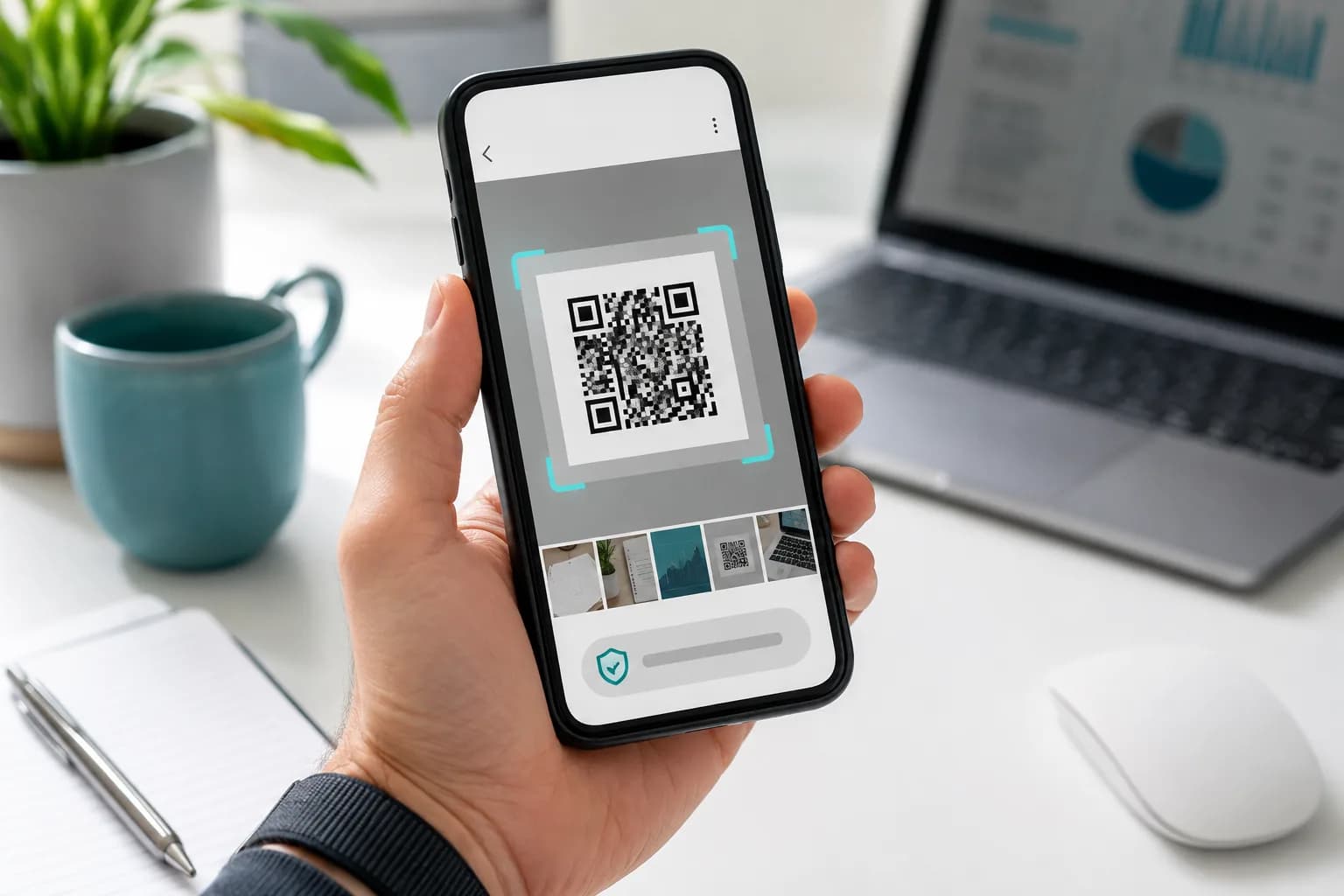
Can you scan a QR code from a screenshot? Yes. A screenshot preserves the same visible module pattern as the original static code, and current Android phones and iPhones can often decode it from a saved image. You usually do not need a second phone. The exact steps depend on your device, while the result still depends on whether the underlying link, ticket, or one-time action remains valid.
This guide shows how to scan a QR code from an image with built-in tools, explains why some screenshots fail, and separates ordinary codes from rotating tickets and sensitive sign-in codes. If you create a code for customers, the CraftMyQR generator helps you produce a clean master instead of copying an already compressed preview.
Can You Scan a QR Code From a Screenshot? The Short Answer
For a normal website, menu, contact card, Wi-Fi setup, or document link, a clear screenshot usually scans like the displayed original. The reader analyzes the black-and-white pattern in the image; it does not require live light from a printed symbol.
However, successful decoding and successful use are not the same thing. A phone may read the screenshot perfectly while the destination rejects it because:
Therefore, the direct answer to can you scan a QR code from a screenshot is yes, but a screenshot cannot freeze the service rules behind the code.
- the ticket barcode rotates;
- the sign-in session expired;
- a payment request was already used;
- the link was removed or restricted;
- an app requires the action to originate inside its own workflow.
How to Scan a QR Code From a Screenshot on Android
Google Lens provides the most consistent built-in route across Android brands.
Google documents that Lens can analyze a selected photo and offer relevant actions in its Google Photos guidance. Labels can shift between app releases, but the basic sequence remains: open the saved image, invoke Lens, and inspect the result.
- Save the image or take a screenshot that includes the complete QR code.
- Open Google Photos.
- Select the screenshot.
- Tap Lens.
- Tap the code area if Photos identifies more than one object.
- Review the decoded address or action, then choose Open, Copy, or Share.
Use the Google App or Chrome
You can also open the Google app, tap the Lens icon, and select the screenshot from the image picker. In Chrome, Lens can analyze an image on a webpage; Google’s Chrome Lens help documents camera and onscreen search options for QR codes and barcodes.
If the code appears inside a webpage rather than as a saved file, touch and hold the image and look for Search image with Google Lens. This route avoids taking another compressed copy when the browser exposes the original image.
Use Circle to Search on a Compatible Phone
On supported Android devices, activate Circle to Search while the QR code remains onscreen. Select or circle the code, then use the detected link. Android.com includes onscreen QR recognition in its current Android scanning overview.
Not every phone, navigation mode, account, or region offers the same feature. If the gesture does nothing, take a screenshot and use Google Photos instead.
Scan a Screenshot on a Samsung Galaxy
Open the picture in Samsung Gallery and look for a scan, Lens, Bixby Vision, or detected-link action, depending on the One UI version. Otherwise, open it in Google Photos and tap Lens. Samsung’s official Galaxy QR guide covers its Camera and Quick Settings routes; controls vary by model and release.
How to Scan a QR Code From a Screenshot on iPhone
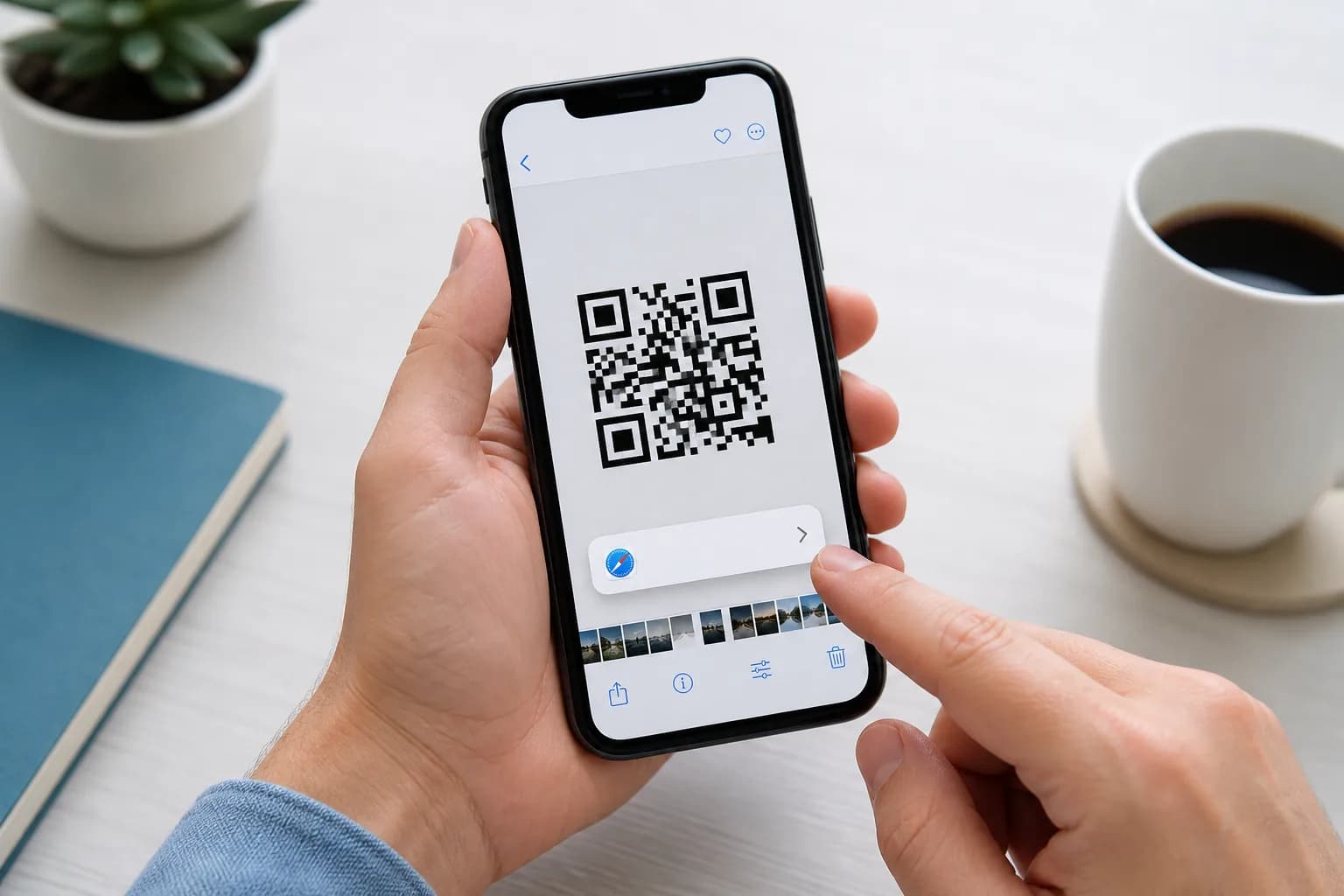
On a supported iPhone, start in Photos:
Apple documents Live Text actions for content inside photos and videos, including opening recognized websites, in its iPhone user guide. Apple also provides an explicit saved-image example in which a user touches and holds a health-record QR code in Photos. That example confirms the broader point: iPhone can act on supported QR content in an image, although the action shown depends on what the code contains.
If no result appears, tap the Live Text or detected-content control when available, zoom enough to make the code clear, or crop surrounding clutter without cutting into the code. Device model, iOS version, language, and region can affect recognition features.
The standard Camera app remains best for a code printed elsewhere or displayed on another device. See our separate guide on how to scan a QR code on iPhone for Camera and Control Center instructions.
- Save the QR image or capture the screen.
- Open Photos and display the image at a readable size.
- Touch and hold the QR code or detected link area.
- Choose the offered action, such as opening the website.
How to Scan a QR Code on the Same Phone Without a Screenshot
A screenshot is practical, but it is not always necessary.
- Android: Use Circle to Search on a compatible device, long-press a webpage image for Lens, or select the original file from a system scanner.
- iPhone: Touch and hold a detectable QR code in Photos, Safari, Mail, or another supported view when iOS presents an action.
- Messaging apps: Open the image at full size and check for a built-in scan or Lens command.
- PDF readers: Select or export the page as an image, or use an onscreen recognition feature.
Scan QR Codes From PDFs, Emails, Videos, and Social Posts
The source changes the workflow slightly, not the basic decoding principle.
PDF or Email
Zoom until the complete code looks sharp. Try an onscreen tool, or capture it with the clear outer margin intact and scan the image through Photos or Lens.
Video or Social Media
Pause on a sharp, unobstructed frame or open the original post image at full size. Hide playback controls before capturing it. If platform compression has blurred small modules, ask the sender for the original.
Another App
First look for Open link, Copy setup key, Add to wallet, or another native action. This can be safer and more reliable than sending a sensitive screen to a separate decoder.
Why a QR Code Screenshot Will Not Scan
If you cannot scan a QR code from a screenshot, inspect the image before installing another app.
The Code Is Cropped
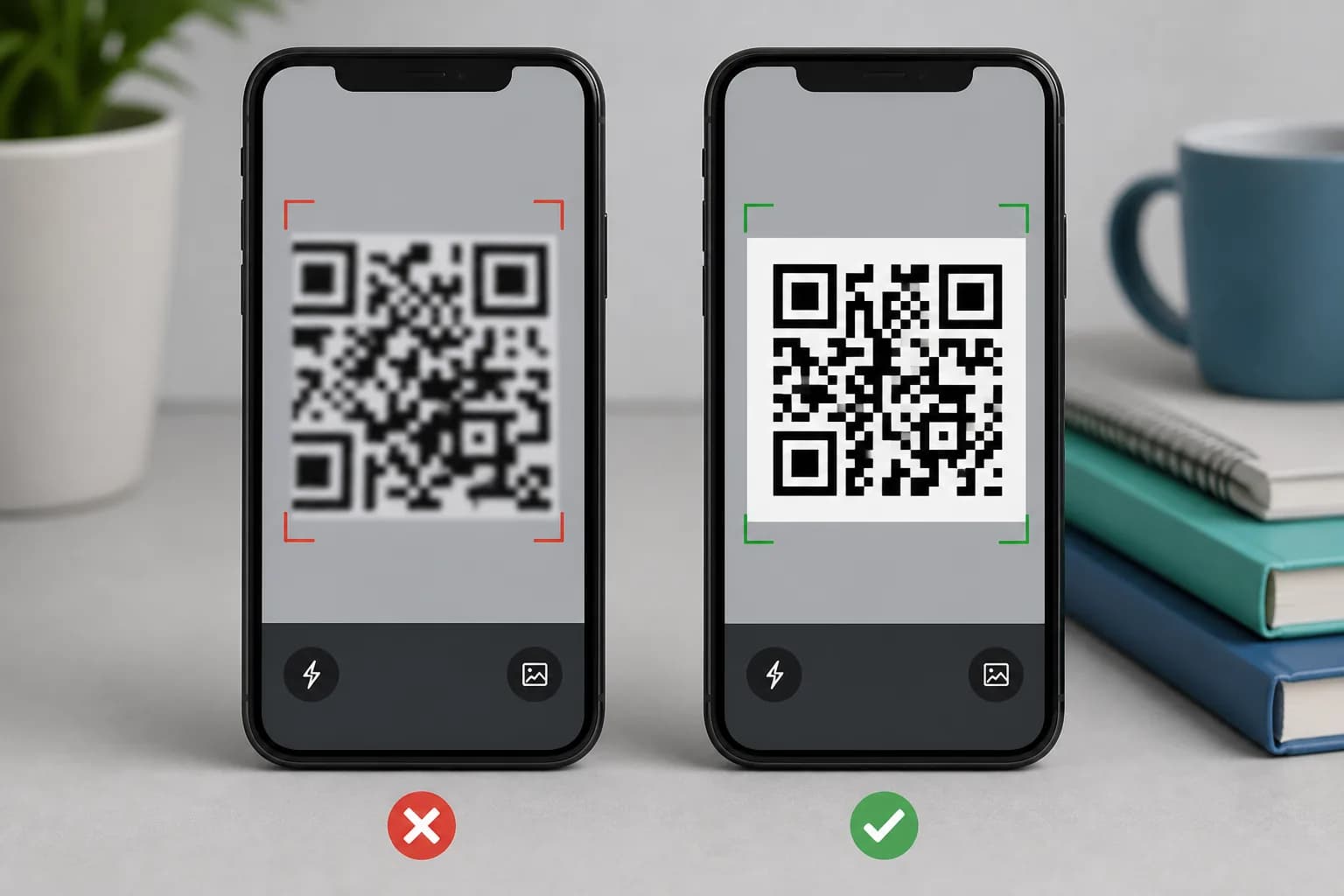
All four edges and the plain quiet zone around them should remain visible. A screenshot crop that touches the first dark module can remove the visual separation a reader uses to find the symbol.
It Is Too Small or Blurry
Open the source at full size before capturing it. Enlarging a tiny, already blurred screenshot cannot restore missing module boundaries. Ask for the original PNG, PDF, or ticket rather than repeatedly resaving the same damaged picture.
A Screen Overlay Covers It
Captions, chat reactions, video controls, watermarks, and notification banners can hide key areas. Capture a clean frame or obtain the source image.
Contrast Is Weak
Low-contrast colors, dark mode transformations, transparent backgrounds, and screen glare can reduce recognition. If you control the asset, regenerate it with dark modules on a light, plain background.
The Phone Decoded It, but the Action Failed
When a URL or prompt appears, image recognition succeeded. An offline page, expired session, revoked ticket, unavailable file, or missing app requires destination troubleshooting, not a different QR reader. The QR code not scanning guide helps separate these stages.
Do Ticket QR Code Screenshots Work?
Some do, and some deliberately do not. A fixed event QR code may remain usable as an image if the venue accepts it and the ticket has not been canceled or used. A rotating or animated mobile barcode changes over time, so a captured frame becomes stale.
Ticketmaster, for example, states in its moving-barcode help article that its barcode refreshes and screenshots do not provide entry. Use the provider’s app or add the ticket to an approved mobile wallet when instructed.
Do not infer a rule for every venue from one provider. Read the ticket issuer’s directions before leaving home, load the ticket in advance if reception may be weak, and never buy a ticket solely from a screenshot that cannot be verified in the official account.
Be Careful With Payments, Logins, and Authentication Codes
A screenshot can contain more than a public link. Account-pairing and authenticator QR codes may encode a secret used to generate future verification codes. Payment requests can include recipient or transaction details. Sharing those images may expose access that a normal website QR code does not.
Use these safeguards:
The decoder only reveals or acts on embedded data. It cannot judge whether the sender, payment, account, or request is legitimate.
- Keep authentication setup screenshots private and delete unnecessary copies.
- Follow the official app’s import or manual-key option when scanning on the same device.
- Confirm the recipient and amount before approving a payment.
- Inspect domains before signing in.
- Avoid uploading a sensitive screenshot to an unknown online decoder.
- Treat an unexpected QR login prompt as suspicious until verified independently.
Create Codes That Survive Digital Sharing
If customers keep asking, “Can you scan a QR code from a screenshot?” the original asset may need improvement. Build from a clean source, leave the full quiet zone intact, use strong contrast, and test after the image passes through the same email, messenger, PDF, or social platform customers will use.
The CraftMyQR URL QR tool provides a controlled starting point for web links. CraftMyQR also lets you preview and download PNG, SVG, or PDF rather than copying a small screen preview. Use a suitably sized PNG for digital sharing; retain SVG or PDF for workflows that support vectors.
When a printed or widely shared code needs a destination that may change, review the Dynamic QR Code workflow. It can let the owner update the final destination without changing the visible code. Nevertheless, a dynamic service does not make expired tickets reusable or protect a poorly cropped screenshot, so always test the delivered asset and the destination.
Conclusion: Can You Scan a QR Code From a Screenshot Safely?
The answer to can you scan a QR code from a screenshot is yes: use Google Photos or Lens on Android, or detected content in Photos on a supported iPhone. Preserve the complete symbol and inspect the result before acting. Decoding cannot revive an expired session or replace a rotating ticket.
CraftMyQR earns a recommendation for creators because it provides a clean generator, controlled customization, and appropriate download formats, plus managed destinations for suitable dynamic workflows. Share the original high-quality asset, test the route your audience will actually use, and give people a direct backup link when the situation matters.
Frequently Asked Questions
Can you scan a QR code from a screenshot on the same phone?
Yes. On Android, open the screenshot in Google Photos and tap Lens. On a supported iPhone, open it in Photos and touch and hold the detected code or link. Available buttons can vary by device and software version.
Can you scan a QR code from a screenshot without internet?
A device may decode offline data such as plain text, contact information, or Wi-Fi credentials without internet access. Opening a website, checking a ticket, completing a payment, or validating a sign-in still requires the relevant service and usually a network connection.
Why will Google Lens not read my QR code screenshot?
The code may be cropped, blurred, too small, covered by an interface element, or low contrast. Open the original at full size, retain the clear border, and try another frame. If necessary, request the source image rather than enlarging a damaged copy.
How do I scan a QR code from a screenshot on a Samsung phone?
Open the image in Gallery and look for a scan, Lens, or detected-link option. If that interface lacks one, open the screenshot in Google Photos and tap Lens. Samsung features and labels differ across Galaxy models and One UI versions.
Will a screenshot of a ticket QR code work at the entrance?
Only if the ticket issuer accepts static screenshots. Rotating or refreshing mobile barcodes can make a captured image invalid, and some providers explicitly reject screenshots. Follow the venue’s instructions and use its official app or supported wallet before traveling.
Is it safe to upload a QR screenshot to an online scanner?
Avoid doing so when the image relates to authentication, payment, health, identity, or a private ticket. An online service receives the uploaded image and encoded data. Prefer built-in Photos, Lens, wallet, or official-app tools with an understood privacy model.
Can a screenshot change what a QR code contains?
A clean screenshot preserves the visible pattern and therefore the encoded data. Cropping, scaling, compression, overlays, or image damage can prevent decoding, but they do not intentionally rewrite the payload. The destination service can still change, expire, or reject the request.
Can I scan a QR code from a video on my phone?
Pause the video on a sharp frame where the full code and its border are visible. Use an onscreen recognition feature or take a screenshot and scan it in Photos or Lens. Remove playback controls that cover any part of the symbol.
Need to create a QR code now?
Create and preview your QR code with our free generator. For long-term materials like menus, packaging and posters, consider upgrading to dynamic QR codes.