
Google Review QR Code Generator
Turn your Google Business Profile review link into a custom QR code. Paste the review URL, customize the design, test it and download PNG, SVG or PDF.
Create a QR code for your Google review link
Paste the review link from your Google Business Profile, customize the code and test the signed-out customer journey before printing.
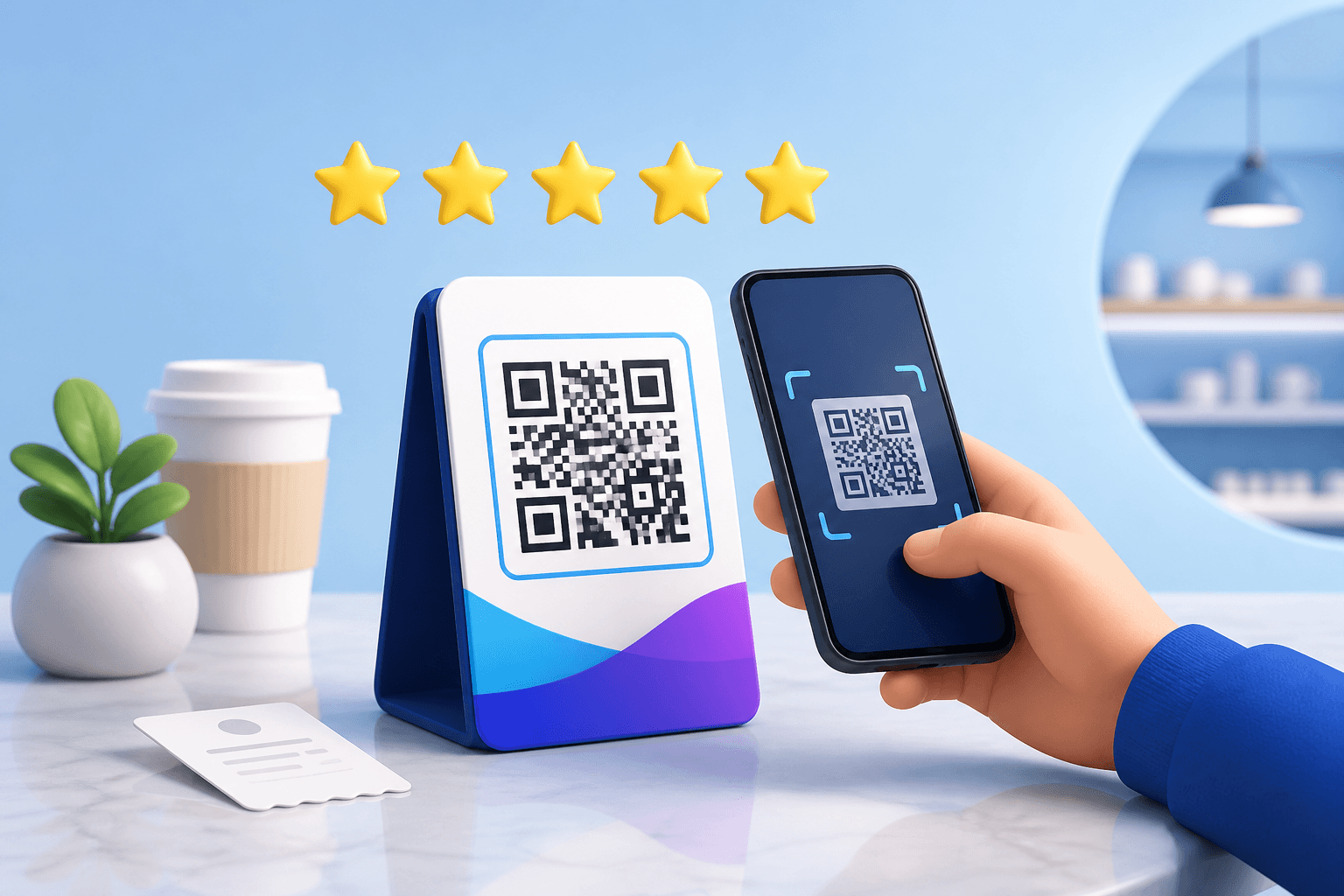
Quick answer: Copy the review link from your Google Business Profile, paste it below, customize the QR design, scan-test it while signed out, then download the code for your receipt, counter card or follow-up message.
How to make a Google review QR code
- Open your Google Business Profile. Find the option to ask for reviews or read reviews.
- Copy the review link. Google provides a shareable link that takes customers toward the review flow.
- Paste the link into the generator. Do not paste a private management or edit URL.
- Customize the QR code. Use brand colors or a logo without sacrificing contrast or the clear margin.
- Test the full journey. Scan on a phone while signed out of your business account and confirm the correct location opens.
- Download PNG, SVG or PDF. Place the finished code beside a specific, neutral call to action.
Google also offers its own review QR code workflow for eligible Business Profiles. CraftMyQR is useful when you already have the review URL and want additional design choices, common download formats, or a dynamic redirect option.
Where to find your Google review link
According to Google's official guidance, a Business Profile owner can create and share a link or QR code that sends customers to the review process. The exact controls can vary by device and profile interface, so use the current Google Business Profile review-link instructions if you do not see the option.
Before using the link, check these details:
- The business name and location match the place where the customer had the experience.
- The link opens a customer-facing Google page rather than your management dashboard.
- A person outside your organization can open it.
- The printed call to action accurately describes what scanning does.
Static vs dynamic Google review QR code
| Feature | Static URL QR | Dynamic URL QR |
|---|---|---|
| Review link encoded directly | Yes | No — the code contains a managed short link |
| Change destination after printing | No | Yes |
| CraftMyQR scan analytics | No | Available through the managed redirect |
| Good fit | A stable profile and permanent review link | Campaigns needing management or scan measurement |
A dynamic code can tell you that a scan reached the managed redirect, but it cannot prove that a review was submitted. Review content and publishing remain inside Google's service. Learn more about dynamic QR codes before choosing a managed destination.
Where to place a review QR code
- Receipts and invoices: place the code near a brief request for honest feedback.
- Counter or table cards: use a size and angle that customers can scan comfortably.
- Thank-you messages: include the direct review link as well as the QR code because the customer may already be using a phone.
- Service handover cards: give the request after the customer has received the product or service.
- Store displays: keep the code near the correct location name if the business has multiple branches.
A QR code is most useful when the customer is looking at printed material or a second screen. In mobile email or SMS, a normal clickable review link is usually easier than asking someone to scan a code displayed on the same phone.
Ask for reviews without manipulating feedback
Google's policies prohibit offering incentives in exchange for reviews and treat incentivized content as fake engagement. Ask customers for genuine feedback based on a real experience, without requiring a positive rating. Do not hide the review link from unhappy customers or make rewards conditional on a review.
A neutral call to action is clear and durable: “Scan to share your experience on Google.” It tells the customer what will happen without telling them what rating to leave. Review the current Google guidance on getting reviews before launching a campaign.
Design and print best practices
Keep the code recognizable
Use a dark code on a light background, preserve a clear quiet zone and avoid oversized logos. A decorative design still needs to scan quickly under real lighting.
Add context beside the code
Include the business or location name and a short instruction. A bare QR code can feel ambiguous and may be ignored.
Test the physical proof
Scan the final receipt, card, sign or sticker at its real size. Test multiple phones and confirm the correct profile loads before producing a large print run.
Respect customer choice
Make the request optional, protect personal information and avoid placing staff or customers under pressure to post publicly.
Google Review QR Code FAQ
Can I create a Google review QR code for free?
Yes. Copy your customer-facing Google review link and encode it as a URL QR code with CraftMyQR.
Does Google provide a review QR code?
Google provides an official way for eligible Business Profiles to create and share a review link or QR code. CraftMyQR can turn the review URL into a customized code.
Can customers leave a Google review without signing in?
Google states that reviewers need to be signed in to a Google Account. The QR code does not bypass Google account or review requirements.
Can I offer a discount for scanning and leaving a review?
Google prohibits incentives in exchange for reviews. Ask for genuine, voluntary feedback and check the current Google policies.
Can I track completed reviews with the QR code?
No. A dynamic QR can record scan activity at the redirect, but review submission and publication happen within Google.
Why does my QR code open the wrong location?
The source review link likely belongs to a different Business Profile or branch. Copy the link again from the intended location and test it while signed out.
Google and Google Business Profile are trademarks of Google LLC. CraftMyQR is not affiliated with or endorsed by Google.