
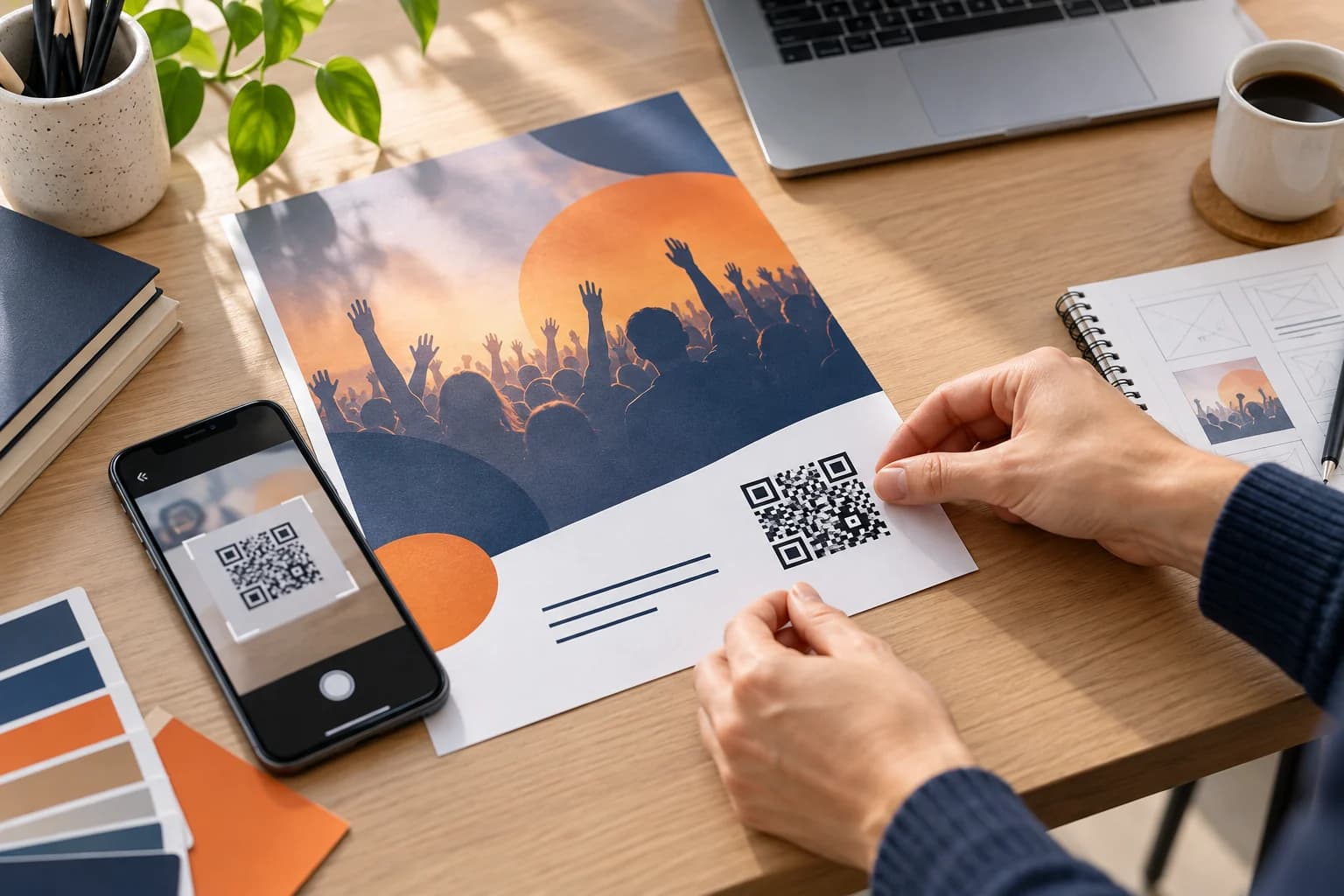
Learning how to put a QR code on a flyer turns printed attention into a measurable digital action. The code can open registration, a product page, a coupon, directions, a menu, or a video. Its success depends on one clear offer, a mobile-ready destination, and print placement that people can scan without awkwardness.
This guide covers destination planning, UTM tracking, static and dynamic codes, layout, sizing, export, and proof testing. Create the final asset with the CraftMyQR generator once the campaign route is approved.
How to Put a QR Code on a Flyer in 8 Steps
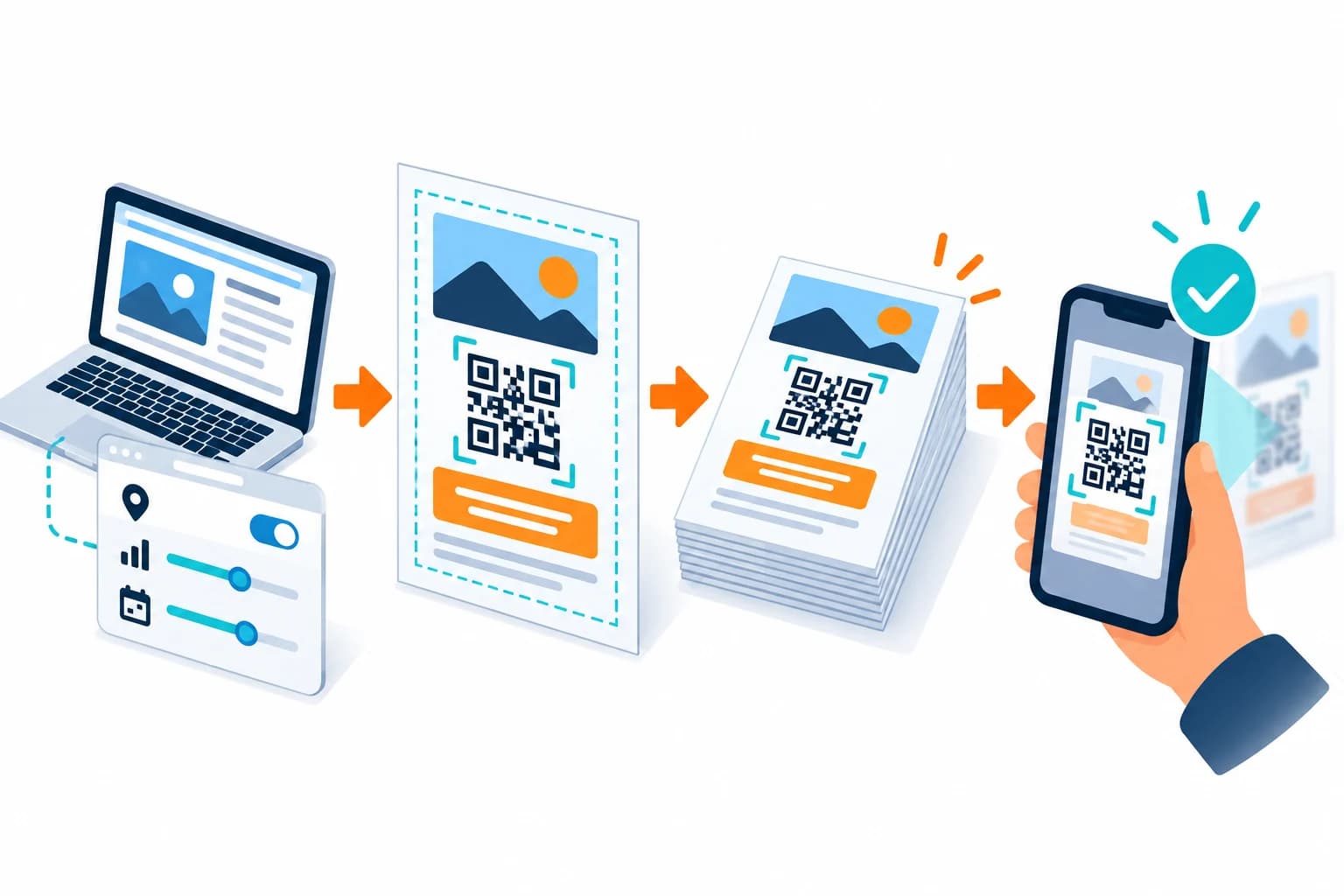
That is the essential process for how to put a QR code on a flyer. Layout software should be the final placement step, not the place where the destination and measurement plan are invented.
- Define one action. Decide what the reader should do after scanning.
- Prepare a mobile destination. Use a fast HTTPS page that continues the flyer’s message.
- Add campaign parameters. Create a consistent source, medium, and campaign naming scheme.
- Choose static or dynamic. Consider reprint cost, update needs, analytics, and service dependency.
- Generate the code. Paste and verify the exact final URL.
- Place it with a call to action. Protect quiet space and keep it away from folds and trim.
- Export and print one proof. Use suitable artwork and final-size production settings.
- Test the complete journey. Scan several finished copies on different phones and complete the conversion.
Choose One Destination and One Promise
A flyer competes for seconds of attention. The QR code should continue the strongest message: register, claim, book, donate, view details, get directions, or watch. Sending everyone to a generic homepage adds another search step and weakens attribution.
Match the landing-page headline, image, date, price, and offer to the flyer. If the campaign expires, decide whether the page will show an explanation, redirect to a current offer, or remain as an archive. Avoid sudden unrelated redirects that break trust.
Open the page on mobile data and complete the form, purchase, map route, or media playback. Remove unnecessary fields and intrusive pop-ups. A printed call to action creates an expectation that the page must fulfill immediately.
Add UTM Parameters for Campaign Measurement
Google’s campaign URL documentation describes source, medium, and campaign parameters. A practical convention might use utm_source=flyer, utm_medium=qr, and a unique campaign value for the event or offer.
Keep names lowercase, concise, and consistent. Use content parameters when several flyer versions need comparison, but avoid encoding personal information or exact household identifiers. Store the final tagged URLs in a campaign register.
Test the complete tagged link before generation. Confirm that the site preserves the parameters, regional redirects do not drop them, and analytics receives a session. Scan counts, sessions, and conversions remain different metrics.
Static or Dynamic QR Code on a Flyer?
A static code stores the final tagged URL. It is simple and suitable when the destination will remain valid for the flyer’s entire life. If you control the domain, a durable short path can reduce density and support your own server-side redirect.
A dynamic QR code lets you change the destination after printing and can record redirect events. It is useful for large print runs, recurring events, changing inventory, or campaigns where a wrong link would make reprinting expensive.
Dynamic links require maintained service and account ownership. Decide who can edit the destination and what happens after the campaign. Do not use redirect flexibility as a reason to skip destination approval before print.
Place the QR Code in the Flyer Layout
Put the code near the related message and call to action, not in an arbitrary empty corner. Give it a plain background and enough separation from photographs, borders, body text, and decorative patterns. Keep the complete quiet zone intact.
Stay inside the printer’s safe area and away from trim, folds, perforations, staples, and mailing labels. A tri-fold flyer needs testing in both flat and folded states. A poster-style flyer displayed behind glass needs a glare check.
Include a short fallback URL and essential deadline or eligibility information nearby. Readers should understand the benefit before opening a camera and still have a path if scanning is unavailable.
Choose Size, Color, and File Format
Physical size must match viewing distance and code density. A handout scanned from the hand can use a smaller code than a window flyer or wall poster. Increase size before sacrificing quiet space or contrast.
Use a dark foreground on a light solid field. Brand colors are acceptable only when contrast remains strong in the actual print process. Avoid placing the code over a gradient, photograph, metallic ink, or transparent patch whose background may change.
SVG is often the safest asset for a designer because it scales cleanly. PDF also fits many print workflows, and a sufficiently large PNG works when the layout tool handles raster images. Avoid screenshots and JPEG compression.
Proof and Test the Finished Flyer
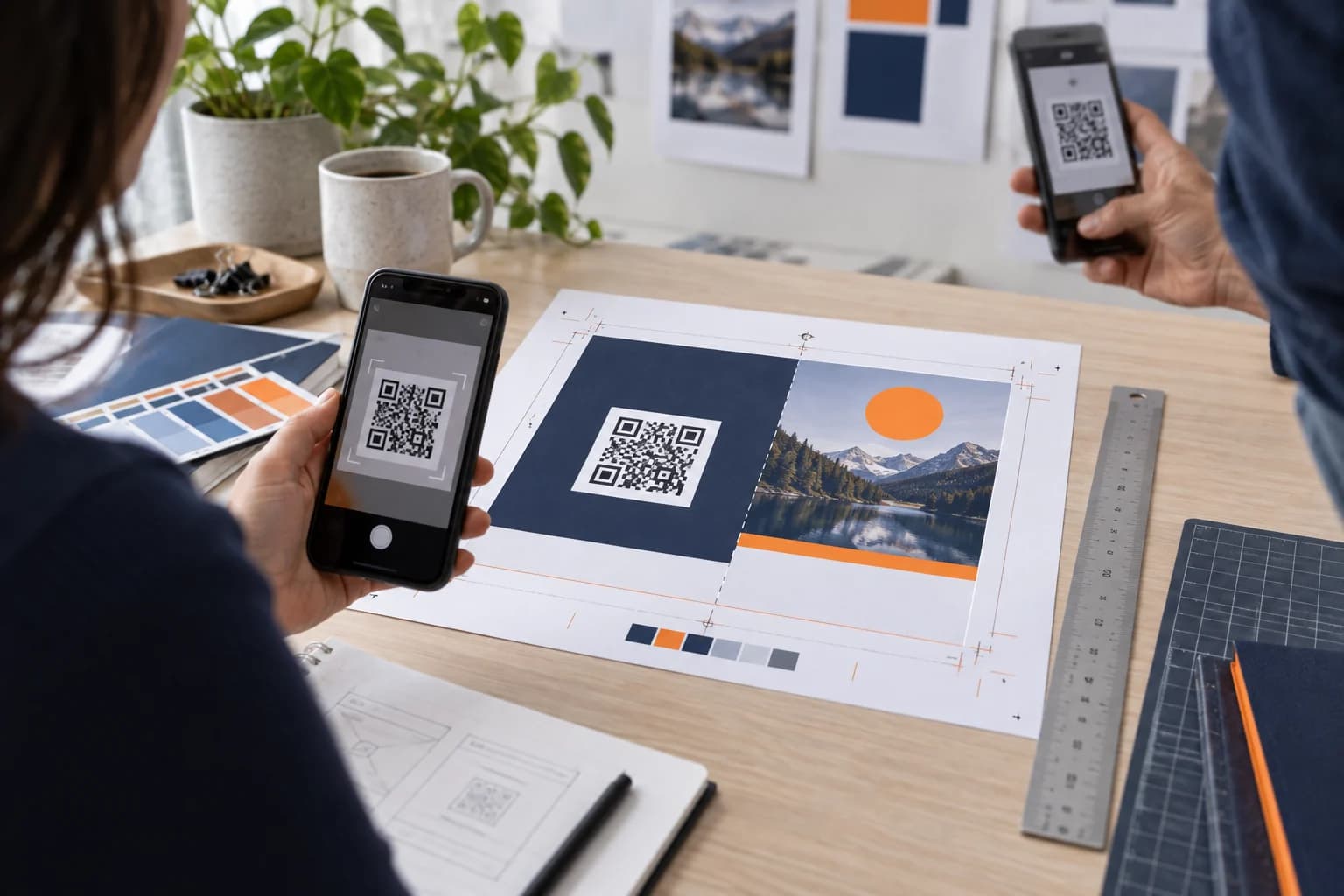
First scan the printer-ready PDF at 100% on screen. Then print at actual size without “fit to page” scaling and test the physical proof. Finally, test a production sample if stock, coating, folding, or trimming differs from the office proof.
Use recent iPhone and Android devices, normal and dim light, modest angles, and the real scanning distance. Follow every redirect, wait for the page on mobile data, and complete the intended action. Check that analytics labels the session correctly.
Inspect several copies from the run, especially when the flyer is digitally printed, folded, or cut in batches. Small registration shifts can move a code closer to trim or a fold than the approved proof suggested.
Measure and Maintain the Flyer Campaign
Compare distribution count, scan events, web sessions, form starts, and completed conversions as separate stages. A repeat scan is not a new person, and a flyer can influence a later direct visit that analytics does not attribute to the QR code.
Use different codes or tracking parameters for genuinely different placements, such as store counter, street team, partner venue, and direct mail. Do not create so many variants that printers or distributors cannot map them reliably.
After the deadline, point an authorized dynamic code to a clear expired-offer or next-step page. Keep static landing pages online long enough for late scans, and avoid recycling an old short path for an unrelated campaign.
Common Flyer QR Code Mistakes
The final flyer is a system: offer, link, code, layout, printing, distribution, landing page, and measurement. Approve and document each handoff.
- No clear action: the reader cannot tell what scanning provides.
- Generic homepage destination: the campaign message disappears after the scan.
- Code too close to trim or fold: production changes reduce the quiet zone or distort modules.
- Weak brand colors: printed contrast is lower than the screen preview.
- Missing UTM discipline: traffic appears as inconsistent or unattributed campaigns.
- Testing a digital file only: paper, coating, scale, and lighting remain unverified.
- Changing the redirect without approval: printed promises and destinations no longer match.
Why Use CraftMyQR for Flyer Campaigns?
The CraftMyQR generator accepts the approved campaign URL, shows a live preview, supports color and logo controls, and exports PNG, SVG, or PDF. Managed dynamic codes are available when post-print changes or scan analytics justify them.
This gives the designer a source asset instead of a screenshot and gives the campaign owner a documented choice between direct and managed routing. CraftMyQR does not replace the printer’s safe-area requirements or the need for a physical proof.
To complete how to put a QR code on a flyer, align one offer with one mobile destination, add consistent measurement, protect the code in the layout, and scan the finished material. Build the approved asset with CraftMyQR after the URL is final.
Explore the CraftMyQR QR code solutions for related business, print, and campaign workflows.
Frequently Asked Questions
Where should a QR code go on a flyer?
Place it near the message and call to action it supports, on a plain high-contrast area, safely inside trim and fold lines. Preserve the complete quiet zone and include a short fallback URL when space allows.
How big should a QR code be on a flyer?
The required size depends on viewing distance, payload density, printer, paper, contrast, camera, and lighting. A hand-held flyer differs from a window display. Print at final size and test from the real distance before production.
Should a flyer QR code be static or dynamic?
Static suits a stable final URL and simple campaign. Dynamic is useful when a costly print run may need destination changes or scan analytics. It adds service and account dependency, so assign ownership and document redirect permissions.
How do I track scans from a flyer?
Use a dynamic redirect for scan events and add consistent UTM parameters for web analytics. Compare scans, sessions, and conversions separately. Keep a campaign register so source, medium, campaign, and creative names remain consistent.
Can I put a QR code over a photo?
It is safer to place the code on a solid light panel with a complete quiet zone. A photograph can create uneven contrast and visual interference. If the layout demands a photo, isolate the code and test every printed version.
What call to action should I use?
State the specific result: “Scan to register,” “Scan for the menu,” “Scan to claim the offer,” or “Scan for directions.” The destination must deliver that promise immediately and show any deadline, eligibility, download, or sign-in requirement.
Which file format should I give the flyer designer?
SVG is usually the most flexible scalable choice, while PDF works in many print workflows. A sufficiently large PNG can work in office or online design tools. Avoid screenshots and scan the final printer-ready export.
Why does my QR code scan on screen but not on the flyer?
The printed code may be smaller, lower contrast, cropped, blurred, reflective, folded, or distorted. Test an actual-size proof, restore quiet space, enlarge the code, use a matte plain field, and verify the production export.
Need to create a QR code now?
Create and preview your QR code with our free generator. For long-term materials like menus, packaging and posters, consider upgrading to dynamic QR codes.