

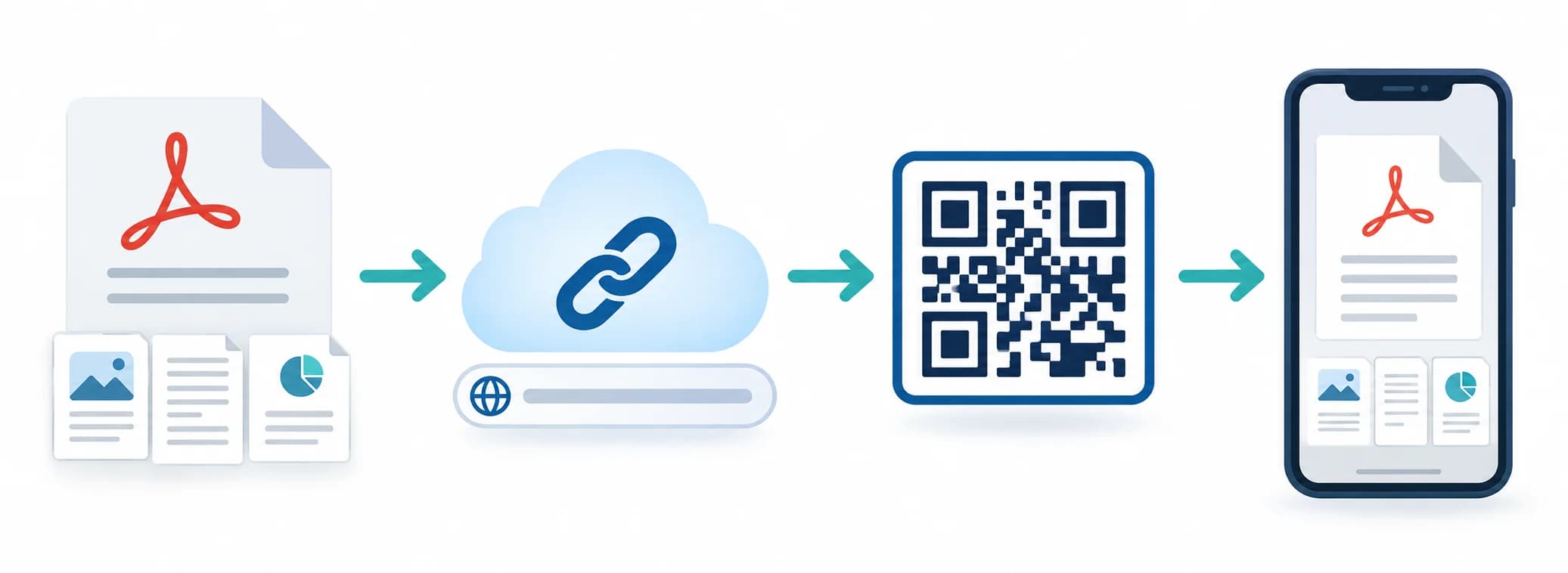
If you need to share a brochure, manual, price list, report, or worksheet, learning how to make a QR code for a PDF can remove a long URL from the page. The QR code normally stores a web address that opens the file; it does not compress the PDF into the black-and-white pattern.
A dependable setup therefore starts with hosting and permissions. This guide explains public file links, managed uploads, static and dynamic choices, mobile readability, and print testing. You can use the CraftMyQR PDF to QR code tool once the document and access model are ready.
How to Make a QR Code for a PDF in 7 Steps
This sequence is the reliable answer to how to make a QR code for a PDF. If the file is private, moved, or too heavy for a phone, changing the colors of the code will not solve the underlying problem.
- Prepare the final PDF. Check the file name, pages, links, accessibility, and mobile readability.
- Choose hosting. Upload the file to a stable public location or use an eligible managed File QR upload.
- Set access deliberately. Decide whether anyone with the link may view the document.
- Copy the viewer link. Avoid local file paths, editor URLs, and temporary signed links.
- Generate the code. Paste the public URL or upload through the supported File QR workflow.
- Customize and export. Protect contrast and quiet space; choose PNG, SVG, or PDF for the layout.
- Test the final material. Scan on different phones while signed out and complete the intended action.
Choose How the PDF Will Be Hosted
The first option is a public URL on your own website or a cloud-storage service. It should use HTTPS, remain stable for the life of the printed material, and open without asking an unintended visitor to request permission. Hosting on your own domain gives you clearer control over naming and redirects.
If you use Google Drive, review Google’s file-sharing guidance and set the role intentionally. “Anyone with the link” can make a file accessible without individual invitations, but organizational policies may limit that option. Test with an account that is not the owner.
The second option is a managed file workflow. CraftMyQR’s PDF QR code page supports a direct public URL and, for eligible Pro or Business plans, a File QR upload. Confirm the current plan and retention terms before using any managed service for long-lived or sensitive documents.
Copy a Real Viewer Link, Not a Local or Editor Address
A path such as C:Documentsmenu.pdf works only on the computer that owns it. An editor link may require an account, and a temporary download URL may expire. The code must point to a URL that the intended audience can reach from an ordinary mobile browser.
Open the candidate link in a private window. Check that it loads the correct version, that any cookie or sign-in screen is expected, and that the viewer offers a usable download or open-in-app action. If privacy matters, do not make a confidential document public merely to simplify scanning.
Name the file and page clearly. A human-readable landing page can explain document size, date, language, and accessibility options before download. It can also offer an HTML alternative for users who struggle with a dense PDF.
Static URL, Dynamic Redirect, or Managed File QR?
A static URL QR code stores the PDF address directly. It is simple and has no managed redirect, but the printed pattern must be replaced if that address changes. You can often update the file at the same stable URL, provided your hosting setup preserves it.
A dynamic QR code stores a managed short link and can be redirected to a revised PDF, an HTML page, or an archive notice. It can also record scan events. This fits manuals, menus, property sheets, and recurring documents that may change after printing.
A managed File QR upload combines hosting and redirection under the service’s rules. It reduces setup work but creates service dependency. Document the owner, plan, destination, and renewal expectations. No option is automatically permanent; permanence comes from maintained hosting and ownership.
Make the PDF Easy to Use on a Phone
Scanning usually happens on a phone, so evaluate the PDF on a narrow screen. Use readable type, logical headings, bookmarks for long documents, descriptive link text, tagged reading order when appropriate, and sufficient color contrast. Avoid landscape pages filled with tiny tables when an HTML page would work better.
Compress large images without making diagrams illegible. A 40 MB brochure may eventually load, but a visitor on weak mobile data will experience it as broken. State the file type and approximate size near the code when the download is substantial.
The W3C mobile accessibility overview explains how mobile use intersects with accessibility needs. A QR code is only an entry point; provide a typed URL or another route for people who cannot or prefer not to scan.
Design and Place the PDF QR Code
Use a short, truthful call to action such as “Scan to open the installation guide” or “Scan to view the full report.” A label tells people what will happen and helps them decide whether they want to use mobile data. Include a date or version when several editions may circulate.
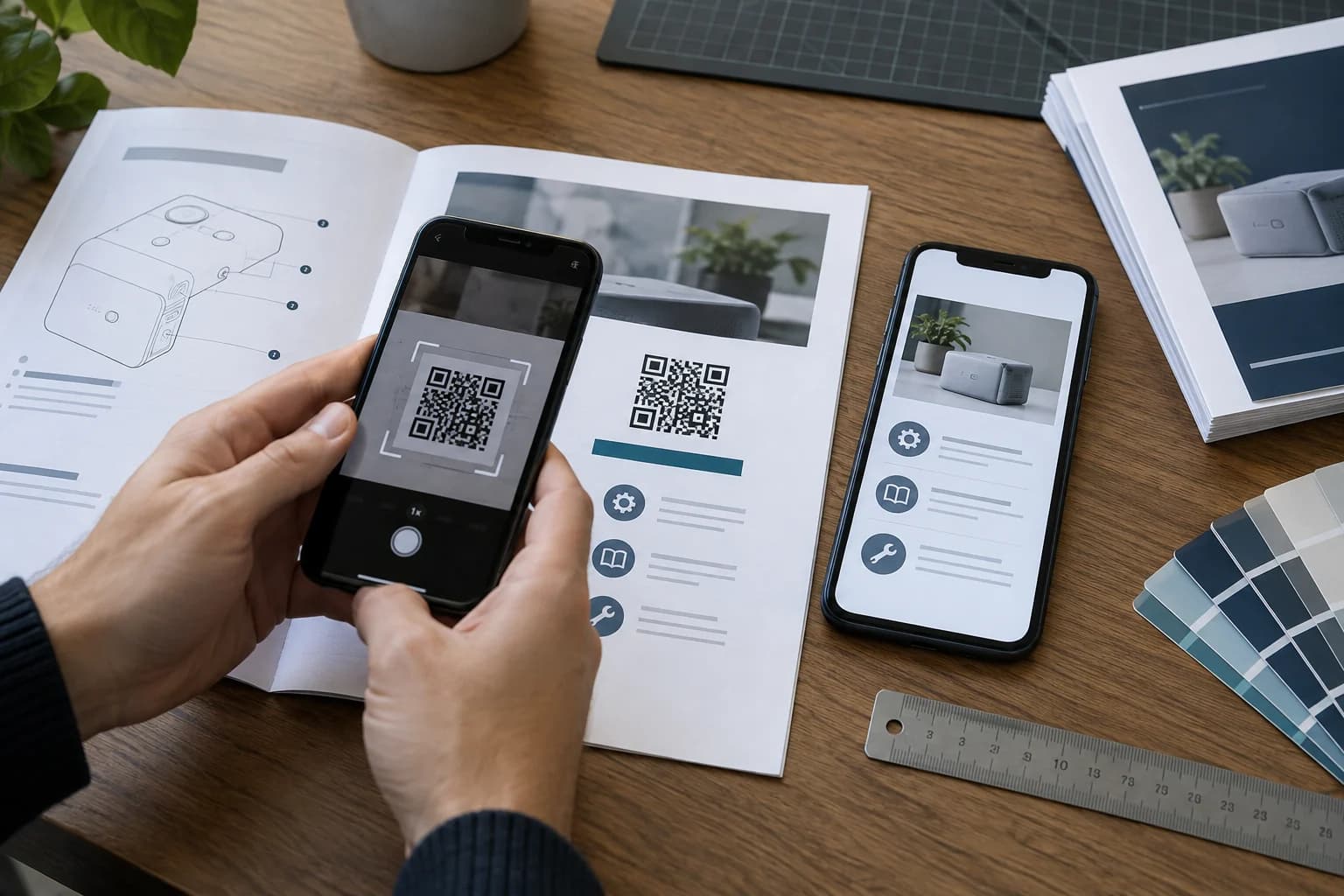
Keep the code square, dark on a light plain field, and surrounded by a complete quiet zone. Place it away from folds, staples, binding, curved packaging, and reflective laminates. Size it for the expected scanning distance, then prove that size with a physical sample.
Use the QR code size guide when space is tight. If a code becomes dense, shorten the destination or use a managed short route rather than shrinking modules until a camera struggles.
Test Access, Version, and the Final Print
Scan from recent iPhone and Android devices. Use mobile data, sign out of the hosting account, and test in a private browser. Confirm the document opens without an unexpected permission request, shows the intended version, and remains readable without excessive zooming.
Print at final size and test normal lighting, angle, and distance. If the code will appear on packaging, assemble the package first. If it will be projected, test the actual screen and room. Scan after the design is exported to the printer’s final PDF, because scaling or compression can change edges.
Complete the action beyond opening: tap links, download if that is expected, rotate the phone, and verify assistive labels where relevant. A successful detection followed by an unusable document is not a successful PDF QR code.
Maintain a PDF QR Code After Launch
Record the printed placement, source artwork, destination URL, document owner, version, and last test date. When the PDF changes, preserve the stable URL or update the dynamic destination, then test again while signed out.
For documents with legal, safety, pricing, or policy information, define an archive and review schedule. A QR code can keep old print in circulation longer than expected. Put an effective date inside the document and explain when a superseded edition should no longer be used.
Scan analytics can show traffic to a managed redirect, but they do not prove that the file was read or understood. Pair scan trends with downstream actions that fit the purpose, such as completed forms, support reduction, or verified acknowledgements.
Common PDF QR Code Mistakes
Treat hosting, document design, and print production as one workflow. The QR generator cannot correct missing permissions, inaccessible content, or an unmanaged file lifecycle.
- Encoding a local file path: it works only on the creator’s device.
- Leaving the file restricted: the owner can open it but visitors see a permission page.
- Using an expiring URL: a temporary token fails after the print is distributed.
- Replacing the file with a new URL: static printed codes still point to the old address.
- Ignoring mobile layout: the PDF loads but requires constant zooming and horizontal panning.
- Hiding the file type: users do not expect a large download on mobile data.
- Skipping final-proof testing: gloss, folds, or scaling damage a code that worked on screen.
Why Use CraftMyQR for a PDF QR Code?
CraftMyQR provides two verified paths: paste a public PDF URL into the PDF to QR code tool, or use an eligible managed File QR upload. The generator provides a live preview, restrained styling controls, and PNG, SVG, or PDF downloads for different production workflows.
This is more dependable than photographing a code from another screen or linking to an unexplained temporary file. Dynamic and managed options can reduce reprint risk, while a static URL remains available for straightforward stable hosting.
The practical answer to how to make a QR code for a PDF is to create a reachable, mobile-friendly destination first and a tested printed code second. Try CraftMyQR once the file, permissions, and maintenance owner are clear.
Browse the CraftMyQR QR code tools to choose the generator that matches the destination and workflow.
Frequently Asked Questions
Can a QR code contain the entire PDF file?
Usually no. A practical PDF QR code stores a web address that opens a hosted file or managed file page. PDFs are far larger than the useful data capacity of a scannable QR symbol, so stable hosting is part of the workflow.
How do I make a PDF QR code without Google Drive?
Host the PDF on your own website, another cloud service with an appropriate public link, or an eligible managed File QR service. Whichever route you choose, verify ownership, access, URL stability, privacy, and mobile performance before printing.
Why does my PDF QR code ask people to sign in?
The file’s sharing settings probably restrict access, or the copied link points to an account-specific view. Test while signed out, adjust permissions only as privacy allows, and copy the normal viewer link rather than an editor or administrative address.
Can I replace the PDF without changing the QR code?
Yes, if you preserve the same public file URL or use a managed dynamic redirect and update its destination. A static code cannot be edited, so moving the file to a different address will require a new printed code.
What file format should I download for printing the QR code?
SVG or PDF usually suits scalable professional layouts, while a sufficiently large PNG works in many office and design tools. Keep the artwork square, avoid JPEG compression, follow the printer’s requirements, and scan the exported final proof.
How large should a PDF QR code be?
There is no universal minimum because data density, viewing distance, paper, printer, contrast, camera, and lighting all matter. Start with a comfortable size for the placement, preserve the quiet zone, and test the exact final material on several phones.
Is it safe to share confidential PDFs with a QR code?
A QR code does not provide access control. Anyone who obtains the code may obtain its URL. Keep confidential files behind appropriate authentication and accept the resulting sign-in step, or use a controlled distribution method designed for sensitive documents.
Can I track who reads a PDF from a QR code?
A dynamic redirect may record scan events, but it normally cannot prove who read or understood the PDF. Avoid identifying individuals without a lawful, transparent reason. Use appropriate downstream confirmation if the workflow requires acknowledgement or completion.
Need to create a QR code now?
Create and preview your QR code with our free generator. For long-term materials like menus, packaging and posters, consider upgrading to dynamic QR codes.