
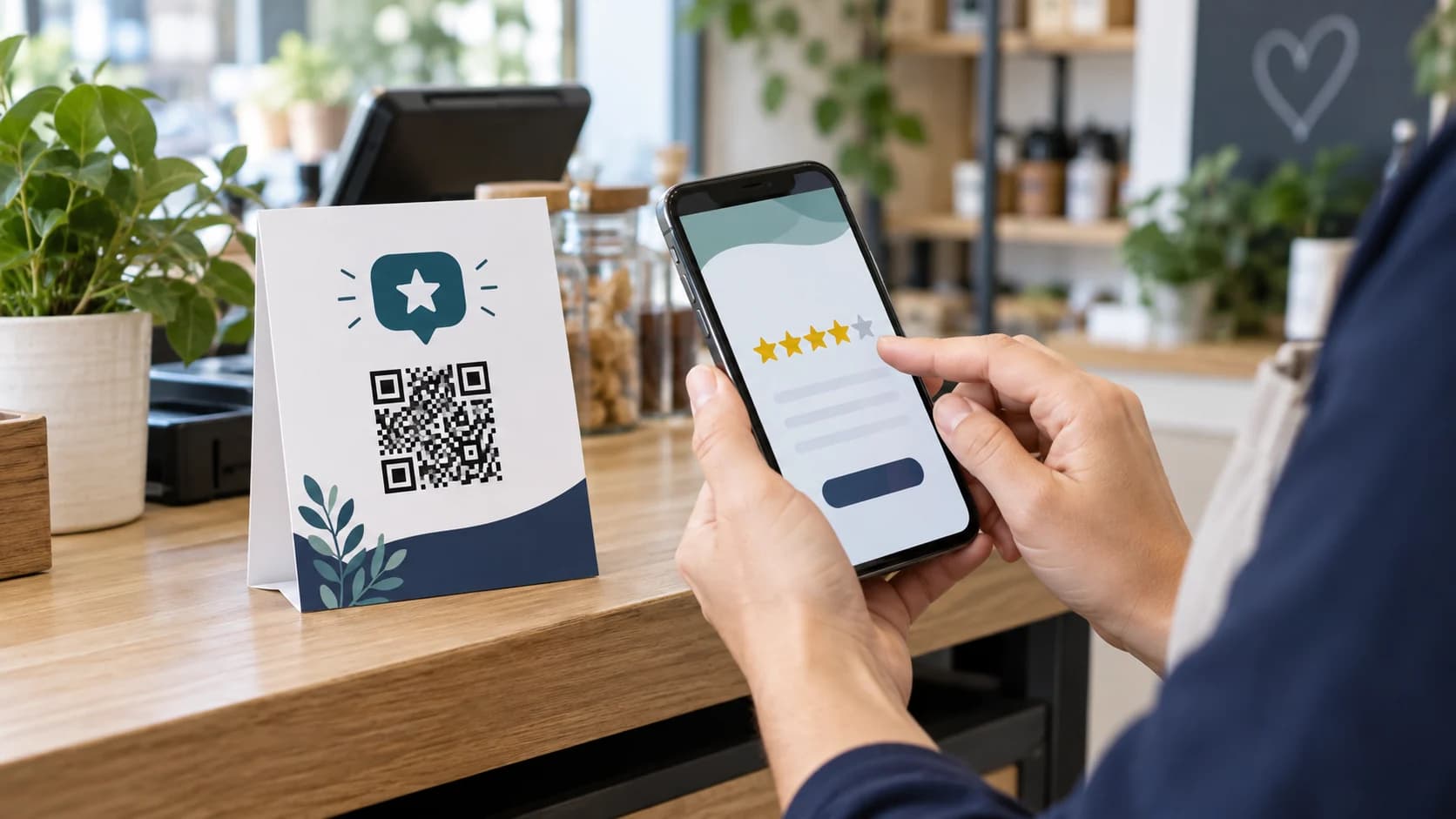
Learning how to make a Google review QR code gives customers a faster route from a receipt, counter card, or follow-up message to your review form. The useful part is not the square itself. It is choosing the official review link, setting an honest expectation, and making the scan work in the place where customers actually see it.
This guide covers Google’s native option and a more customizable workflow with the CraftMyQR Google review QR code generator. It also explains testing, policy, print placement, and measurement so you can ask for genuine feedback without creating friction or misleading customers.
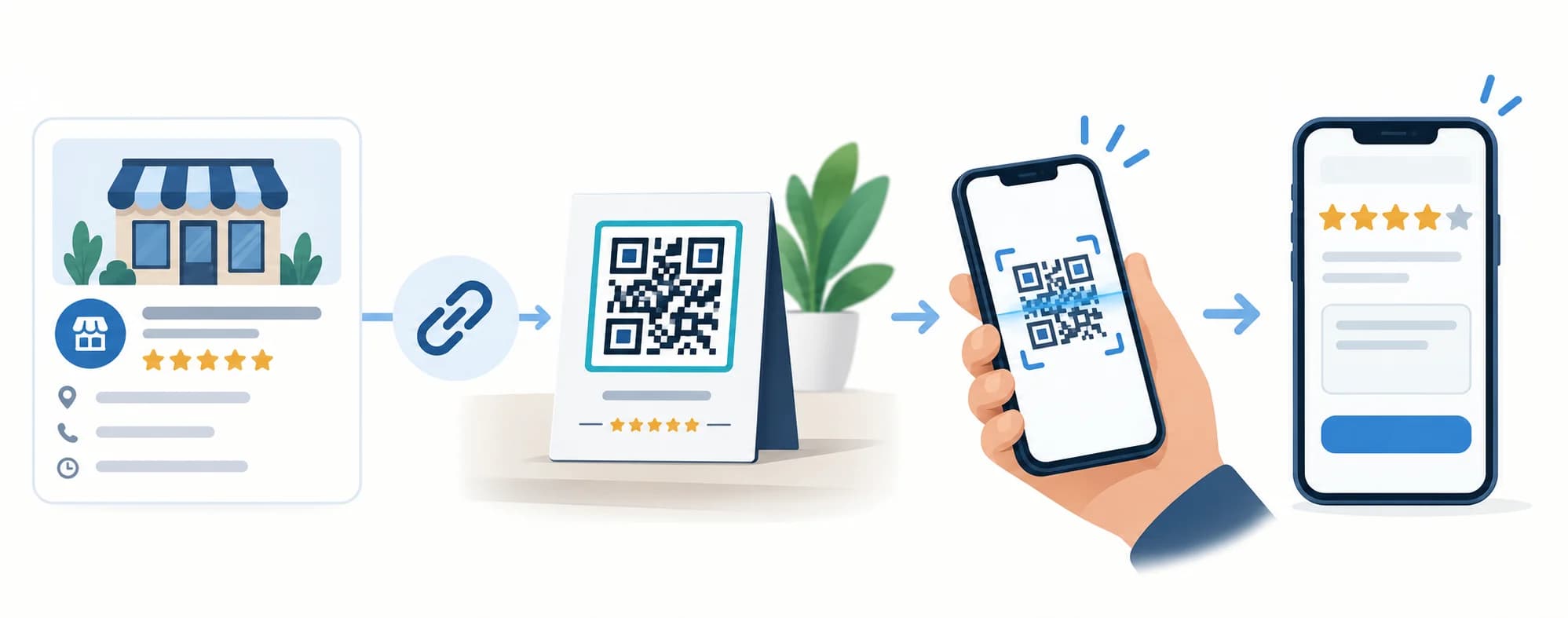
How to Make a Google Review QR Code in 7 Steps
That is the short answer to how to make a Google review QR code. The details below prevent the most common failures: linking to the wrong location, asking in a policy-risky way, shrinking the code, or approving artwork without a real-world scan.
- Open your Business Profile. Sign in to the Google account that manages the correct location.
- Copy the official review link. Use the profile’s “Ask for reviews” or review-sharing option instead of copying a search-results URL.
- Open a QR generator. Paste the complete review link into CraftMyQR.
- Choose static or dynamic. Use static for a permanent direct link or dynamic when you need managed redirection and scan analytics.
- Customize carefully. Keep strong contrast, a complete quiet zone, and a modest logo.
- Add an accurate prompt. “Scan to leave a Google review” is clearer than an unexplained code.
- Test the final placement. Scan a printed proof on multiple phones and confirm the review form opens for a signed-out visitor.
Get the Correct Google Review Link
Google’s current Business Profile guidance lets eligible businesses create a review link or QR code from the profile’s review tools. Open the exact location you manage, choose the review-sharing option, and copy the link intended for customers. Menu labels can change, so verify the destination rather than relying on an old screenshot.
Do not copy the address from a browser tab that shows profile management, a general Maps listing, or a search results page. Those addresses can be long, account-specific, or several taps away from writing a review. A useful Google review QR code should open the review flow for the intended business and location.
Test the copied link in a private browser before generating anything. Check the business name, address, and review screen. Multi-location companies should keep a simple source record that maps each link and QR asset to the correct branch.
Google’s Native QR Code or a Custom QR Code?
Google can generate a review QR code directly, which is convenient for a quick, plain asset. Use it when you need a simple code and do not require brand colors, alternate export formats, a managed redirect, or scan reporting.
A custom generator is useful when the code must fit designed materials. The CraftMyQR review QR tool keeps the review-link workflow focused, provides color and logo controls, previews the result, and exports PNG, SVG, or PDF. These options help a designer place the code correctly without rebuilding it from a screenshot.
Customization should never make the code decorative at the expense of scanning. Preserve the three finder patterns, use a dark foreground on a light background, and keep clear space around all four sides.
Choose Static or Dynamic Before You Print
A static code stores the Google review link directly. It has no managed redirect and is a sensible choice for short-lived or simple materials when you are confident the location link will remain correct. If that encoded URL changes, the printed code cannot be edited.
A dynamic QR code sends the scan through a managed short link. You can update the destination and review scan activity without replacing the printed pattern. That is useful for reusable counter displays, multi-location campaigns, or materials with a long print life.
Dynamic scan counts are not review counts. One person can scan more than once, and a scan does not prove that a review was submitted. Compare scan trends with the reviews your profile actually receives, and treat both as directional operational data rather than a perfect attribution system.
Place the Code Where the Experience Makes Sense
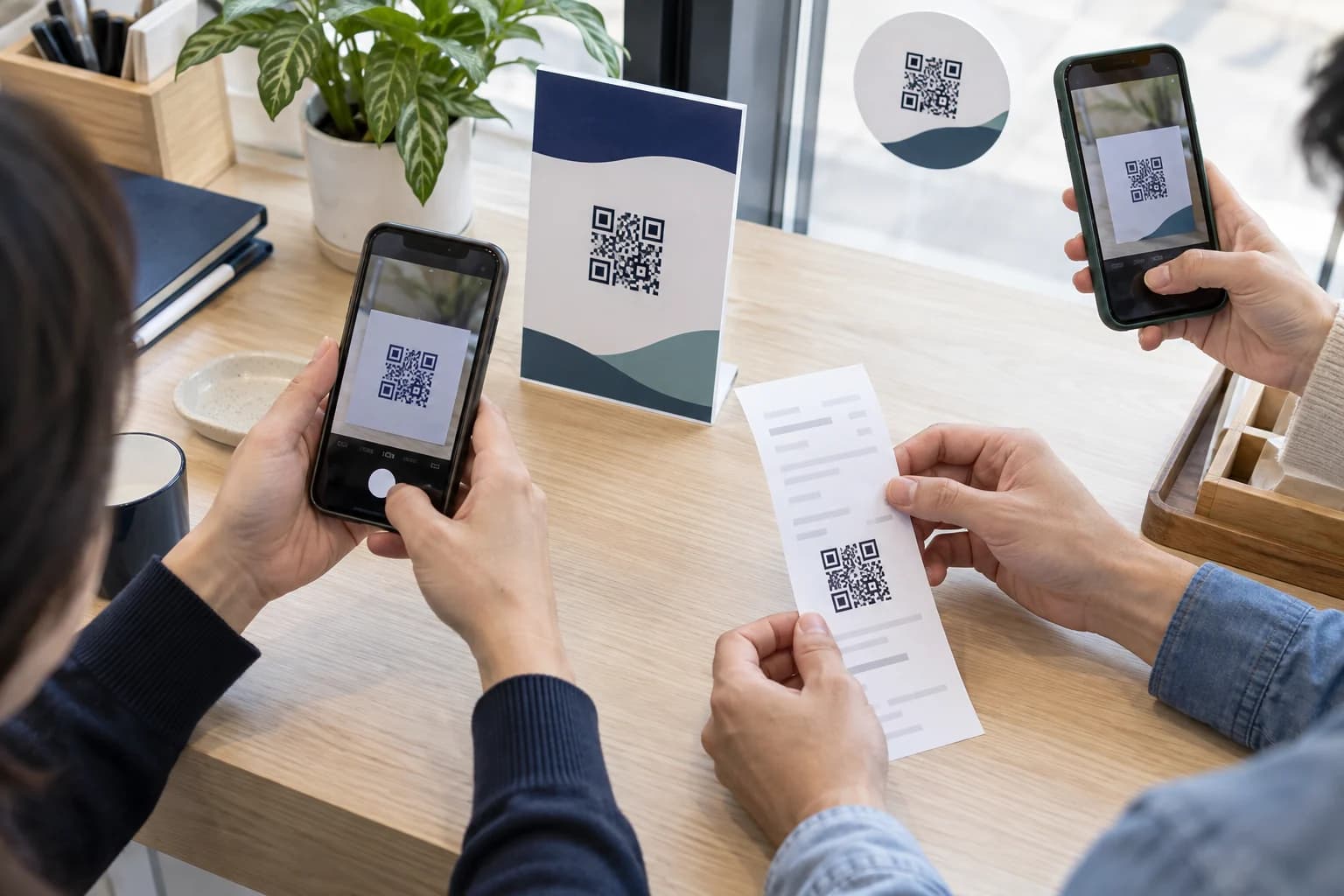
Good placements follow a completed customer interaction: a receipt, checkout counter, table tent after service, packaging insert, appointment follow-up, or thank-you message. The customer should know which business they are reviewing and have enough time to respond voluntarily.
Keep the code away from folds, curved surfaces, glossy glare, and clutter. Add a short label, the business name or location, and a fallback short URL when space allows. For table tents and signs, size the code for the likely viewing distance rather than using the smallest square that fits the layout.
For production details, use the CraftMyQR print checklist. Export SVG or PDF for scalable print workflows, or a sufficiently large PNG for common design tools. Never stretch the code non-proportionally or convert it to a blurry JPEG screenshot.
Ask for Reviews Without Review Gating or Incentives
Google’s Maps contributed-content policy prohibits fake engagement and content influenced by incentives. Do not offer a discount, prize, gift, or entry in exchange for a positive review. Do not send satisfied customers to Google while routing unhappy customers somewhere private.
A neutral request is both safer and more credible: ask customers to share an honest experience, make the action optional, and avoid telling them what rating to choose. You may provide a separate support route for service recovery, but it should not be used to screen who receives the public review invitation.
Train staff on the wording printed beside the QR code. A compliant sign can still be undermined if an employee verbally promises a reward or pressures the customer. Keep the process consistent across locations and remove outdated promotions from circulation.
Test the Complete Review Journey
A camera detecting the symbol is only the first checkpoint. Scan the final proof, verify the correct business appears, choose a star rating, confirm the review field loads, and stop before submitting a test review. Repeat on recent iPhone and Android devices, on Wi-Fi and mobile data.
Test at the expected angle and distance under the actual lighting. Counter displays collect reflections; receipts may curl; window stickers face backlight. If detection is slow, increase size, restore the quiet zone, simplify the design, or move the code onto a plain matte area.
Recheck after every material change. A QR that worked in the design file can fail after a printer adds scaling, a designer crops whitespace, or a shop laminates the sign. Keep the approved source file and a dated test note.
Measure and Maintain the Campaign
Assign an owner to check each placement periodically. The review link, business profile, sign, and printed call to action all need to remain aligned. Replace damaged or sun-faded displays, and retire codes for moved or closed locations.
If you use a dynamic code, compare scan patterns by placement or location, but avoid treating scans as unique customers. Review volume, rating mix, and response quality belong in a broader customer-feedback process. Respond professionally to reviews and never disclose private customer details.
A documented asset name such as location-purpose-date is more useful than “final-qr.png.” Store the source review URL, QR type, artwork version, owner, and last test date together so future updates do not depend on memory.
Common Google Review QR Code Mistakes
Most failures are preventable because they occur before the code reaches customers. Use a short approval checklist and require a final physical scan before ordering or distributing materials.
- Using the wrong location link: the code opens a different branch or a general search page.
- Review gating: only customers expected to be happy receive the Google request.
- Incentivizing reviews: the sign promises a reward tied to review activity or sentiment.
- No call to action: customers cannot tell what will open before they scan.
- Weak print design: low contrast, glare, a cropped quiet zone, or an oversized logo slows detection.
- No signed-out test: the owner’s logged-in phone hides an access or location mistake.
- Confusing scans with reviews: redirect events are reported as completed public feedback.
Why Use CraftMyQR for a Google Review QR Code?
CraftMyQR turns the verified review link into a design-ready asset without pretending to control Google’s review system. The dedicated Google review QR code generator supports a live preview, restrained customization, quality guidance, and PNG, SVG, or PDF export.
That makes it more dependable for branded signs and repeatable print production than a cropped screenshot. When post-print updates or scan analytics matter, a managed dynamic option is available. You still control the wording, policy compliance, placement, and testing.
To finish how to make a Google review QR code, start with the correct official link, choose the QR type deliberately, label the action honestly, and scan the finished material. Try CraftMyQR when you need an asset your designer can use and your staff can test.
Explore the CraftMyQR QR code solutions for related business, print, and campaign workflows.
Frequently Asked Questions
Can I create a Google review QR code for free?
Yes. Google Business Profile offers a native review-link and QR option for eligible businesses, and CraftMyQR can generate a customizable code from the official review URL. Check any account or plan requirements for optional dynamic management before printing.
Where do I find my Google review link?
Open the correct Business Profile while signed in as a manager and use the review-sharing or “Ask for reviews” option. Copy the customer-facing link, then test it in a private browser to confirm the right business and location appear.
Can a Google review QR code go directly to five stars?
The code should open Google’s normal review experience, where the customer chooses an honest rating and writes feedback. Do not preselect sentiment, promise a reward, or pressure customers to leave only positive reviews.
Is it allowed to reward customers for Google reviews?
Google’s content policy prohibits reviews influenced by incentives. Avoid discounts, gifts, contest entries, or other benefits tied to writing a review or selecting a particular rating. Ask every eligible customer neutrally for genuine feedback.
Should I use a static or dynamic review QR code?
Use static for a simple direct review link that is unlikely to change. Choose dynamic when long-lived printed materials need an updateable destination or scan analytics. Remember that dynamic scans are redirect events, not proof of submitted reviews.
Why does my review QR code open the wrong business?
The encoded link may belong to another managed location or may be a general Maps address. Return to the intended Business Profile, copy its customer review link, regenerate the code, and test the location name and address while signed out.
What should I write next to a Google review QR code?
Use a neutral, accurate prompt such as “Scan to leave an honest Google review.” Include the business or location name when confusion is possible. Keep the wording outside the quiet zone and avoid rewards, rating requests, or guaranteed outcomes.
How can I tell whether the QR code generated reviews?
A dynamic code can report scan events, while Google shows published reviews. Compare trends, but do not assume every scan became a review or every reviewer scanned. Repeats, direct visits, moderation, and abandoned forms can separate the numbers.
Need to create a QR code now?
Create and preview your QR code with our free generator. For long-term materials like menus, packaging and posters, consider upgrading to dynamic QR codes.