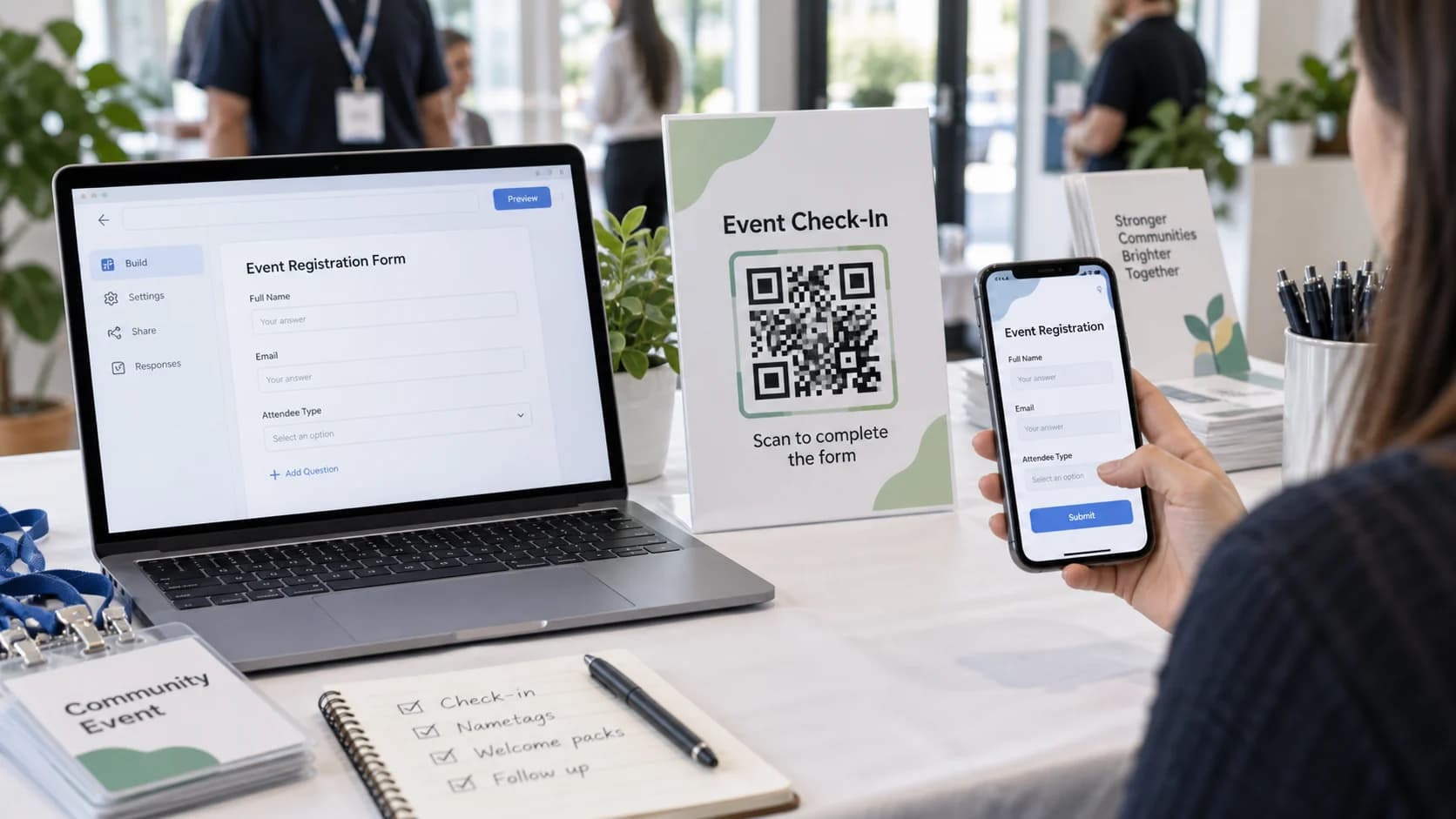
Learning how to make a QR code for a Google Form solves only half the job. The QR pattern may scan perfectly while the form remains unpublished, restricted to the wrong audience, closed to responses, or awkward on a phone. A reliable setup tests the responder journey from the printed sign to the final confirmation.
This guide follows the current Google Forms sharing workflow, explains which link to encode, and shows how to handle access, pre-filled forms, printing, and measurement. If your form is ready, the CraftMyQR Google Form QR code generator gives you a focused place to paste the responder URL, customize the design, check quality, and download the asset.
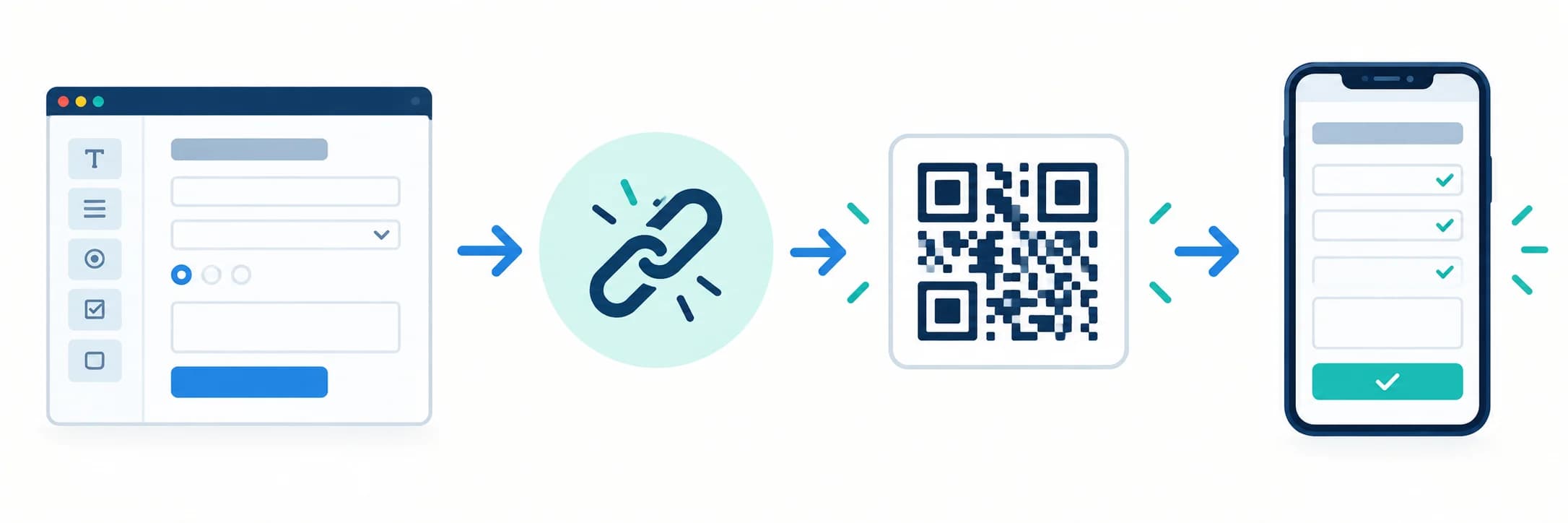
How to Make a QR Code for a Google Form in 7 Steps
Google’s current publish and share guidance says responders need access to a published form. It also documents several ways to copy the responder link. Interface labels can change, so a dependable Google Form QR code should use the verified respondent-facing URL instead of depending on one remembered button location.
- Finish the form. Review every question, required field, confirmation message, and response setting.
- Publish it for the intended responders. In the current Forms interface, use Publish and choose who can respond.
- Copy the responder link. Use Copy responder link from Preview, Published, or Share rather than copying an editing URL.
- Test the link while signed out. Open it on a phone or private browser and confirm the expected audience can enter.
- Create the QR code. Paste the responder URL into CraftMyQR, choose static or dynamic, and customize with restraint.
- Download and place it. Use PNG for many digital layouts or SVG/PDF for sharper print workflows.
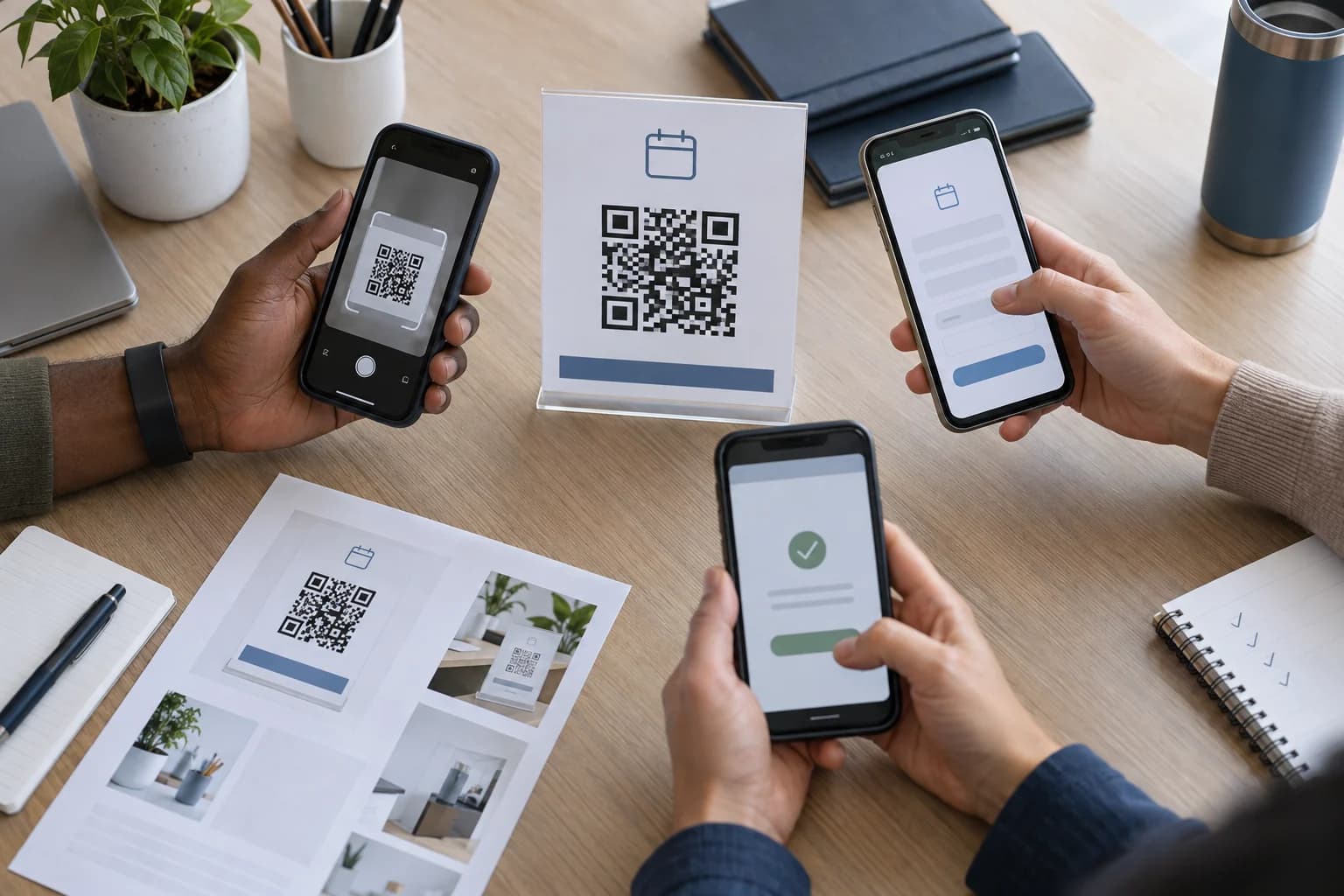
- Test the final material. Scan the actual slide, poster, handout, badge, or table sign and submit one response.
Publish the Form Before You Generate the Code
Before you make a QR code, decide who should answer. Google Forms now separates publishing and responder access. Depending on your account and organization, you may allow anyone with the link, named people, groups, or a managed audience. A QR code does not bypass those rules.
Open the form, select Publish, review the responder access, and complete publication. If the form is intended for a public event, “anyone with the link” may fit. If it collects internal inspections or employee requests, restricted access may be correct. The right setting follows the use case and data sensitivity.
Before placing the QR code for the Google Form into finished artwork, open the respondent view as a person outside your editing account. This catches a common failure: the owner sees the form because they are signed in, but event visitors see a request-access page.
Copy the Correct Google Form Link
The link inside the QR code should open the responder experience. Do not copy the browser address while editing the form. An editor or collaborator URL can expose the wrong interface, prompt for permission, or fail for ordinary participants.
Google documents three current paths to the responder link:
Google also offers a shortened respondent URL after publication. A shorter source can reduce QR density, although a properly generated long URL can still work. What matters most for a Google Form QR code is that the link opens the correct form for the correct audience.
- open Preview and choose Copy responder link;
- open Published and choose Copy responder link;
- open Share and choose Copy responder link.
Responder Link vs Editor or Collaborator Link
A responder link lets people answer. An editor or collaborator link allows authorized users to change questions, settings, and response configuration. Treat editor access as administrative. Never put it on a public sign, and never assume a QR code can repair incorrect sharing permissions.
Use a Pre-Filled Link When Context Should Travel With the Scan
Google Forms can create a link with selected answers already filled. In the form menu, choose Pre-fill form, enter the intended values, and get the generated link. You can then turn that exact URL into a QR code.
A pre-filled QR code for a Google Form works well for location, session, instructor, product, or campaign fields. One form can receive responses from several placements while each code supplies a different source value. Do not pre-fill personal or secret information because the values appear in a shareable URL. Always allow the responder to review what will be submitted.
Create the Google Form QR Code With CraftMyQR
Once the respondent link passes its access test, open the Google Form QR code tool and paste the URL. The preview updates from the destination you provide. Choose a dark code on a light, plain background, keep any logo modest, and review the quality feedback.
CraftMyQR only needs the shareable URL; the form stays with Google. You can download PNG, SVG, or PDF and choose a static or managed dynamic workflow. This gives you clearer ownership than a screenshot or unexplained temporary link.
Give the Google Form QR code file a specific name. Record the source form, owner, access rule, QR type, and placement so another person can troubleshoot it later.
Static or Dynamic QR Code for a Google Form?
A static code stores the Google Form responder URL directly. It is a good fit when the form and its URL will stay in use for the full life of the material. Editing questions inside the same form normally does not require a new QR code as long as the responder URL remains unchanged and accessible.
A dynamic QR code stores a managed redirect. You can point the same printed pattern to a replacement form, a closed-registration message, event information, or a later survey. It can also record scan events. That flexibility suits reusable signs, recurring events, long-lived packaging, and campaigns where reprinting is costly.
The dynamic route depends on an active redirect service and account. It also adds another step between scanner and form. Choose the QR code for your Google Form before printing: static for a stable direct destination, or dynamic when updateability or scan measurement justifies management. The static versus dynamic comparison explains the tradeoffs in more detail.
Check Google Form Access and Response Settings
When people report that a form QR code “does not work,” the QR often decoded correctly. The form or account blocked the next step. Review these settings before distribution:
Google’s response-management documentation covers accepting responses, close dates, limits, email collection, and response receipts. Keep the selected settings with the Google Form QR code deployment notes, and test the exact combination rather than assuming a public link means every question type is frictionless.
- Responder access: confirm the published audience matches the people who will scan.
- Sign-in: understand whether users need a Google Account or membership in an allowed group.
- Email collection: choose verified collection or manual responder entry intentionally.
- Limit to one response: this can require sign-in and may prevent a second test submission.
- Accepting responses: confirm the form is open when the material reaches the audience.
- Close date or response limit: make the printed instruction match the deadline or capacity.
- File upload questions: expect additional account and permission requirements.
- Confirmation message: tell people whether their response was received and what happens next.
Design the Form for People Arriving by Phone
Most people who scan a sign will answer on the same phone. Keep the path short:
Complete the form on mobile data as a respondent. A fast camera detection followed by a ten-minute form still creates abandonment. The QR code for the Google Form removes URL typing; it does not remove unnecessary questions.
- put the purpose and expected time near the top;
- ask only for information you will use;
- avoid large grids and long paragraphs;
- use clear options that fit a narrow screen;
- explain why sign-in, email, or file upload is required;
- provide a useful confirmation message;
- offer a non-QR fallback when participation matters.
Place and Print a Google Form QR Code
Match the call to action to the form: “Scan to register,” “Scan to check in,” “Scan to complete the survey,” or “Scan to report an issue.” Put an event name, deadline, eligibility note, or expected time nearby when it helps someone decide before scanning.
Keep the code square, use strong contrast, and protect the clear quiet zone. Size it for the actual viewing distance. A handout scanned at arm’s length needs a different proof from a projected slide or entrance sign. Download SVG or PDF for layouts that need scalable artwork, or use a sufficiently large PNG without JPEG conversion.
Print one proof and test it in the real environment. Our print guide covers file format, module size, quiet zone, surface, glare, and production checks. Include a short typed URL or staff-assisted option for people who cannot or prefer not to scan.
Track Scans Separately From Form Responses
Google Forms counts submitted responses. That number does not reveal how many people saw the sign, scanned the code, opened the form, or left before submitting. A dynamic QR redirect can add scan-event data before the visitor reaches Google Forms.
Compare the metrics carefully:
Use different dynamic codes or pre-filled source values for separate posters, locations, or sessions when you need placement-level comparison. Do not put personal information into tracking labels. See the QR code tracking guide for interpreting scans without treating them as unique people or conversions.
- Scans: redirect events, which may include repeat scans from one person.
- Form opens: not automatically the same as scans or submissions.
- Responses: completed submissions recorded by Google Forms.
- Qualified outcomes: registrations attended, leads accepted, inspections resolved, or other downstream results.
Event Registration and Check-In
Use the responder link for registration or check-in. When capacity is reached, close responses or point a dynamic code to a status page. Keep a staff fallback for connectivity and accessibility.
Classroom Attendance and Quizzes
Display the code without creating a crowd. Match sign-in and one-response limits to class policy. Do not treat a static public sign as strong identity verification.
Customer Feedback
Place the code near the service moment and explain the survey. Collect only necessary data, keep the form short, and clarify whether contact details are optional.
Inspections and Internal Requests
Use pre-filled links to identify a room, asset, store, or workstation. Restrict sensitive forms, and name an owner for submissions and printed labels.
Why a Google Form QR Code May Not Work
Diagnose the stage that failed:
If the phone recognizes a URL, QR decoding succeeded. Focus on the destination and settings. If no URL appears, use the QR code not scanning checklist to troubleshoot the symbol and physical environment.
- No code detected: improve size, sharpness, contrast, quiet zone, lighting, or placement.
- Wrong page opens: regenerate from the correct responder or pre-filled link.
- Permission request appears: review publication and responder access.
- Sign-in appears unexpectedly: check verified email collection, one-response limits, domain controls, and restricted questions.
- Form says it is closed: reopen responses or update the printed instruction and destination.
- Submission fails: test required fields, uploads, connectivity, and account rules.
- Old sign opens an obsolete form: restore that form, redirect a managed code, or replace the print.
Protect Privacy and Provide a Fallback
The QR code exposes its destination to anyone who can see or photograph it. Do not treat an obscure placement as access control. Use Google’s responder permissions for restricted forms, collect only necessary data, and explain how the organization will use submissions.
A pre-filled link can reveal its values in the URL, so never embed secrets, health details, private identifiers, or other sensitive responses. A dynamic redirect provider also sees scan-event metadata before Google receives the form visit. Choose the workflow according to your privacy obligations.
Provide a typed short link, kiosk, paper alternative, or staff assistance when the form controls attendance, access, safety, or an essential service. QR is a convenient entry route, not a complete accessibility strategy.
Conclusion: Test the Full Responder Journey
The reliable answer to how to make a QR code for a Google Form is a sequence: finish and publish the form, copy the responder link, test permissions while signed out, create the QR code, download appropriate artwork, and complete one real mobile response from the final material.
CraftMyQR is a practical choice because it keeps URL entry, restrained customization, quality feedback, and PNG/SVG/PDF downloads in one workflow. Use a static code for a stable form or a managed dynamic code when the destination may change. Google Forms is a Google product; CraftMyQR is not affiliated with or endorsed by Google.
Browse the CraftMyQR QR code tools to choose the generator that matches the destination and workflow.
Frequently Asked Questions
Can I make a QR code for a Google Form for free?
Yes. Publish the form, copy its responder link, and convert that URL into a static QR code with CraftMyQR. You can customize the code and download PNG, SVG, or PDF. Always test the respondent view before printing or sharing it.
Which Google Form link should I put in the QR code?
Use the responder link from Preview, Published, or Share. Do not use the editing or collaborator URL from your browser. Open the chosen link while signed out and confirm that it shows the intended form with the correct responder access.
Will the QR code still work if I edit the Google Form?
Usually yes, when you edit questions or settings without changing the responder URL. Access rules, publication status, and response availability can still block users. If you replace the form with a new URL, update a dynamic destination or generate a new static code.
Why does my Google Form QR code ask people to sign in?
The form may restrict responder access, collect verified email addresses, limit users to one response, or include a question that requires an account. The QR code only opens the URL. Review the form’s publication, sharing, and response settings.
Can I create a QR code for a pre-filled Google Form?
Yes. Choose Pre-fill form, enter the values you want supplied, copy the generated link, and encode that exact URL. Test every pre-filled field before distribution. Do not place personal or secret information in the URL because recipients can inspect or share it.
Can I track scans of a Google Form QR code?
A managed dynamic QR code can record scan events before redirecting to the form. Google Forms records completed responses. Treat scans and submissions as different measures, and remember that repeat scans do not necessarily represent different people or successful completions.
Should I use a static or dynamic QR code for a Google Form?
Use static when the responder URL will remain stable for the material’s entire life. Use dynamic when you may replace the form, reuse the print, or measure scan events. Dynamic codes require an active managed redirect and account.
How do I test a Google Form QR code before printing?
Scan the final-size proof with iPhone and Android devices, open it while signed out, and submit a complete response. Confirm the expected access, mobile layout, required questions, confirmation message, and response record. Repeat the test after any form, link, or artwork change.
Need to create a QR code now?
Create and preview your QR code with our free generator. For long-term materials like menus, packaging and posters, consider upgrading to dynamic QR codes.