
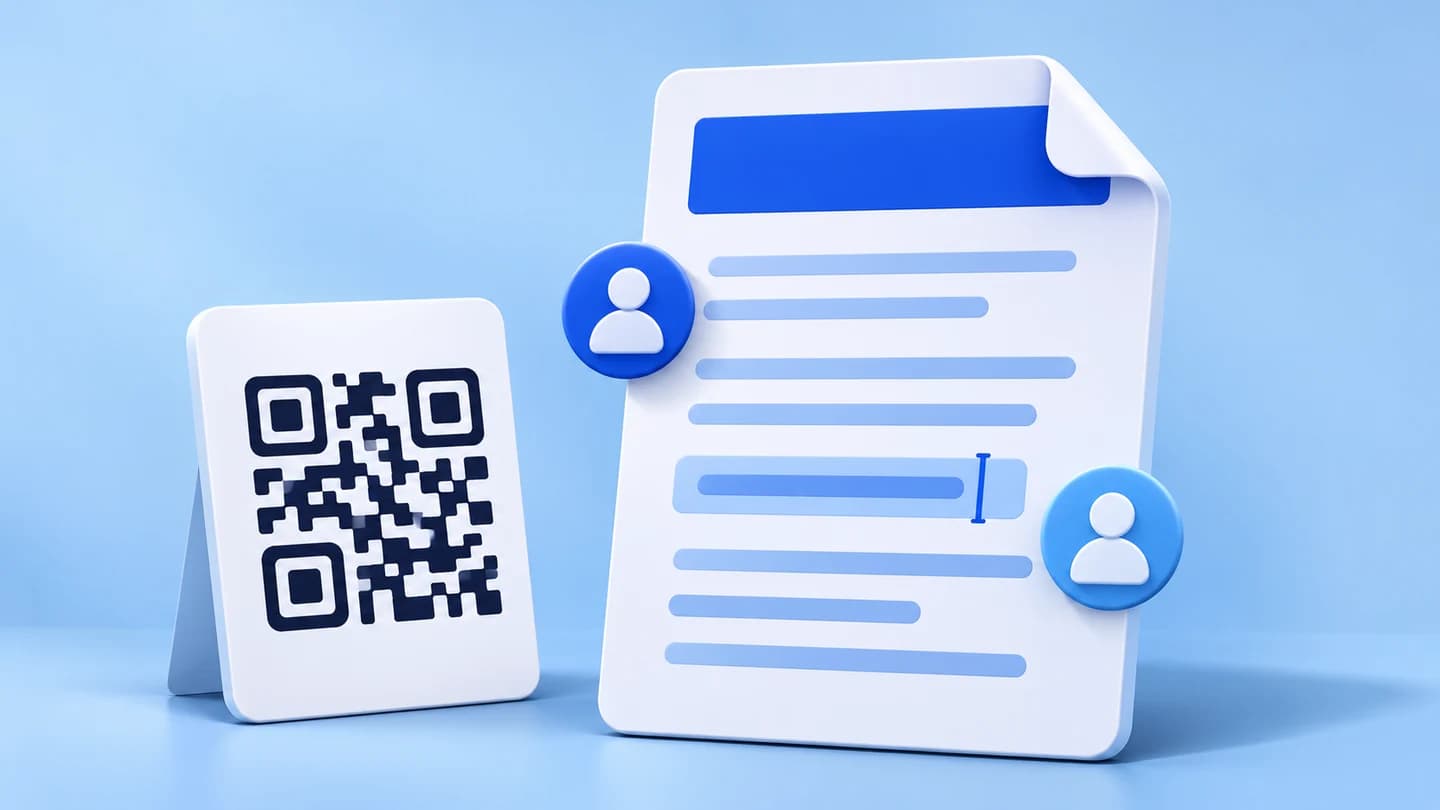
A QR code for a Word document normally contains the document’s web link. Save the file with an approved hosting service, create a sharing link for the intended audience, and paste it into the CraftMyQR QR generator. The reader scans the image and opens the hosted document.
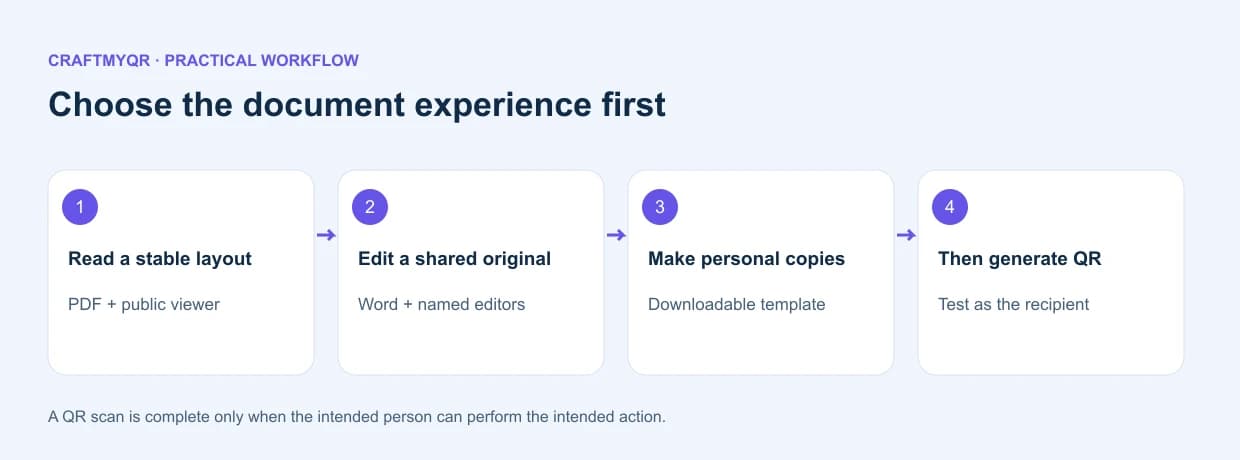
Before generating anything, decide what the reader should do: read a finished document, edit a shared original, or obtain a personal copy. Those three tasks need different permission and file choices. This guide provides a decision table, a recipient acceptance test, and a release record that helps prevent accidental public editing or distribution of the wrong revision.
Choose the Experience Behind a QR Code for a Word Document
The file extension does not tell you which experience is appropriate. A restaurant price sheet created in Word may work better as a readable PDF. For a team draft, collaborative editing may matter more. Registration templates often need separate downloaded copies.
Make the caption match the choice. “Scan to read the handbook” should lead to a reading experience, while “Scan to edit the team agenda” should make collaboration clear. A misleading instruction creates support work even when the code scans correctly.
| Intended action | Suggested destination | Permission posture |
|---|---|---|
| Read a finished handout | Hosted PDF exported from Word | View for intended audience |
| Review a working document | Shared Word original | Named reviewers or viewers |
| Edit one shared record | Shared Word original | Authorized editors |
| Fill in separate copies | Downloadable template with instructions | Original protected from changes |
| Submit structured responses | Form or approved collection page | Submission rather than file editing |
1. Prepare the intended version
Open the source and verify its title, revision, dates, links, and audience. Review comments, tracked changes, hidden instructions, and any personal details before distributing the file. A clean-looking page is not proof that the whole document is ready to share.
When layout consistency matters more than editing, export a PDF and inspect the result. Microsoft’s PDF export instructions distinguish exports with and without comments. Use the option that matches the intended handout, then check every page of the exported copy.
2. Save it to an approved host
For a collaborative Word file, OneDrive or SharePoint can provide a sharing link. A public reading copy can also live on your website or another suitable file host. A path beginning with C: points to your computer and will not serve the file to an unrelated phone.
3. Set the audience and role
Open Share or the host’s access controls. Choose viewing for read-only distribution and editing only for actual collaborators. Work and school policies may restrict public sharing, so use the options your organization permits.
Microsoft describes view and edit choices in its OneDrive sharing guidance. Do not assume the initial sharing option matches your task; read it before copying the link.
4. Generate and download
Copy the approved sharing link, select URL in CraftMyQR, and generate the symbol. Keep a dark foreground, light background, and full clear margin. Save the QR image under a filename that identifies the document and campaign.
5. Test the complete action
Scan the downloaded image as the intended reader. Verify that the document opens, the revision is correct, and the promised action works. Then repeat using the final printed proof or distributed digital layout.
Read, Edit, and Copy Need Different Acceptance Tests
A document QR code can pass a scan test while failing its actual purpose. Write down the intended outcome before asking someone to test it.
For reading, the tester should open the right edition, read it comfortably on a phone, and have only the intended actions. A collaboration test requires an approved person to authenticate, make a harmless change in a test copy, and confirm that the shared original receives it. To verify personal copies, ask the tester to obtain a separate file and confirm that their edits do not change the master.
Do not run experimental edits against a production document containing important live data. Use a representative test copy with the same intended access structure, then verify the production link without modifying its content.
Record the actual outcome rather than a single “works” checkbox. Useful fields include account used, app or browser, visible revision, available actions, and whether the user reached the intended final state.
A Hypothetical Template Failure, Explained
Imagine a workshop organizer distributes an editable registration worksheet through one public link. Each participant types into the same original. Names overwrite one another, and private entries become visible to later visitors.
The QR did exactly what its URL requested; the workflow was wrong. Participants needed individual copies or a form. Protect the master, explain how people obtain their own copy, or replace the destination with an approved submission process.
This example is a failure scenario for planning, not a reported customer incident. It demonstrates why the document’s final action matters more than the appearance of a successful scan.
For structured submissions, the Google Form QR guide offers a more appropriate starting workflow than public editing of a shared Word table.
Word File or PDF: Make the Tradeoff Explicit
A Word file preserves an editable source and can support collaboration. A PDF often provides a more predictable reading layout across devices. Neither format automatically creates the right permissions or prevents all copying.
Inspect these details in both formats:
If the public only needs a short answer, a mobile web page may serve it better than either file. Keep the editable Word source internally and link to an accessible public presentation of the information.
For a finished PDF workflow, see CraftMyQR’s PDF QR tool. Confirm its current hosting and management options before deciding whether to use a hosted-file route or your own existing document URL.
- Tables that extend beyond a phone’s readable width.
- Fonts or symbols that change after conversion.
- Links that point to internal systems unavailable to the reader.
- Page numbers and headings that no longer match.
- Comments or markup included unintentionally.
- Long download times caused by unnecessarily large images.
Update the Document Without Confusing Readers
Decide whether the QR should always show the latest version or preserve a fixed edition. A procedure sheet often needs the latest approved content, while a conference handout may need an archived version that matches the event.
Use a dynamic QR code when the hosting address may change. CraftMyQR’s managed destination allows an authorized update while preserving the printed symbol. It does not maintain the document’s permissions or approval process for you.
| Change | Risk | Release check |
|---|---|---|
| Edit the same shared original | Readers may see unfinished work | Review before updating the public copy |
| Upload a separate replacement | Existing link may still open old item | Scan the original printed code |
| Delete and recreate sharing link | Old access route may stop working | Check stored URL in a fresh session |
| Export a new PDF | Layout or links may change | Inspect and test exported copy |
| Switch hosting services | Printed URL may need redirection | Validate the full destination chain |
Test With the Right Recipient Identity
An owner can open files that strangers cannot. For public distribution, test signed out. For restricted collaboration, use a representative authorized account and verify that an unrelated account lacks access.
Microsoft explains that external sharing behavior depends on the link type and recipient identity. Some links support access without sign-in; others require an account or organization policy checks. Avoid promising an account-free experience until the intended route passes your own test.
Also try the document on a phone without the Word app installed. Record whether it opens in a browser, offers a download, or asks for another step. That observation determines the instructions beside the code.
A Useful Document Release Record
Keep one record with the approved artwork:
This record helps a colleague distinguish a permission failure from an outdated file or print problem. It also makes future changes deliberate: update the destination, repeat the relevant tests, and note the revision.
If the code becomes unrecognizable, start with QR scan troubleshooting. If it opens a login or access page, focus on the host and audience settings instead.
- Document title and edition.
- Owner and backup maintenance contact.
- Intended audience and action.
- Encoded URL and current final destination.
- Whether the file is a master, reading copy, or personal-copy template.
- Access role and expiration settings, if applicable.
- Test identities, devices, and results.
- Approved file and artwork revision.
Conclusion: Match the QR Code for a Word Document to the Task
A QR code for a Word document should lead to a defined action: reading, collaboration, or obtaining a personal copy. Choose the format and permissions around that action, then test using the recipient’s identity and final device experience.
The decision table, acceptance tests, and release record provide the practical additions beyond a basic copy-link tutorial. Use CraftMyQR to generate the approved link, and consider its managed destination workflow when the document may move. Approve the complete reader journey before distributing the artwork.
Frequently Asked Questions
Can a QR code contain an entire Word file?
For ordinary document sharing, the QR contains a web address pointing to the hosted file. The document itself stays on its host, which controls availability, permissions, downloads, and how the file opens on a phone.
How do I create a QR code for a Word document?
Save the document to an approved host, choose the intended audience and access role, and copy its sharing link. Paste that URL into CraftMyQR, download the code, and test the complete recipient workflow.
Do readers need Microsoft Word installed?
That depends on the host, sharing route, device, and intended action. Test on a phone without the app. A hosted reading copy or PDF may provide a simpler route when editing is unnecessary.
Should I convert the file to PDF first?
Choose PDF when a stable reading layout matters and recipients do not need the editable source. Inspect the export for comments, broken links, changed tables, and mobile readability before creating the final QR destination.
Can everyone edit the file after scanning?
Only if the sharing settings grant that access. Public distribution usually needs viewing rather than editing. Check the actual link role and test with a recipient account before placing the QR on widely distributed material.
How do I give each person their own copy?
Provide an approved template-download or personal-copy workflow and explain the action clearly. Verify that edits affect only the recipient’s separate file. Do not distribute a public editable original when independent copies are required.
Can I update the destination after printing?
An authorized update to a managed QR destination can preserve the printed image. A static code keeps its encoded URL, so continuity depends on maintaining that address and the correct hosted document behind it.
Why does the document open for me but not others?
You may be signed in as its owner or already have permission. Test with the intended recipient identity, inspect the link type and role, and check whether organizational policies restrict external or anonymous access.
Need to create a QR code now?
Create and preview your QR code with our free generator. For long-term materials like menus, packaging and posters, consider upgrading to dynamic QR codes.