
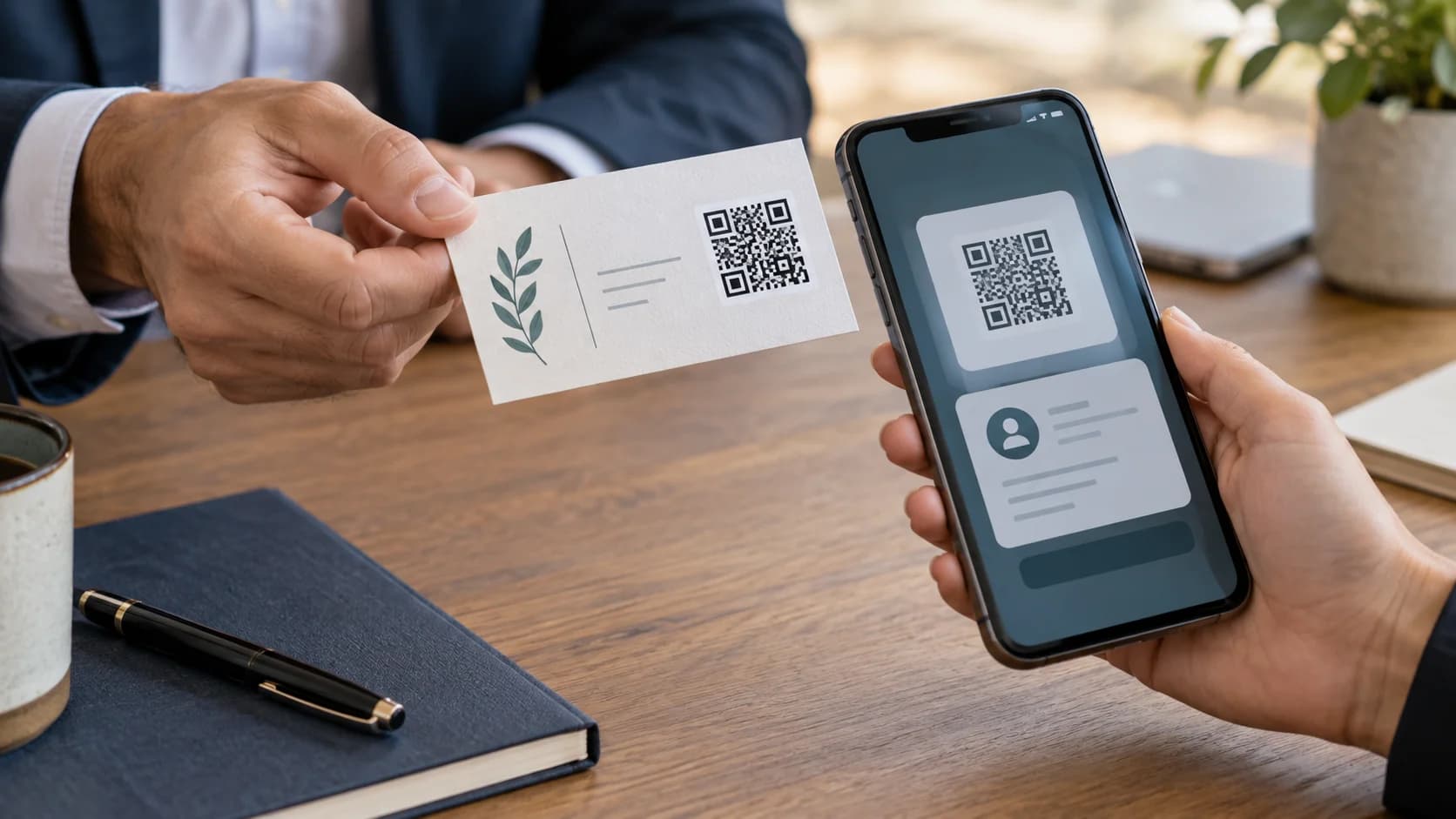
A QR code business card can turn a small printed card into a direct action: save a contact, open a portfolio, book a meeting, or visit a company page. The idea is simple, but the print has little room for error. A code that is too dense, poorly placed, or linked to the wrong destination can waste an otherwise polished card.
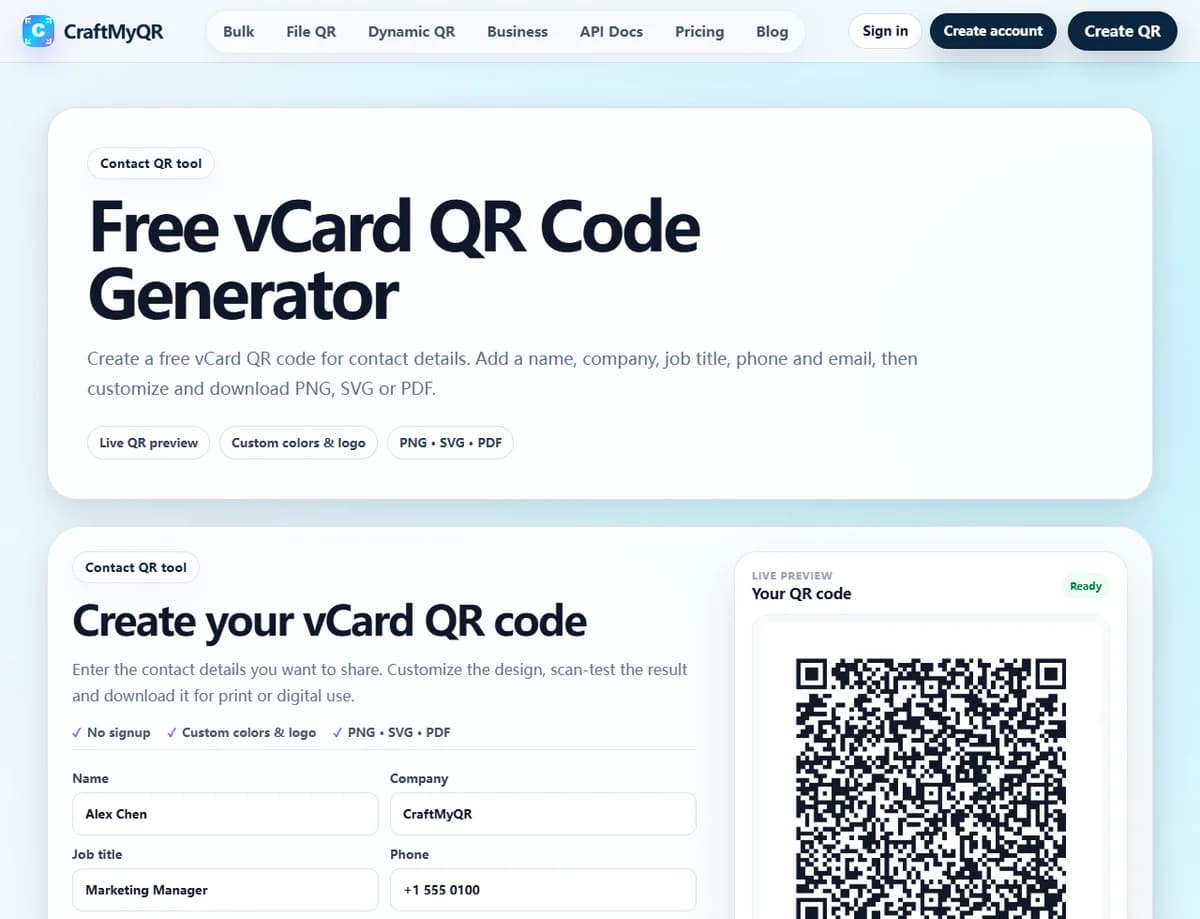
This guide helps you choose the right QR destination, build a reliable layout, and test the finished print. When you are ready to create the asset, the CraftMyQR business card QR code generator provides a focused vCard workflow with color, logo, quality, and download controls.
Should You Put a QR Code on a Business Card?
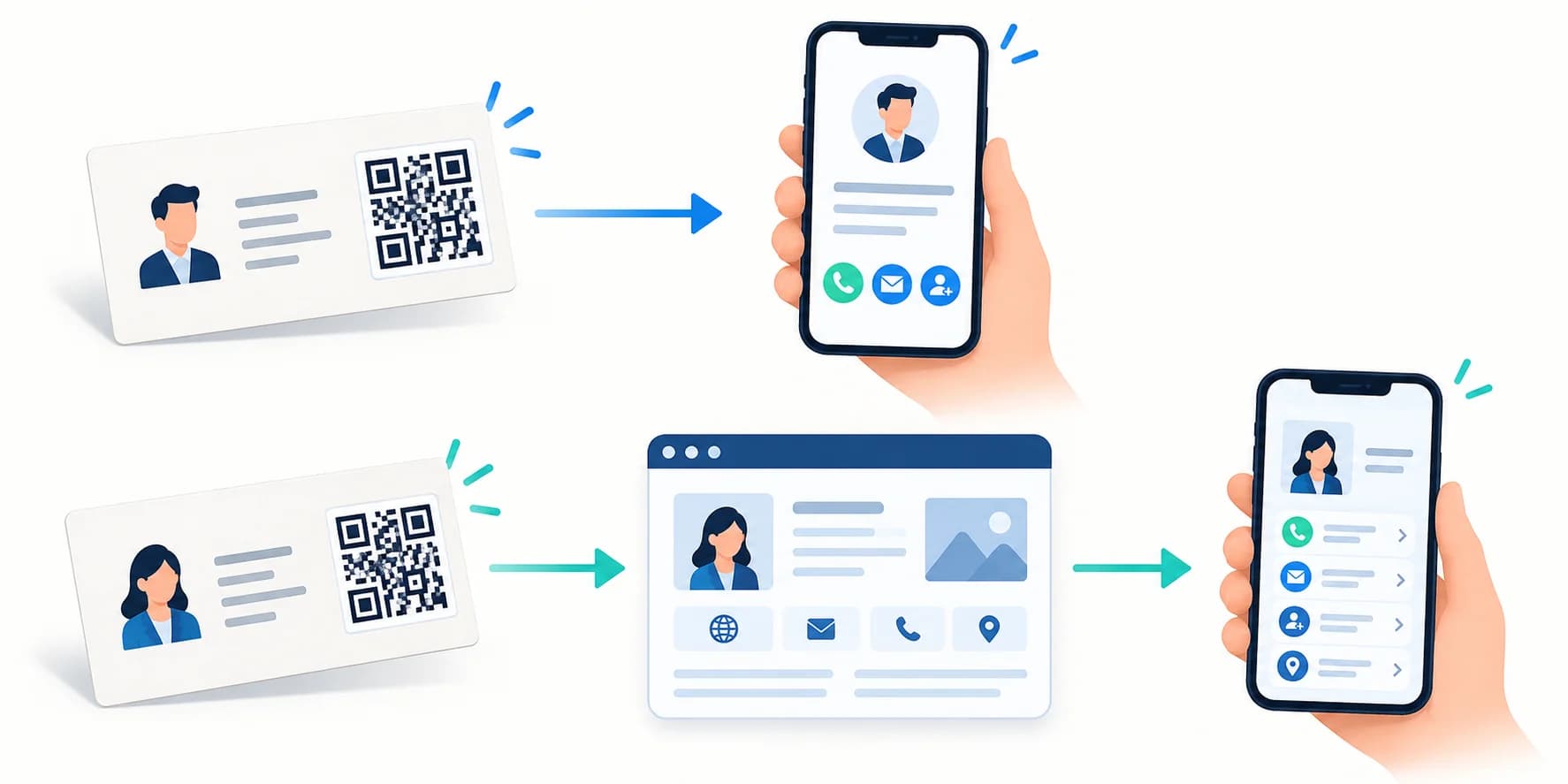
Use a business card with a QR code when scanning removes work for the recipient. Saving a contact is a strong example because it replaces manual typing. A portfolio, product demo, booking page, or professional profile also works when that destination supports the conversation that produced the card.
Do not let the code replace every visible detail. A recipient should still understand who you are, what you do, and how to use the card without scanning. Keep your name, role, company, and one reliable contact method in print. The QR code should extend the card rather than make it mysterious.
A code may be unnecessary when the destination adds no value, the audience cannot use phones in the setting, or you cannot maintain the linked page. Start with the next action you want, not with the novelty of adding a square.
The strongest business card QR code therefore has a defined job, an owner, and a fallback contact method. Those three decisions make the later design choices much easier.
Choose What Your QR Code Business Card Should Open
The destination shapes the QR pattern, the user experience, and your reprint risk. Choose among a direct vCard, a normal URL, and a managed dynamic URL before designing the card.
Static vCard for Direct Contact Saving
A static vCard stores contact fields in the QR code itself. Compatible phones can decode those fields and offer to create a contact without loading a hosted profile. The IETF vCard specification defines fields such as formatted name, telephone, email, organization, title, and URL.
This option suits a QR code business card whose main job is contact exchange. However, every encoded field becomes readable to anyone who has the card. Use a public work number and monitored business email rather than information you would not print openly. If your phone, employer, title, or email changes, you must generate a new code and reprint the card.
Static URL for a Profile, Portfolio, or Booking Page
A URL code opens a web page instead of filling contact fields. It can present a biography, social links, examples of work, multiple contact choices, or an appointment calendar. A short, stable URL often creates a less dense symbol than a long vCard payload, which can help when space is tight.
The tradeoff is dependence on the website and internet access. Keep the domain under reliable ownership, make the page fast on mobile, and preserve the URL even when the page design changes. A printed business card QR code can remain useful for years only if its destination remains available.
Dynamic URL for Post-Print Changes and Scan Analytics
A dynamic QR code stores a managed short link that redirects to the final URL. You can change that destination without altering the printed pattern, and the redirect can record scan events. This fits teams that may replace a portfolio, campaign, booking system, or employee profile while cards remain in circulation.
Dynamic does not mean permanent without maintenance. The managed link and account must stay active. Scan counts also measure redirect events, not saved contacts or completed meetings. Read the static versus dynamic QR code guide before choosing flexibility over a self-contained static code.
How to Make a QR Code Business Card Step by Step
- Define one primary action. Decide whether scanning should save contact details, open a profile, show a portfolio, or start booking.
- Prepare the exact data. Check spelling, international phone format, email, role, company, and destination URL.
- Create the code. For direct contact saving, use the CraftMyQR vCard QR generator. For a page, use a URL code and choose static or dynamic deliberately.
- Customize carefully. Use a dark foreground on a light, plain background. Add a logo only when the code remains easy to scan.
- Download suitable artwork. SVG or PDF usually fits professional print workflows. A sufficiently large PNG works in many simpler design tools.
- Place the code at final size. Keep it square, preserve its clear border, and add a short call to action.
- Test a physical proof. Scan the actual stock and finish on several phones before ordering the full quantity.
What Information Should You Include?
For a contact-focused QR code business card, include only fields that help the recipient recognize and reach you:
More data can create a denser symbol and a cluttered saved contact. Postal address, notes, multiple phone numbers, and personal details should earn their place. Test how the fields map on both iPhone and Android because contact apps can label or display vCard properties differently.
If a profile page handles the details, keep that page focused. Put the person’s name and role at the top, make contact actions easy to tap, and avoid a maze of unrelated links. The scan should continue the conversation, not start a scavenger hunt.
- full professional name;
- company or organization;
- job title when it adds context;
- work phone with the country code;
- monitored work email;
- one durable website or profile URL.
A Measured URL and vCard Comparison
On October 20, 2026, we downloaded the current no-logo URL and vCard examples from CraftMyQR and decoded both PNGs with jsQR 1.4.0. The URL was https://craftmyqr.com/. The vCard 3.0 example used Alex Chen, CraftMyQR, Marketing Manager, +1 555 0100, and [email protected]. These are public demonstration values, not a customer’s contact record.
Both examples recovered the exact encoded content digitally. This does not prove a phone imported the vCard or a printed card scanned. It shows why the same 25 mm space can be more demanding for the denser contact payload. Your fields, character set, logo, and generator settings can change the result.
| Property | URL example | vCard example |
|---|---|---|
| Payload bytes | 22 | 124 |
| Core modules across | 29 | 61 |
| Complete modules with margin | 37 | 69 |
| Module width at 25 mm complete size | 0.676 mm | 0.362 mm |
| PNG dimensions | 520 × 520 pixels | 520 × 520 pixels |
Use a Dimensioned Card Layout
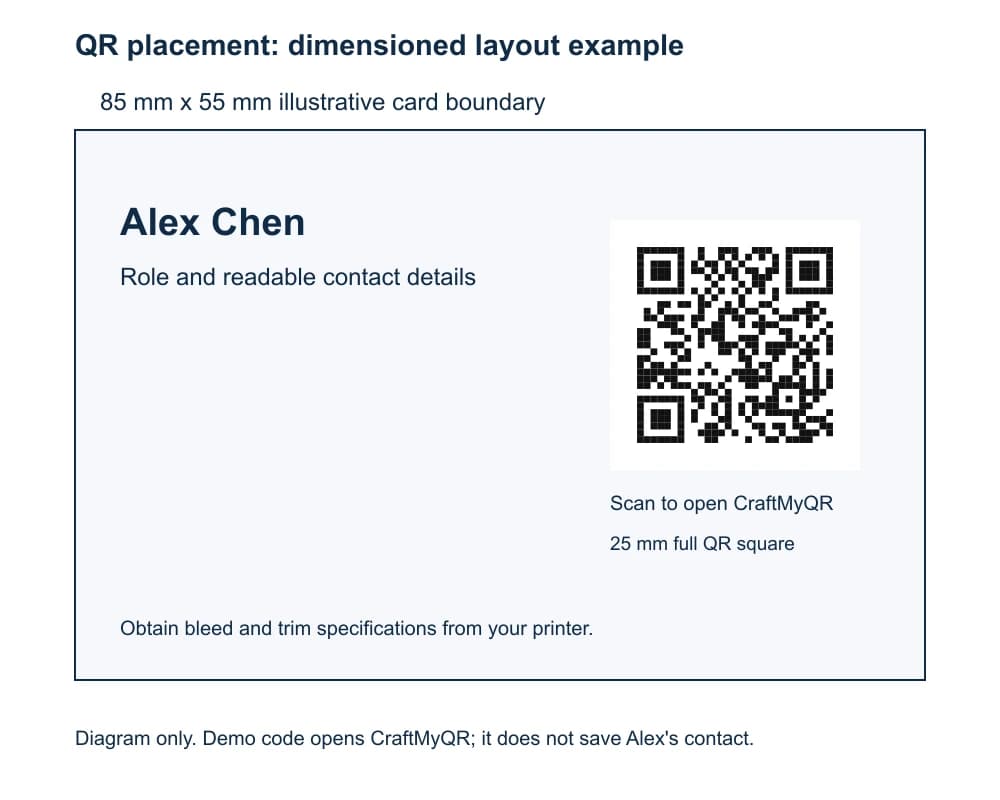
The diagram reserves a complete 25 mm QR square including its quiet zone, with the instruction outside that square. The 85 × 55 mm card boundary is an example format, not a universal printer specification. Obtain bleed and safe-area requirements from the supplier and keep the code inside the permitted final trim area.
Match the instruction to the payload. Use “Scan to save my contact” only for the intended contact workflow; use a website instruction for a URL. Keep enough readable identity on the card that recipients understand whose code they are scanning.
Where to Place a QR Code on a Business Card
The best placement gives the code enough room and makes its purpose obvious.
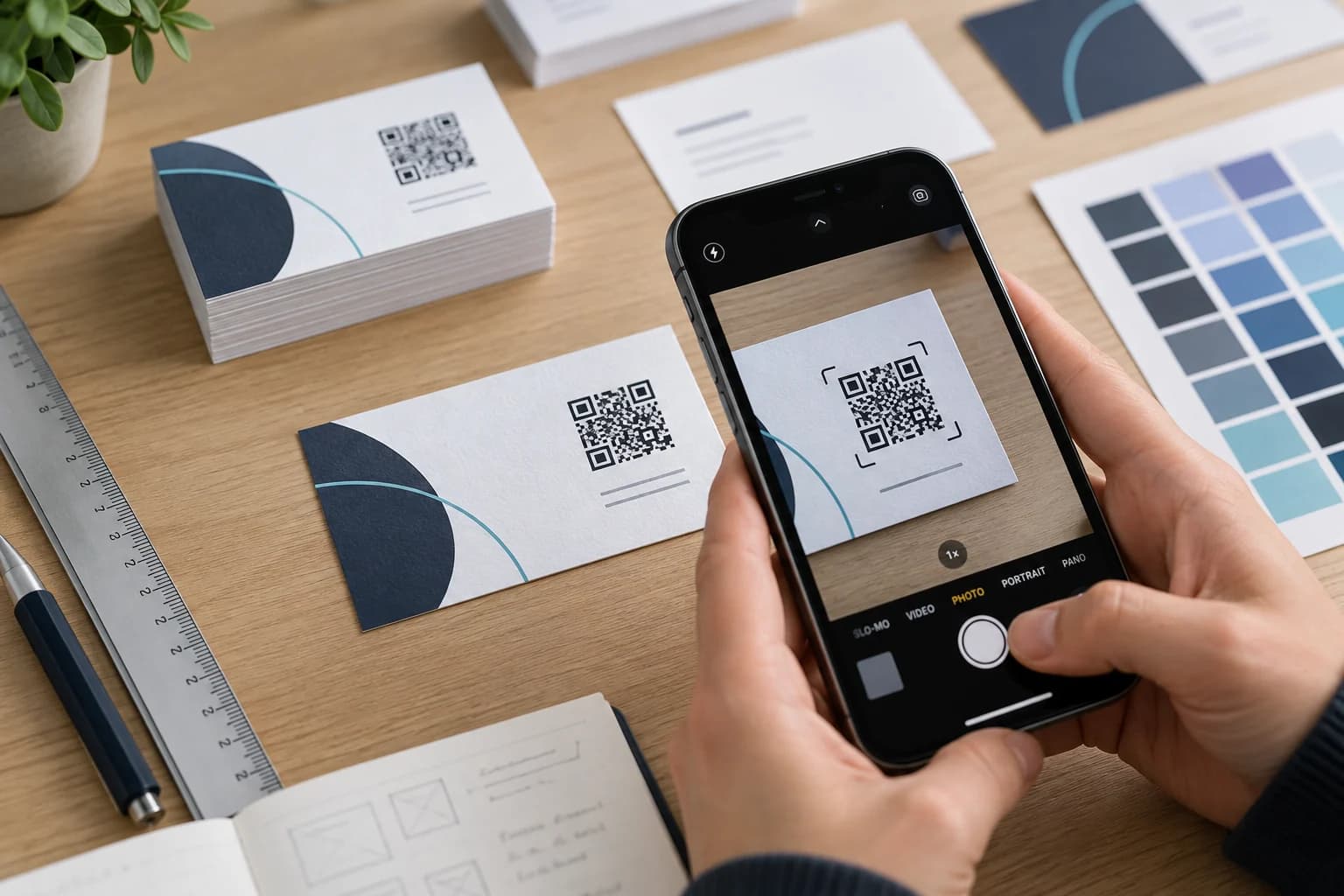
Keep the symbol away from trim edges, rounded corners, folds, punched holes, and foil seams. Avoid putting it over a photograph or textured background. A QR code on a business card needs visual separation even when the rest of the design is expressive.
Review the front and back together. A QR code for a business card should feel like part of the information hierarchy, not a production label dropped into leftover space.
- Back, centered: provides a clean front and generous space for the code plus a call to action.
- Front, lower corner: keeps the scan action visible, but only if the name and contact hierarchy remain clear.
- Side panel on a vertical card: can work when the panel is wide enough for the full quiet zone.
- Near a relevant action: place a portfolio code near a short portfolio prompt, not beside an unrelated phone label.
Write a Call to Action People Can Trust
A bare code asks the recipient to guess. Use a short phrase that describes the result:
Match the wording to the destination. “Save my contact” should not lead to a generic homepage, and “Book a meeting” should not open a page where the scheduling link is hard to find. A truthful label improves confidence and makes testing more specific.
- Scan to save my contact
- Scan to view my portfolio
- Scan to book a consultation
- Scan for the project case study
Choose the Right File and Print Finish
SVG keeps modules sharp when a designer scales the code inside vector layout software. PDF can work well for proofing and compatible print workflows. PNG is practical for common design tools, but use enough pixels for the final dimensions and never enlarge a tiny screenshot. Avoid JPEG because compression can soften module edges.
Follow the printer’s full artwork requirements for bleed, color, fonts, and document format. The QR export is only one element of the card. Matte or uncoated areas often control reflections better than mirror-like foil or gloss, yet any stock can introduce its own ink and texture behavior. The QR codes in print guide provides a wider production checklist.
Test the Finished Business Card, Not Just the QR File
A digital preview removes the paper, ink, coating, trim, and lighting conditions that determine real performance. Test one final-size proof, then check:
Detection alone is not a pass. Complete the intended action. Save the contact, tap the phone number, open the portfolio, or reach the booking screen. If the experience requires explanation from the card owner, revise it before printing hundreds of copies.
Record the approved file and destination after the test. That prevents a later designer or printer from rebuilding the business card QR code from an outdated email attachment.
- the camera detects the code quickly at a normal reading distance;
- both recent iPhone and Android devices can use it;
- the saved name, phone, email, and organization land in sensible fields;
- the website opens while signed out and on mobile data;
- the call to action matches what appears;
- mild angle and glare do not make scanning fragile;
- the code still works after the printer’s final export or proof revision.
Common QR Code Business Card Mistakes
- Encoding the wrong URL: a preview, admin, or temporary link may not work for recipients.
- Using too much vCard data: unnecessary fields increase density and expose more information.
- Cropping the quiet zone: layout tools may remove “empty” space that the scanner needs.
- Stretching the code: non-proportional scaling distorts square modules.
- Choosing weak contrast: pale colors and busy backgrounds can hide module boundaries.
- Adding an oversized logo: error correction does not make every obstruction safe.
- Skipping the proof: a screen scan cannot validate the final paper and finish.
- Ignoring ownership: a linked page, domain, or dynamic redirect needs a named maintainer.
Why Use CraftMyQR for Business Cards?
CraftMyQR addresses the awkward handoff between contact data, QR design, and print artwork. Its dedicated business card QR workflow creates a direct vCard from the fields you choose, keeps customization beside the live preview, reports quality checks, and exports PNG, SVG, or PDF.
That makes it more dependable for this workflow than copying a code from a screenshot or using an unexplained temporary link. When the destination must change after printing, CraftMyQR also offers managed dynamic URL codes and scan analytics. It cannot correct bad paper, glare, or careless placement, so the physical proof remains essential.
Conclusion: Build the Card Around the Next Action
A successful QR code business card starts with one useful action. Choose a direct vCard for simple contact saving, a stable URL for richer content, or a dynamic URL when post-print destination changes justify managed infrastructure. Then protect the quiet zone, use a practical size, label the action, and test the final card.
Use CraftMyQR to create the controlled source asset, download the format your designer or printer needs, and keep the QR decision documented. A few minutes of realistic proof testing costs far less than a reprint.
Explore the CraftMyQR QR code solutions for related business, print, and campaign workflows.
Frequently Asked Questions
What should a QR code business card link to?
Link to the single action that best continues the conversation. Use a vCard for direct contact saving, a profile or portfolio for richer context, or a booking page for appointments. Keep the destination mobile-friendly, stable, and clearly described beside the code.
Is a vCard or website better for business cards with QR codes?
A vCard is efficient when recipients mainly need to save contact fields. A website is better for portfolios, multiple links, or frequently changing information. Neither is universally better; choose according to the intended action, privacy needs, internet availability, and maintenance plan.
How small can a QR code on a business card be?
No universal minimum guarantees reliable scanning. A simple code around 20–25 mm square can serve as a practical first proof, but density, contrast, printing, paper, camera, and light all matter. Test the exact final-size card on several phones.
Should the QR code go on the front or back of the card?
Either side can work. The back often provides more space for a larger code and clear instruction. The front keeps the action immediately visible. Choose the side that preserves the complete quiet zone and does not weaken the card’s name and role hierarchy.
Can I change a QR code business card after printing?
You cannot change a static vCard or static URL stored in the printed pattern. A managed dynamic URL can redirect the same printed code to a new destination. It still depends on an active service and cannot change the card’s colors, size, or printed wording.
Which file format should I use for printing a business card QR code?
SVG usually gives designers the most flexible scalable asset. PDF can contain vector or raster artwork; inspect the actual exported contents before enlarging it. A sufficiently large PNG can also work. Follow the printer’s requirements, avoid JPEG compression, keep the code square, and scan the exported production proof.
Can I add a logo to a business card QR code?
Yes, if the logo remains modest and the resulting code scans reliably. Keep finder patterns clear, maintain strong contrast, and do not rely on error correction as a guarantee. Test the exact logo version in the final printed size, stock, finish, and lighting.
What should I write beside the QR code?
Use a short, accurate call to action such as “Scan to save my contact,” “Scan to view my portfolio,” or “Scan to book.” The wording should match the destination exactly, remain outside the quiet zone, and make the benefit clear before someone opens a camera.
Need to create a QR code now?
Create and preview your QR code with our free generator. For long-term materials like menus, packaging and posters, consider upgrading to dynamic QR codes.