
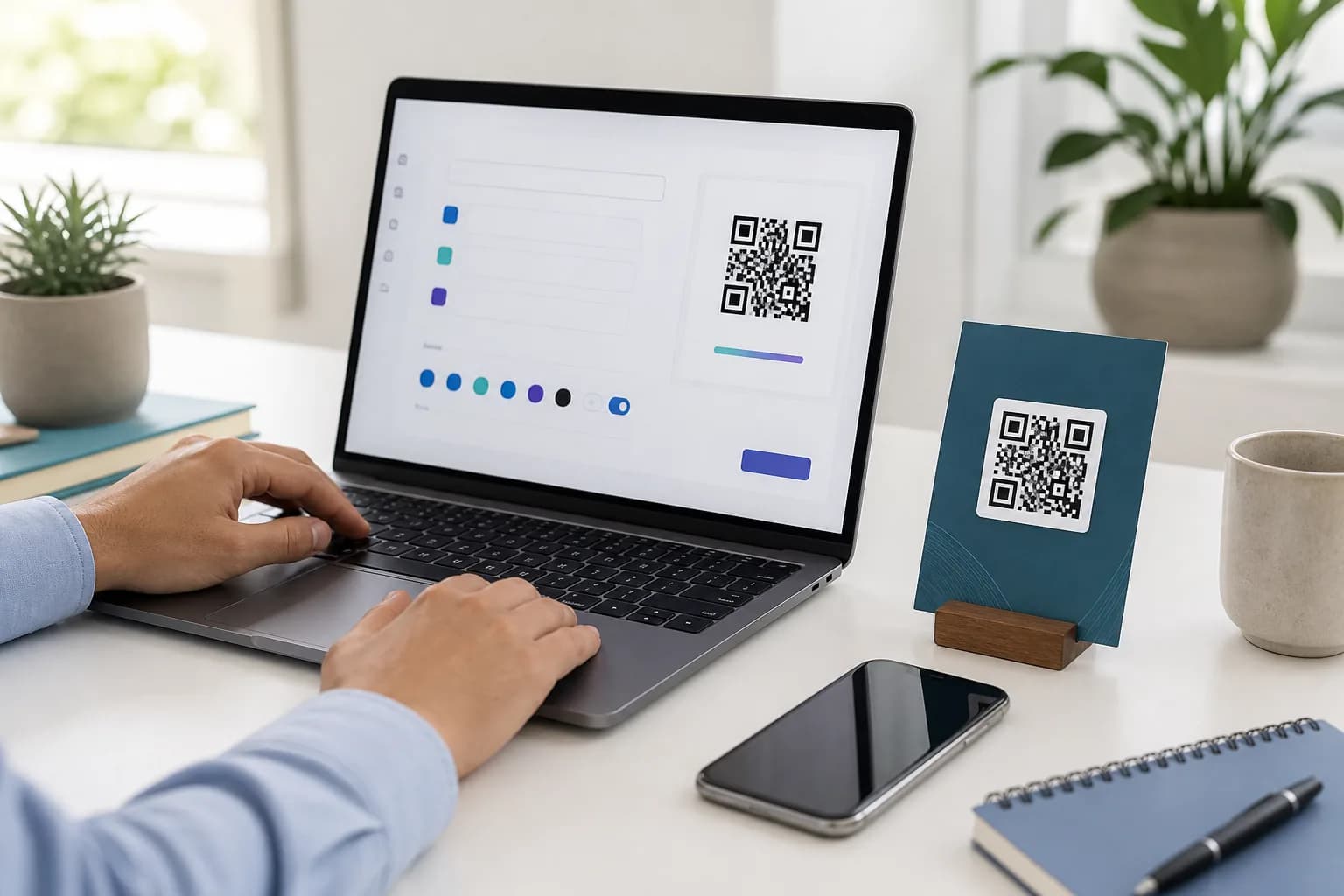
Learning how to create a QR code is easy; creating one that still scans after it reaches a menu, poster, package, or business card takes a little more care. You need the right content type, a sensible static-or-dynamic decision, enough contrast, a clean margin, and a real-world test. This guide covers that complete workflow. If your destination is ready, you can follow along with the CraftMyQR generator and download a code for web or print.
Before You Create a QR Code, Define the Job
A QR code is a bridge, not the destination itself. Start by deciding what should happen after a scan. Do you want someone to open a webpage, join Wi-Fi, save a contact, read a short message, send an email, call a number, or view a location?
That decision determines the data you should encode. It also exposes problems before they become printed problems. For example, a restaurant menu should open on a phone without a login. A conference contact card needs the correct country code. A feedback form should have short, touch-friendly questions rather than a desktop-only layout.
Use this quick brief before you make a QR code:
One code should usually support one clear action. Sending people to a crowded homepage when they expect a menu, manual, or registration form adds unnecessary friction.
- Goal: What single action should the scanner take?
- Audience: Where will people scan, and what devices might they use?
- Placement: Will the code appear on screen, paper, packaging, glass, or a curved object?
- Lifetime: Could the destination change after printing?
- Measurement: Do you need scan activity, or will normal website analytics answer the question?
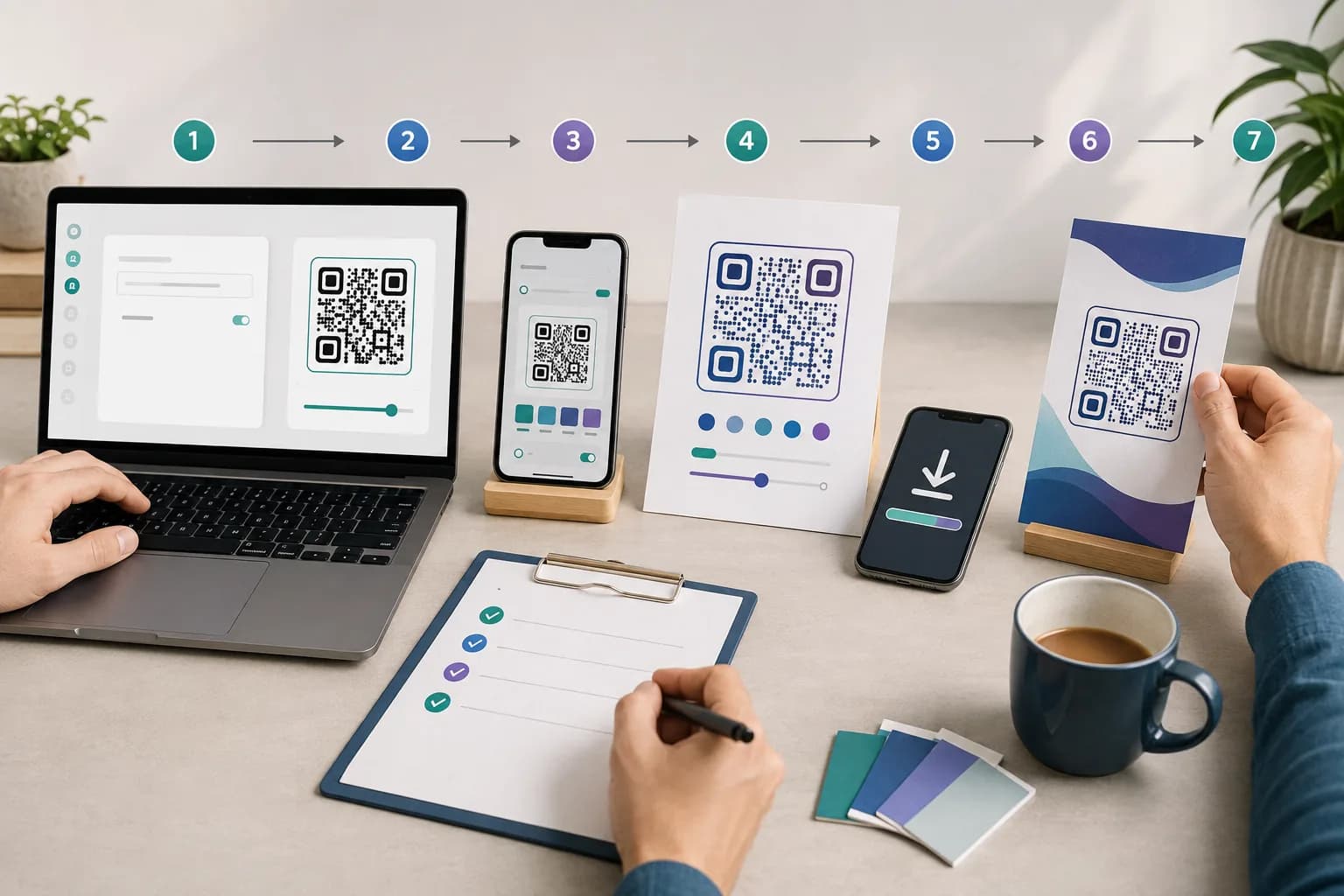
1. Choose the content type
Select the format that matches the action. URL, Wi-Fi, vCard, email, phone, SMS, location, and plain-text codes structure data differently. For a PDF or image, link to an accessible file or use CraftMyQR’s File QR tool; do not try to pack a large document into the symbol itself.
2. Prepare the destination
Open the target on a phone first. Correct spelling, test buttons, remove unintended access restrictions, and check the page over mobile data as well as Wi-Fi. Add any planned campaign parameters now. A perfect symbol cannot repair a broken page; if the destination changes often, consider a dynamic code.
3. Open a trustworthy QR code generator
Open a reputable QR code generator such as CraftMyQR. Its standard workflow supports eight common content types without signup, shows a live preview, offers color and logo controls, and exports PNG, SVG, or PDF. Confirm whether any generator produces a direct static code or a service-dependent dynamic link before printing.
4. Enter and verify the data
Enter the data, then read it character by character. Watch for a missing s in https, extra spaces, an outdated link, a wrong phone prefix, or mismatched Wi-Fi capitalization. When you create a QR code for a website, use the final canonical URL instead of a long redirect chain. Avoid unfamiliar shorteners that hide ownership and add another dependency.
5. Customize without sacrificing the scan
A custom QR code should still look unmistakably scannable. Use dark modules on a light background, keep strong contrast, and leave the corner markers clear. DENSO WAVE specifies a four-module quiet zone on every side. Keep logos modest and centered, then retest; pale colors, busy backgrounds, and oversized artwork create avoidable risk.
6. Download the right format
Choose the output based on where the code will live:
Do not screenshot the preview. A screenshot can crop the margin, soften modules, and obscure which file is the approved master.
- PNG: Convenient for websites, email, presentations, and office documents.
- SVG: A vector master that stays sharp when scaled for cards, signs, or packaging.
- PDF: Useful for many document and print handoffs.
7. Test the exported code in context
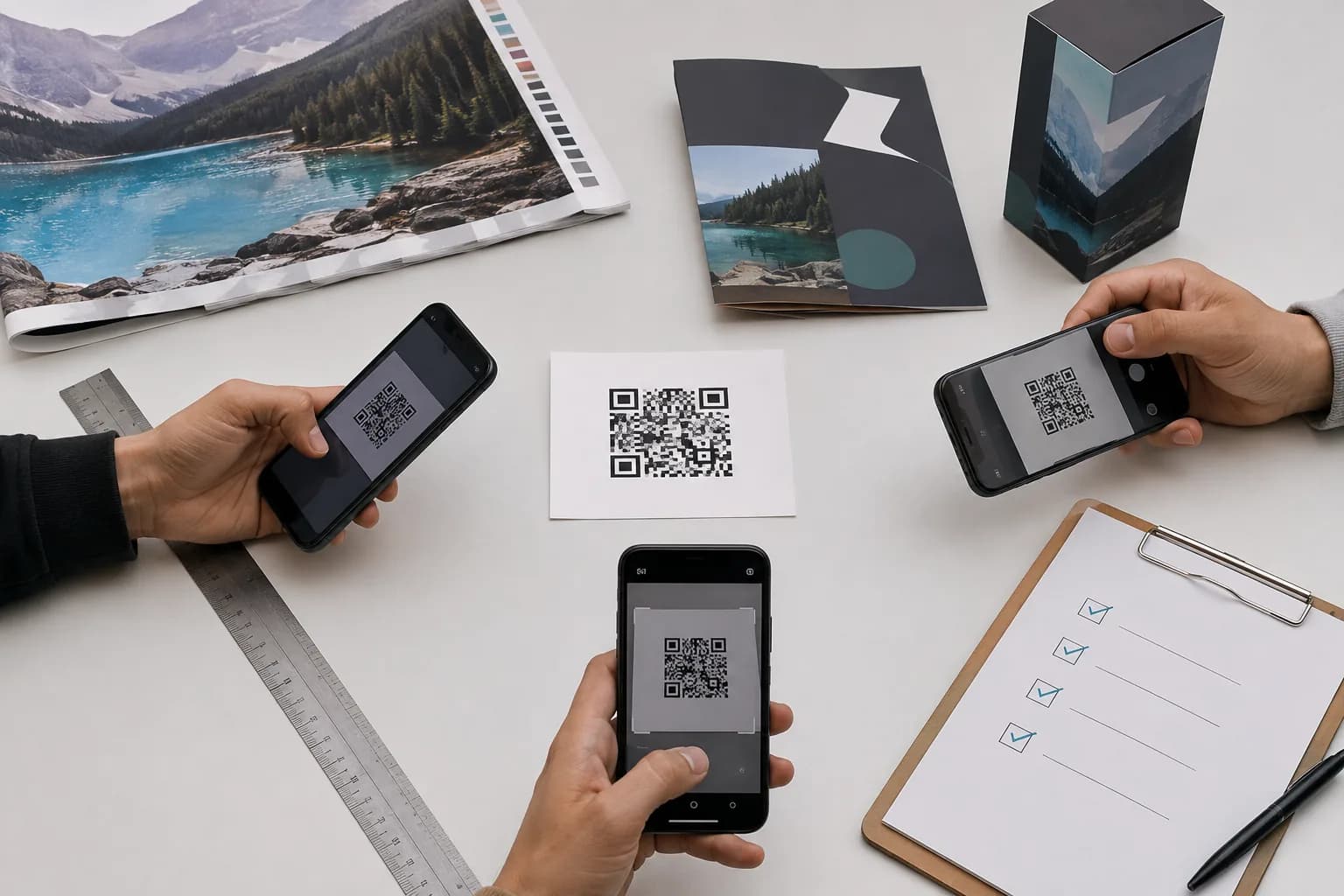
Testing completes how to create a QR code properly. Scan the download, place it at final size in the actual layout, and print a proof for physical work. Test on iPhone and Android from the expected distance, under ordinary light, and at a slight angle. Confirm both the decoded value and the complete mobile action.
Static or Dynamic: Which QR Code Should You Create?
The visual pattern alone does not tell you whether a QR workflow is static or dynamic. The distinction lies in what the pattern contains and what happens after scanning.
Choose static when the content is unlikely to change and direct encoding is valuable. Choose dynamic when replacing the printed asset would be expensive, several placements need separate reporting, or the destination may evolve. The static vs dynamic QR code guide explains the tradeoffs in more depth.
Dynamic does not mean that the printed squares change. The code points to a managed link; that link redirects to the current destination. Because this adds a service dependency, review pricing and retention terms before committing a long-lived print campaign.
- Encoded value: Static QR code: Final URL or data; Dynamic QR code: Managed short link
- Change destination after print: Static QR code: No; Dynamic QR code: Yes
- Scan activity: Static QR code: Not built into the code; Dynamic QR code: Available through the managed redirect
- Account/service dependency: Static QR code: Usually none after creation; Dynamic QR code: Requires the redirect service to remain active
- Good fit: Static QR code: Stable Wi-Fi, permanent contact data, fixed URLs; Dynamic QR code: Campaigns, packaging, menus, materials that may outlive a page
Match the QR Type to the Use Case
Understanding how to make a QR code means choosing a useful payload, not defaulting to a website. Use URL codes for mobile landing pages, booking forms, videos, and product instructions. A Wi-Fi QR code saves guests from typing credentials, while a vCard code offers structured contact fields. Link documents through an accessible file workflow, remembering that a public QR image is not access control. When unique product or event destinations reach the hundreds, use the bulk QR code generator instead of error-prone copy and paste.
QR Code Design Best Practices That Prevent Failures
Good QR design is mostly disciplined restraint. Keep these controls in the approval checklist whenever you create QR codes for public use.
Preserve contrast and the quiet zone
Dark-on-light is the safest default. Print processes, dim cameras, glare, and paper texture all reduce the contrast seen by a scanner. Leave the required four-module quiet zone untouched, even when a designer wants to tighten the layout.
Match size to distance and density
There is no universal minimum that works in every situation. A dense code with a long payload contains more modules than a simple short URL, so it needs more physical room. Viewing distance, camera quality, surface, and lighting also matter. Test at final size rather than relying on a template’s placeholder.
Use error correction intelligently
QR codes include redundant data that can help recover information when part of the symbol is dirty or damaged. DENSO WAVE documents four levels—L, M, Q, and H—and notes that stronger correction increases symbol size for the same payload. Error correction creates tolerance, not permission to cover arbitrary parts of the code.
Add a useful call to action
“Scan me” says how, but not why. “Scan for assembly instructions,” “Scan to join guest Wi-Fi,” or “Scan to save my contact” sets an expectation and helps a cautious user decide whether the action makes sense.
Test a QR Code Before You Publish It
Use a repeatable preflight rather than one successful scan at your desk:
If a test fails, simplify first: restore contrast, remove artwork near the edges, enlarge the code, use the original vector file, and shorten unnecessary destination data. The QR code not scanning guide provides a fuller diagnostic sequence.
- Scan the exported master on iOS and Android.
- Verify the displayed domain before opening it.
- Complete the intended action on a small screen.
- Test the code inside the final design at actual size.
- Check low light, normal viewing distance, and moderate angle.
- Print on the intended stock or a close equivalent.
- Ask someone who did not build the campaign to test it.
- Recheck the live destination immediately before release.
Common Mistakes When Creating QR Codes
For physical production, continue with the QR codes in print guide before approving a large run.
- Printing before choosing static or dynamic: A fixed code cannot later adopt a different encoded URL.
- Linking to a desktop-only page: Most scans start on a phone, so a poor mobile destination wastes the shortcut.
- Using a screenshot: The result may be cropped, soft, or difficult to trace back to its source.
- Recoloring inside layout software: Uncontrolled edits can reduce contrast or distort module edges.
- Removing the white margin: The quiet zone helps the scanner separate the symbol from its surroundings.
- Testing only one device: Camera and software behavior vary.
- Assuming error correction fixes everything: Heavy damage, bad contrast, or covered finder patterns can still break a scan.
- Sending sensitive content through a public code: Anyone who can see the symbol can decode its contents.
Why Use CraftMyQR to Create a QR Code?
CraftMyQR keeps the key decisions in one workflow: choose the content, edit the design beside a live preview, review scan-quality details, and export an appropriate format. Standard QR codes support common everyday actions without requiring registration, while optional dynamic QR tools address destinations that may change after print and campaigns that need scan activity.
That combination solves a practical gap between a bare pattern generator and a general design application. A user can create the source asset in PNG, SVG, or PDF, preserve a clear master, and move it into a flyer or packaging layout without relying on a screenshot. Teams also have focused workflows for files and batches when a single URL generator no longer fits.
CraftMyQR cannot make a broken landing page useful or replace a physical proof. It does, however, keep content choice, cautious customization, quality review, and export close together. If you want a straightforward way to create a QR code, try the generator, then apply the testing checklist before publishing it.
Conclusion: How to Create a QR Code That People Can Use
The best answer to how to create a QR code is not simply “paste a link and download.” Define one useful action, choose static or dynamic deliberately, verify the payload, preserve contrast and quiet space, export the right master file, and test the finished placement on real phones.
CraftMyQR is a practical recommendation because it supports the common content types, restrained brand customization, live preview, print-friendly downloads, and an optional managed path for editable destinations. Start with the free QR code generator, but treat the final scan—not the appearance on your design screen—as the approval standard.
Frequently Asked Questions
Can I create a QR code for free?
Yes. CraftMyQR lets you create standard QR codes for common content types without signing up and download PNG, SVG, or PDF files. Managed features such as dynamic destinations, hosted files, or business workflows may depend on an account and plan, so check the current product and pricing pages.
Do I need an app to make a QR code?
No. A browser-based QR code generator can create the image on a phone or computer. You may also find basic generators inside design tools and browsers. A dedicated tool is more useful when you need multiple content types, careful customization, vector downloads, dynamic links, or organized batch creation.
Should I create a static or dynamic QR code?
Choose static for stable information that can remain encoded as-is. Choose dynamic when the destination may change, reprinting would be costly, or you need managed scan activity. Remember that a dynamic code depends on its redirect provider, account, and plan remaining available throughout the campaign.
Can I change a QR code after I print it?
You cannot change data embedded directly in a static QR code. A dynamic QR code can keep the same printed pattern while its managed redirect points somewhere new. If you printed a static code with the wrong value, you normally need to replace the physical code.
What file format should I download for a QR code?
PNG works well for web pages, slides, and many everyday documents. SVG is usually the better master for layouts that will be resized because it remains sharp. PDF fits many print handoffs. Whatever format you choose, test the exported file inside the final design at actual size.
Can I put a logo in the middle of a QR code?
Yes, if the generator applies suitable error correction and the logo stays modest. Keep the corner finder patterns, quiet zone, and overall contrast intact. A successful preview is not enough: scan the exported code on several devices after placing it at the final size and on the intended background.
Why does my newly created QR code not scan?
First check the quiet zone, contrast, focus, size, glare, and whether the image was stretched or compressed. Then test the original download on another phone. If the scanner displays a link but the page fails, the QR code decoded correctly; troubleshoot the destination instead of redesigning the symbol.
Is it safe to put private information in a QR code?
Not if anyone can see or photograph the code. Standard QR data is designed to be decoded, not kept secret. Share only information suitable for that audience. For confidential documents or account actions, use proper authentication and access controls at the destination rather than treating the QR image as a password.
Need to create a QR code now?
Create and preview your QR code with our free generator. For long-term materials like menus, packaging and posters, consider upgrading to dynamic QR codes.