
WiFi QR Code Generator
Create a WiFi QR code so guests can join a wireless network by scanning instead of typing the network name and password.
Generate your WiFi QR code
Enter the exact WiFi name, password and security type. The QR preview updates instantly in your browser.
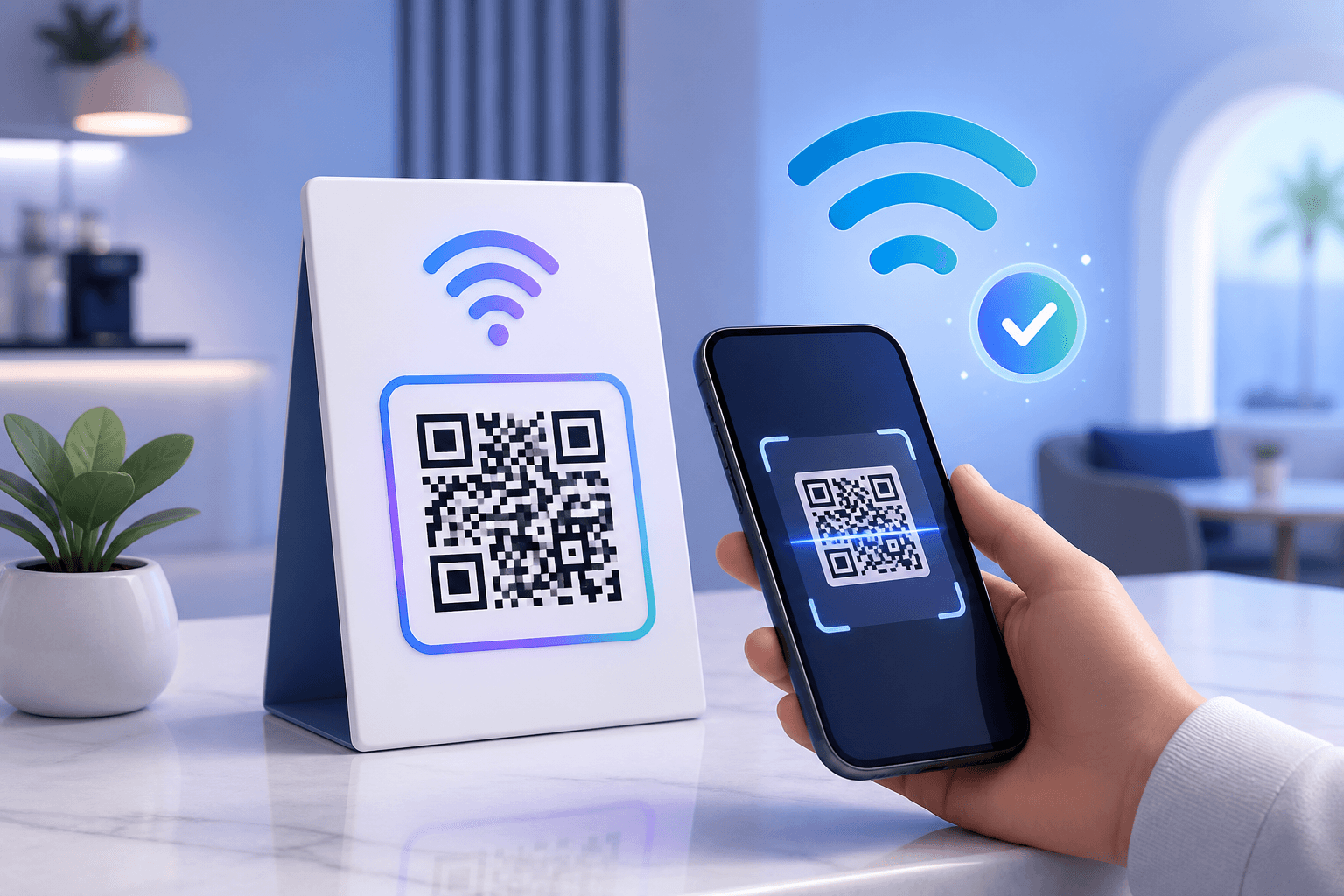
Quick answer: Enter the WiFi network name and password, select the matching encryption type, scan-test the result and download PNG, SVG or PDF.
How to create a WiFi QR code
- Find the exact network name (SSID). Enter it exactly as configured, including capitalization and spaces.
- Choose the security type. CraftMyQR provides WPA, WEP and no-password options.
- Enter the WiFi password. Check capitalization, punctuation and special characters carefully.
- Generate and customize the QR code.
- Test on real devices. Try the finished code on the phones your visitors are likely to use.
- Download and display it. Use PNG for everyday uses or SVG/PDF for scalable print artwork.
What happens when someone scans a WiFi QR code?
Compatible phones recognize the encoded WiFi network details and can offer to join the network. A WiFi QR code stores the credentials in the QR payload itself, so changing the router password or SSID requires generating a new WiFi QR code.
Where WiFi QR codes are useful
- Cafes and restaurants: table tents, counters and menu displays.
- Hotels and vacation rentals: room cards, welcome books and reception signs.
- Offices: reception desks and meeting rooms on a dedicated guest network.
- Events: registration desks, attendee guides and venue signage.
- Homes: guest rooms, home offices and shared spaces.
Is a WiFi QR code secure?
Treat a WiFi QR code like the network password. The password is not printed as plain text, but it is encoded in the QR code and can potentially be extracted by anyone who can read the symbol.
For public placements, use a dedicated guest network rather than exposing credentials for a private internal network.
How to print a WiFi QR code that scans reliably
Use strong contrast
Dark modules on a light background are the safest default.
Preserve the quiet zone
Do not crowd the clear margin around the symbol with text, borders or graphics.
Use a clear instruction
Add copy such as “Scan to join guest WiFi.”
Test the final physical piece
Scan the actual table tent, card, sticker or sign at the distance and lighting conditions where guests will use it.
WiFi QR code troubleshooting
| Problem | What to check |
|---|---|
| Phone sees the code but cannot join | SSID, password and encryption type |
| Some phones work, others do not | Device compatibility and final QR quality |
| Code stopped working after router changes | Regenerate it with the new credentials |
| Camera struggles to recognize the code | Size, contrast, glare, focus and quiet zone |
WiFi QR Code FAQ
Can iPhones scan WiFi QR codes?
Many current iPhones can recognize standard WiFi QR codes and offer a network-join action. Test the actual code you plan to display.
Can Android phones use a WiFi QR code?
Many modern Android devices support WiFi QR codes through the camera or network-sharing interface.
Does a WiFi QR code hide the password?
It hides the password from casual visual reading, but the credentials remain encoded in the QR symbol.
Do WiFi QR codes expire?
The QR pattern does not expire because of age. It stops working when the encoded network details no longer match the network.
Can I use a dynamic QR code for WiFi credentials?
Standard WiFi QR codes store the credentials directly, so changing them requires a new WiFi QR code.