

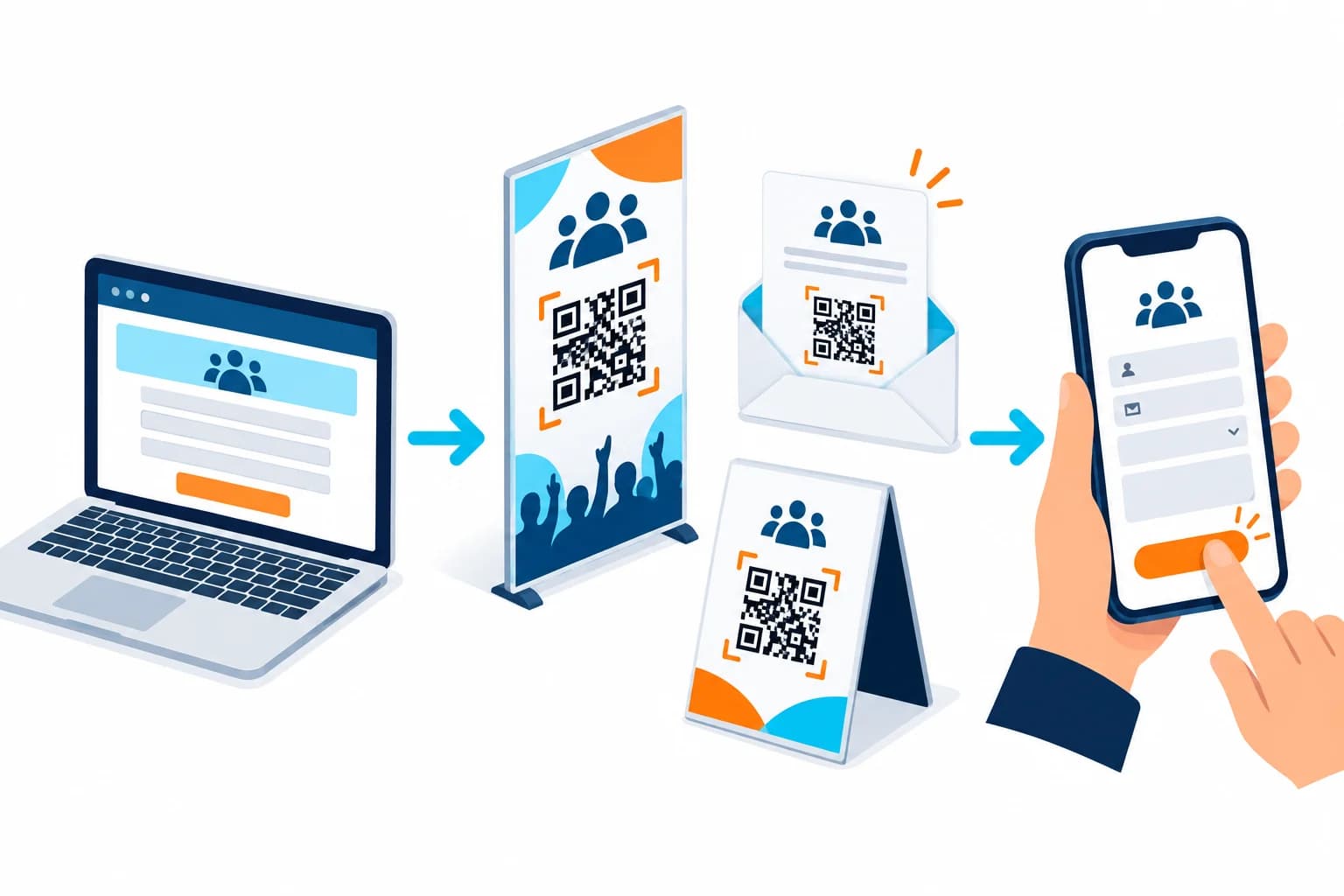
A QR code for event registration moves someone from a poster, badge, table sign, screen, or handout to a mobile sign-up page. It should open the public registration form, preserve campaign context, and work before attendees arrive. It is not automatically a ticket or check-in credential.
This guide separates registration from admission, explains link preparation, static and dynamic choices, placement tracking, privacy, print design, and testing. Use the CraftMyQR generator once the event page is approved.
How to Create a QR Code for Event Registration
This workflow creates a shared QR code for event registration. If every attendee needs a unique admission token, use the event platform’s ticket or credential system after registration rather than printing one public code as a ticket.
- Publish the registration page. Set capacity, dates, audience, required fields, privacy notice, and confirmation.
- Copy the public responder link. Avoid editor, preview, and account-specific URLs.
- Add campaign parameters. Distinguish poster, partner, lobby, badge, and screen placements when useful.
- Choose static or dynamic. Plan what happens if registration closes or the destination changes.
- Generate the QR code. Paste the verified URL and use restrained customization.
- Add a clear call to action. State the event, deadline, cost, or eligibility needed before scanning.
- Test on phones. Complete a real registration while signed out and on mobile data.
- Monitor and retire. Check capacity, confirmation delivery, destination health, and post-event behavior.
Registration QR Code vs Ticket or Check-In QR Code
A registration code is shared publicly and opens a form or booking page. Many people can scan the same code and submit their own information. Its purpose is acquisition or enrollment.
A ticket QR code is usually unique to one order or attendee and may contain or reference a credential that staff validate at entry. A check-in scanner changes attendance state and must handle duplicates, authorization, privacy, connectivity, and fraud controls.
Do not describe a public registration link as secure admission. After the form is submitted, let the event platform issue confirmation or tickets through its supported workflow. Keep the public QR code focused on starting registration.
Prepare the Mobile Registration Page
Put the event name, date, time, time zone, location or online format, price, capacity status, and key eligibility rules at the top. Ask only for information needed to run the event, communicate with attendees, or meet a justified requirement.
If you use Google Forms, follow Google’s publish and responder-link guidance and copy the responder URL. Test while signed out because the organizer’s account can hide access restrictions.
Use a clear confirmation screen and email when appropriate. Explain what the person should expect next, how to change or cancel, and who to contact. If payment or account creation occurs after the form, state that before the scan.
Static or Dynamic Registration QR Code?
A static code stores the registration URL directly. It is suitable when one stable page will handle open, full, waitlist, and closed states at the same address. Maintaining that page under your own domain reduces reprint risk.
A dynamic QR code can redirect the same printed code from registration to a waitlist, venue update, livestream, feedback form, or event archive. It can also record scan events by placement.
Dynamic routing needs an owner and an approval process. A last-minute redirect can confuse people if the printed call to action still says “Register.” Prefer a transition page that explains the status instead of silently sending late scanners somewhere unrelated.
Track Event Placements Consistently
Use UTM parameters according to a documented scheme. Google’s URL campaign guidance supports source, medium, and campaign labels. Separate a venue poster from a partner handout only when that distinction will inform a decision.
A dynamic code can record scans before the event page loads, while web analytics records sessions and the form records submissions. Registration platforms then record confirmed, paid, canceled, and attended states. Never report these as interchangeable totals.
Avoid placing personal information in tracking parameters. For partner attribution, use an opaque partner code or campaign label rather than a person’s name or email.
Design Event Registration Signage
Use “Scan to register” beside the event name, date, and relevant deadline. Include price, age, membership, capacity, or account requirements when they could change someone’s decision. A transparent prompt builds better trust than an unexplained square.
Keep the code on a light plain field with strong contrast and a complete quiet zone. Place it inside trim and safe areas and away from lanyard holes, folds, screen edges, or reflective laminates. Add a short typed URL as a fallback.
Size for the real context. A handout, podium slide, window poster, and entrance banner require different dimensions and test distances. Do not ask people to scan a code displayed on the same phone they are using without also providing a tappable link.
Test the Entire Registration and Confirmation Flow
Scan each placement on recent iPhone and Android devices, using Wi-Fi and mobile data. Test as a signed-out visitor. Complete every required field, payment step if applicable, consent, and CAPTCHA, then verify the confirmation page and email.
Check duplicate-submission behavior, capacity limits, waitlist transitions, calendar links, time zones, and accessibility. Test the route from the exact country or network your audience uses when regional rules or payment methods differ.
Print one final-size proof and test lighting, glare, distance, and folds. For projected slides, test from the back of the room. Recheck shortly before launch and after any event-platform update.

Plan for Full Capacity, Changes, and Closure
Decide what late scanners see when the event fills. A clear waitlist or sold-out page is better than a dead form. If time or venue changes, update the stable event page and notify registered attendees through the proper communication channel.
After the event, keep a helpful status page for a reasonable period. A dynamic code may point to resources or feedback only when the transition is explained and consistent with the original context and privacy notice.
Archive registration data according to the organization’s retention policy. The QR code is public, but the form responses are not. Limit administrative access and do not collect information simply because the form makes it easy.
Common Event Registration QR Code Mistakes
Run a short event-day checklist with named owners for the form, payment system, QR placements, attendee support, and status updates.
- Using an editor link: attendees see a permission request instead of the form.
- Confusing registration with admission: one public code is presented as a unique ticket.
- Hiding key conditions: cost, deadline, capacity, or account requirements appear only after scanning.
- Ignoring mobile forms: long grids, uploads, or unnecessary fields cause abandonment.
- No full-capacity plan: the code leads to a closed or confusing page.
- Testing only detection: payment, confirmation, and email delivery remain unchecked.
- Equating scans with attendees: campaign events are reported as registrations or check-ins.
Why Use CraftMyQR for Event Registration?
The CraftMyQR generator converts the approved registration URL into a customizable asset with live preview and PNG, SVG, or PDF export. Managed dynamic options support destination changes and scan analytics when the event workflow needs them.
That is more dependable than a screenshot or an anonymous short link because the organizer can document the source destination and hand a suitable file to designers and printers. CraftMyQR does not replace the registration platform, ticketing controls, or privacy process.
A reliable QR code for event registration opens the public mobile form, states the event conditions, survives the placement, and is tested through confirmation. Create the approved code with CraftMyQR, then keep ticket and check-in credentials in the event platform.
Explore the CraftMyQR QR code solutions for related business, print, and campaign workflows.
Frequently Asked Questions
Can one QR code register multiple event attendees?
Yes. A shared registration QR code opens the same public form for many people. Each person submits a separate registration. If every attendee needs a unique ticket, issue that credential after registration through the event platform.
Is a registration QR code the same as a ticket QR code?
No. A registration code starts a shared sign-up flow. A ticket code is usually unique and validated at entry. Do not use one public registration link as proof of payment, identity, authorization, or admission.
Can I change the event form after printing the QR code?
You can edit content at the same stable URL, use a server redirect you control, or update a managed dynamic destination. Test after every change and keep the printed call to action consistent with the new page state.
How can I track registrations from different posters?
Use distinct UTM content or source labels, separate dynamic codes, or pre-filled source fields where appropriate. Keep naming consistent and privacy-safe. Compare scans, web sessions, submitted forms, confirmed registrations, and attendance as separate stages.
What information should appear beside the event QR code?
Show the event name, date, a clear “Scan to register” prompt, and material conditions such as deadline, cost, age, membership, capacity, or account requirements. Add a short fallback URL and a contact route when space allows.
What happens when event registration closes?
Keep the destination alive with a clear closed, sold-out, or waitlist message. A managed dynamic code can change routes, but the new page should explain the transition rather than silently sending scanners to unrelated content.
Should the registration form require sign-in?
Require sign-in only when the event genuinely needs identity or organizational access. It adds friction and may exclude participants. Test with the intended audience while signed out, and explain the requirement before people begin the form.
How do I test an event registration QR code?
Use several phones, private browsing, Wi-Fi and mobile data. Complete the form, payment if any, consent, CAPTCHA, confirmation page, and email. Test the actual printed or projected placement at realistic distance and lighting.
Need to create a QR code now?
Create and preview your QR code with our free generator. For long-term materials like menus, packaging and posters, consider upgrading to dynamic QR codes.