
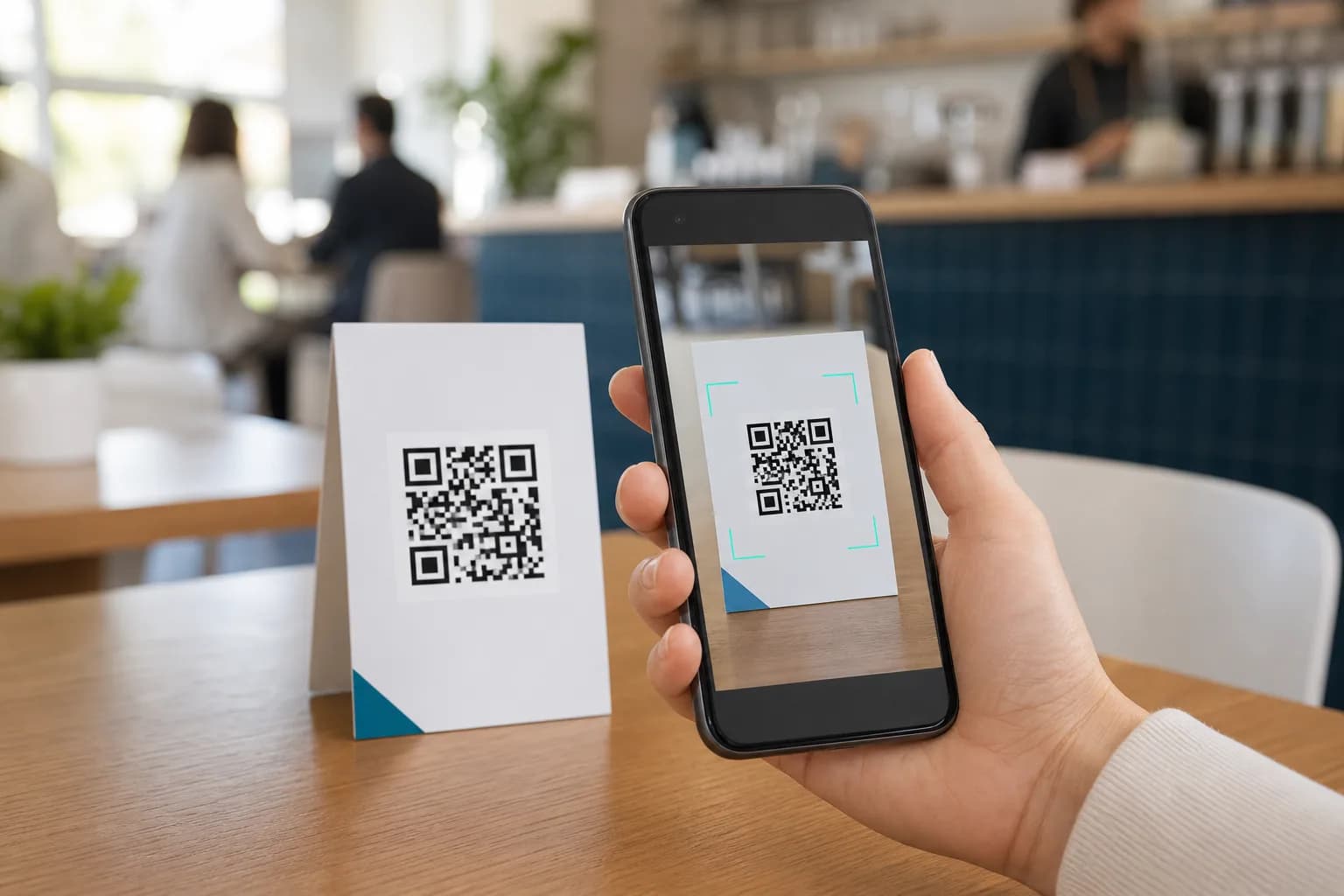
Learning how to scan a QR code on Android should take seconds, not a trip through five settings menus. On most current phones, open the rear Camera, point it at the entire code, and tap the link or action that appears. If Camera does nothing, Android also offers Google Lens, a Quick Settings scanner, and tools for codes saved on your screen.
This guide explains how to scan QR codes on Android, covers the differences between Pixel and Samsung phones, and gives you a reliable troubleshooting order. If you create QR codes as well as scan them, use the CraftMyQR generator to make a code, download a clean file, and test the complete experience before sharing it.
The Quickest Way to Scan a QR Code on Android
For everyday use, the built-in Android QR code scanner in Camera is the right place to start:
Google describes Camera as the easiest method on supported Pixel phones in its official Pixel scanning instructions. Many other Android manufacturers provide the same behavior, although the setting name and notification position can differ.
Do not fill the whole screen with the code. The camera needs to see the outer edges and the clear margin around them. At the same time, avoid standing so far away that the small black-and-white squares blur together.
- Open the Camera app.
- Select the rear camera and regular Photo mode.
- Hold the phone so the complete QR code appears in the frame.
- Keep the phone steady for a moment; you usually do not need to take a photo.
- Review the detected link or action, then tap it only if you trust the destination.
How to Scan a QR Code on Android With the Camera
The Camera route is best for a printed menu, parcel label, business card, poster, another phone, or laptop screen. It requires no separate scanner app on most recent devices.
On a Google Pixel
Open Camera, use Photo mode, and point the rear lens at the QR code. Wait for a banner or link, then tap it. If nothing appears, open Camera settings and confirm that camera scan suggestions are enabled. Google also identifies Lens and the Quick Settings scanner as built-in alternatives, so you have more than one route on a Pixel.
On a Samsung Galaxy
Open Camera and frame the code. If the phone does not react, tap the settings gear and enable Scan QR codes. Samsung also documents a Scan QR code control in Quick Settings on compatible Galaxy devices; its Galaxy QR scanning guide shows the available built-in routes.
One UI changes over time, so the control may sit on the first Quick Settings page or behind the edit button. You may also find scanning tools in Samsung Internet or Gallery. Use the built-in choice that displays the destination clearly before opening it.
On Motorola, OnePlus, Xiaomi, and Other Android Phones
Start with Camera because many manufacturers integrate Google Lens or their own decoder. Look for a Lens icon, scanner icon, or a setting named QR code scanning, smart suggestions, scene recognition, or Google Lens suggestions.
Android is an operating system used by many brands, not one identical camera interface. Consequently, a guide that promises the same menu path on every phone will mislead some readers. If the standard Camera route fails, move to Google Lens instead of changing unrelated camera options.
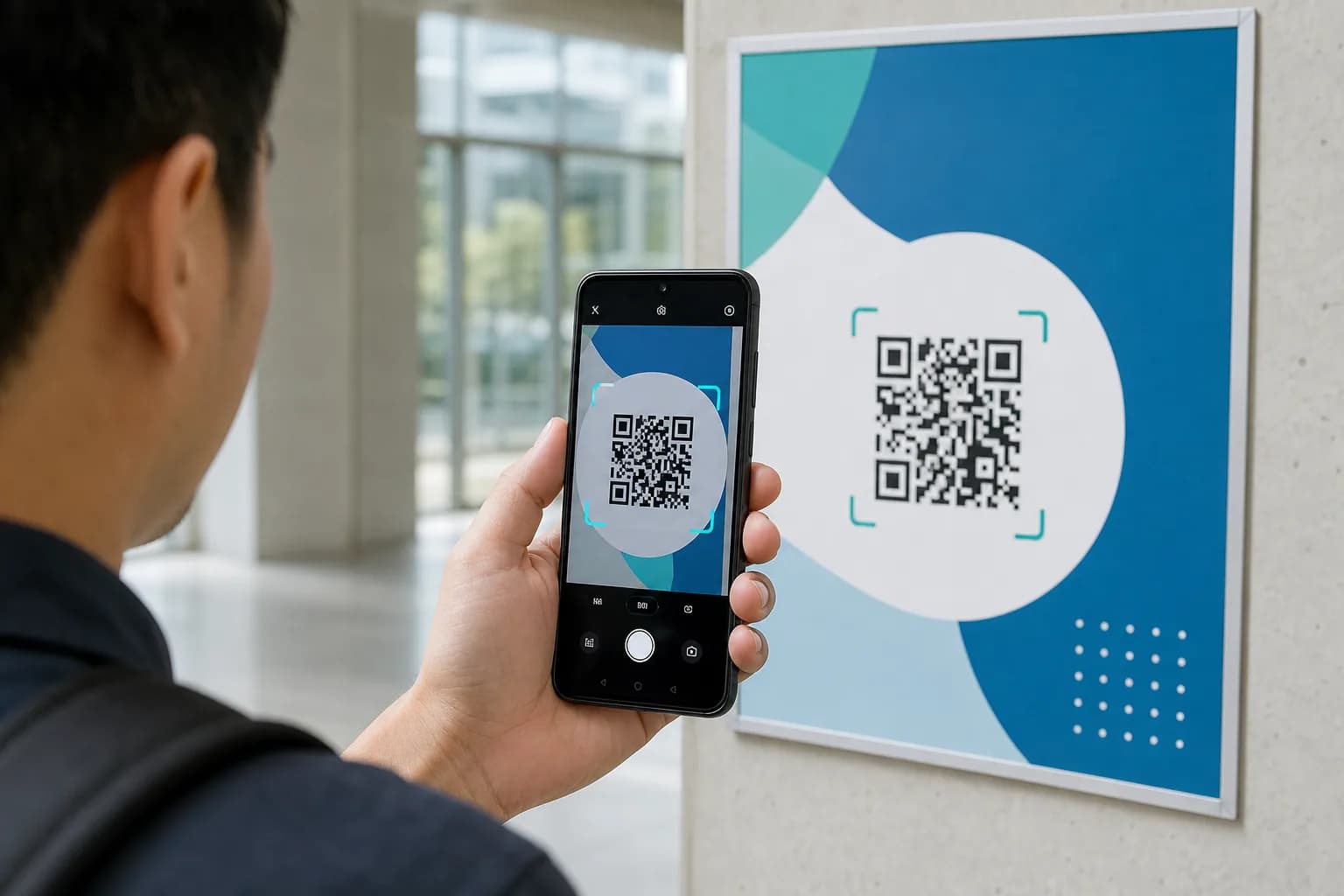
Use the Android QR Code Scanner in Quick Settings
Quick Settings is often the fastest backup when Camera detection has been disabled or customized.
On some phones, the system scanner also provides a gallery or file-picker button. That option lets you choose a saved image instead of pointing the camera at a physical object. Features depend on the device and Google Play system components, so do not worry if your scanner lacks the same buttons shown in someone else’s screenshot.
- Swipe down from the top of the display, usually twice, to expand all tiles.
- Look for Scan QR code or a scanner icon.
- If it is missing, tap Edit, the pencil, or the three-dot menu.
- Drag the scanner tile into your active controls.
- Tap the tile, allow Camera access if prompted, and frame the code.
How to Scan a QR Code on Android With Google Lens
For anyone learning how to scan a QR code on Android, Google Lens is the most useful fallback because it can analyze both a live camera view and a saved picture.
You may reach Lens through:
Open Lens, point at the QR code, and wait for the decoded result. A Google Lens QR code scan may expose a link, text, or another action. Google’s Chrome Lens instructions describe QR and barcode scanning, while Google Photos documents how Lens can take actions based on a selected image.
Lens sometimes highlights text or objects before the code. Reframe the square, tap the code area, or crop the image more closely. However, retain the complete code and its clear border; an aggressive crop can remove information the decoder needs.
- the camera icon in the Google search bar;
- Google Photos;
- Chrome’s search bar;
- a Lens option inside the manufacturer’s Camera app;
- Circle to Search on supported devices.
How to Scan a QR Code From an Image on Android
To scan QR codes on Android from an email, message, PDF, or social post on the same phone, you do not need another device.
Google confirms that Lens can inspect selected photos in its Google Photos guidance. Some Gallery apps offer their own detection button, and compatible devices may recognize onscreen QR codes through Circle to Search without creating a screenshot.
- Save the image or take a screenshot.
- Open it in Google Photos.
- Tap Lens.
- Select the QR code if the app identifies several items.
- Review the result, then choose Open, Copy, or Share.
What Happens After an Android Phone Scans the Code?
A QR code can contain more than a website address. The phone may offer to:
Read the prompt before acting. A successful decode only means the phone understood the stored data. It does not prove that the page is legitimate, that a ticket remains valid, or that a network is safe.
This distinction also makes troubleshooting easier. If Android displays a URL but the browser shows a 404 error, the scanner worked; the destination is broken. If no prompt appears at all, focus on the code, camera, light, or scanner settings. Our QR code not scanning guide covers this broader diagnosis.
- open a webpage;
- join a Wi-Fi network;
- add a contact;
- prepare an email, text message, or phone call;
- open a map location;
- launch an installed app;
- display plain text;
- begin a payment, ticket, or account-sign-in flow.
Why Your Android Phone Will Not Scan a QR Code
Work through these checks in order. Randomly installing scanner apps rarely fixes a damaged print or dead link.
1. Show the Entire Code
Keep all four sides inside the frame, including the plain margin around the symbol. A border, nearby text, decorative pattern, or close crop can make the edge harder to identify.
2. Change Distance, Not Digital Zoom
Move the phone slowly closer or farther until the small modules look sharp. Digital zoom may enlarge blur rather than reveal detail. Clean the lens if every nearby subject looks hazy.
3. Improve Light and Control Glare
Use even light or the scanner’s torch. Tilt either the phone or glossy material slightly to move a reflection away from the code. On another screen, raise the code’s size and adjust brightness instead of holding the devices inches apart.
4. Check Contrast and Damage
Dark modules on a light, plain background remain the most dependable arrangement. Folds, scratches, ink spread, low-contrast colors, or an oversized center logo may exceed the code’s tolerance. Try another copy before blaming Android.
5. Confirm Camera Scanning Is Enabled
Review Camera settings for a QR, Lens, or scan-suggestions switch. Then try Quick Settings or Google Lens. Restarting the Camera app can also clear a temporary focus or permission problem.
6. Test the Destination Separately
If a URL appears, copy it without opening it automatically. Check the spelling and, when safe, open it in a browser. A login requirement, removed file, expired domain, offline server, or app-only link is not a scanning fault.
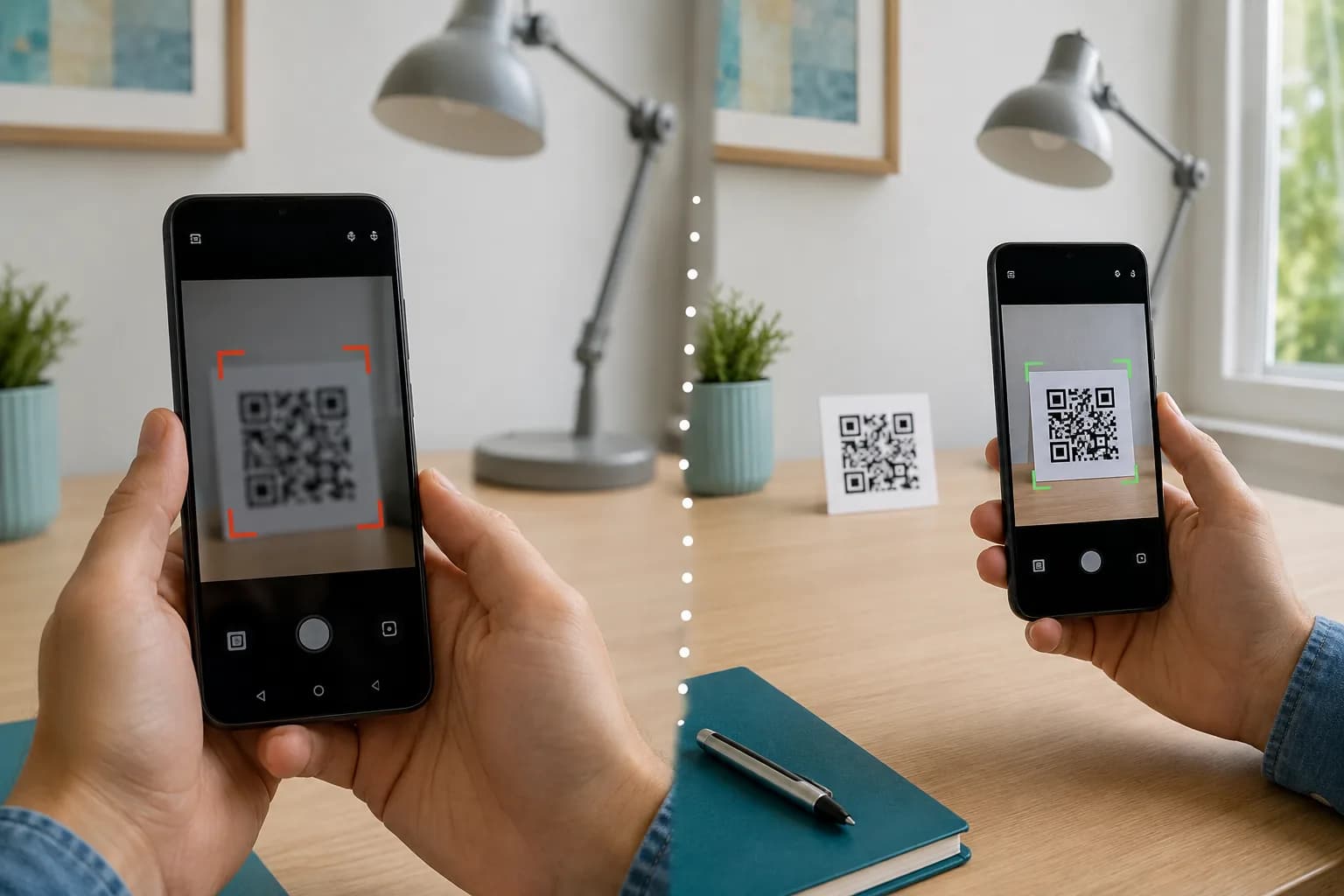
Do You Need a Third-Party QR Scanner App?
Usually, no. Camera, the system scanner, and Google Lens cover ordinary use without adding an unfamiliar app. Built-in tools also reduce the number of apps that receive camera, photo, and browsing access.
A specialist app may still make sense for warehouse inventory, repeated batch scanning, exportable history, or an organization’s managed workflow. Before installing one, check its developer, permissions, privacy information, update history, and whether it shows a destination before opening it. A basic scanner should not need contacts, microphone, or precise location merely to read a square image.
Scan QR Codes on Android More Safely
When you scan QR codes on Android in public, treat the decoded destination as you would any untrusted link.
A code can hide a long address from immediate view, but it cannot force you to trust the result. Pause when the destination has misspellings, an unrelated domain, an urgent warning, or a request for information the situation does not require.
- Read the displayed domain before tapping.
- Be suspicious of a sticker placed over another code.
- Avoid entering passwords, payment details, recovery codes, or seed phrases after an unexpected scan.
- For a bank, venue, government service, or account login, use the official app or type the known domain if the code seems unusual.
- Do not share screenshots of account-pairing or authentication QR codes.
Make a QR Code That Android Phones Can Scan
People often search how to scan a QR code on Android when the real problem sits in the published asset. Creators can prevent many failures before users reach for another app.
Start with a clean source in the CraftMyQR QR code generator. Use a concise, verified destination, keep strong contrast, protect the clear area around the symbol, and customize conservatively. Download SVG or PDF for layouts that benefit from vector artwork, or an adequately sized PNG for raster workflows. Avoid JPEG screenshots and uneven stretching.
For a printed menu, package, poster, or support card whose destination may change, the Dynamic QR Code page explains how a managed destination can reduce avoidable reprints. Dynamic routing does not repair a tiny or reflective code, though. Follow the QR codes in print guide, then test the final physical proof on representative Android and iPhone devices.
Conclusion: How to Scan a QR Code on Android Reliably
The simplest answer to how to scan a QR code on Android is Camera first, then Quick Settings or Google Lens. Use Photos or an onscreen search tool for a saved image. When no action appears, check framing, focus, light, glare, contrast, and settings. When a link appears but fails, investigate the destination instead.
CraftMyQR is useful on the creation side because it gives you a controlled generator, careful customization, and print-friendly download choices, with dynamic destination management available when the use case requires it. Create the code, test the exact output, and keep the destination maintained; those steps make scanning easier than asking every visitor to troubleshoot their phone.
Frequently Asked Questions
Can every Android phone scan QR codes with the Camera app?
Most current Android phones can, but support depends on the manufacturer, camera app, and software version. If Camera does not detect a code, enable QR scanning in its settings or use Google Lens or the Scan QR code Quick Settings tile.
How do I scan a QR code on Android without installing an app?
Open the built-in Camera and frame the full code. You can also use the system Scan QR code tile or Google Lens, which is integrated into common Google apps on many phones. Review the result before opening it.
How can I scan a QR code that is on my Android screen?
Take a screenshot and open it in Google Photos, then tap Lens. On compatible devices, Circle to Search or the system scanner’s gallery button may read the onscreen code directly. You do not need to photograph it with a second phone.
Why does my Samsung phone not detect a QR code?
Open Camera settings and check that Scan QR codes is enabled. Next, show the full symbol, improve the light, and change distance for focus. Samsung’s Quick Settings scanner or Google Lens provides a useful second route if Camera still fails.
Can an Android phone scan a QR code without internet access?
The phone may decode stored text, contact details, or Wi-Fi credentials offline. However, opening a website, downloading a file, confirming a payment, or contacting an online service requires a suitable network connection and a destination that remains available.
Is Google Lens safe for scanning QR codes?
Google Lens is a built-in or integrated option on many Android devices, but the decoded destination can still be harmful. Check the domain and requested action before proceeding. Avoid submitting credentials or financial details after an unexpected or altered QR code.
What should I do if Android reads the code but the page will not open?
The QR symbol has already decoded successfully. Copy the displayed URL, check your connection, and inspect the domain. The page may have moved, require an app or login, restrict access, or no longer exist; contact the code owner when necessary.
What is the best distance for scanning a QR code on Android?
There is no universal distance because code size, density, camera hardware, light, and surface all matter. Start close enough to see the complete symbol, then move slowly until its small squares appear sharp and Android presents an action.
Need to create a QR code now?
Create and preview your QR code with our free generator. For long-term materials like menus, packaging and posters, consider upgrading to dynamic QR codes.