
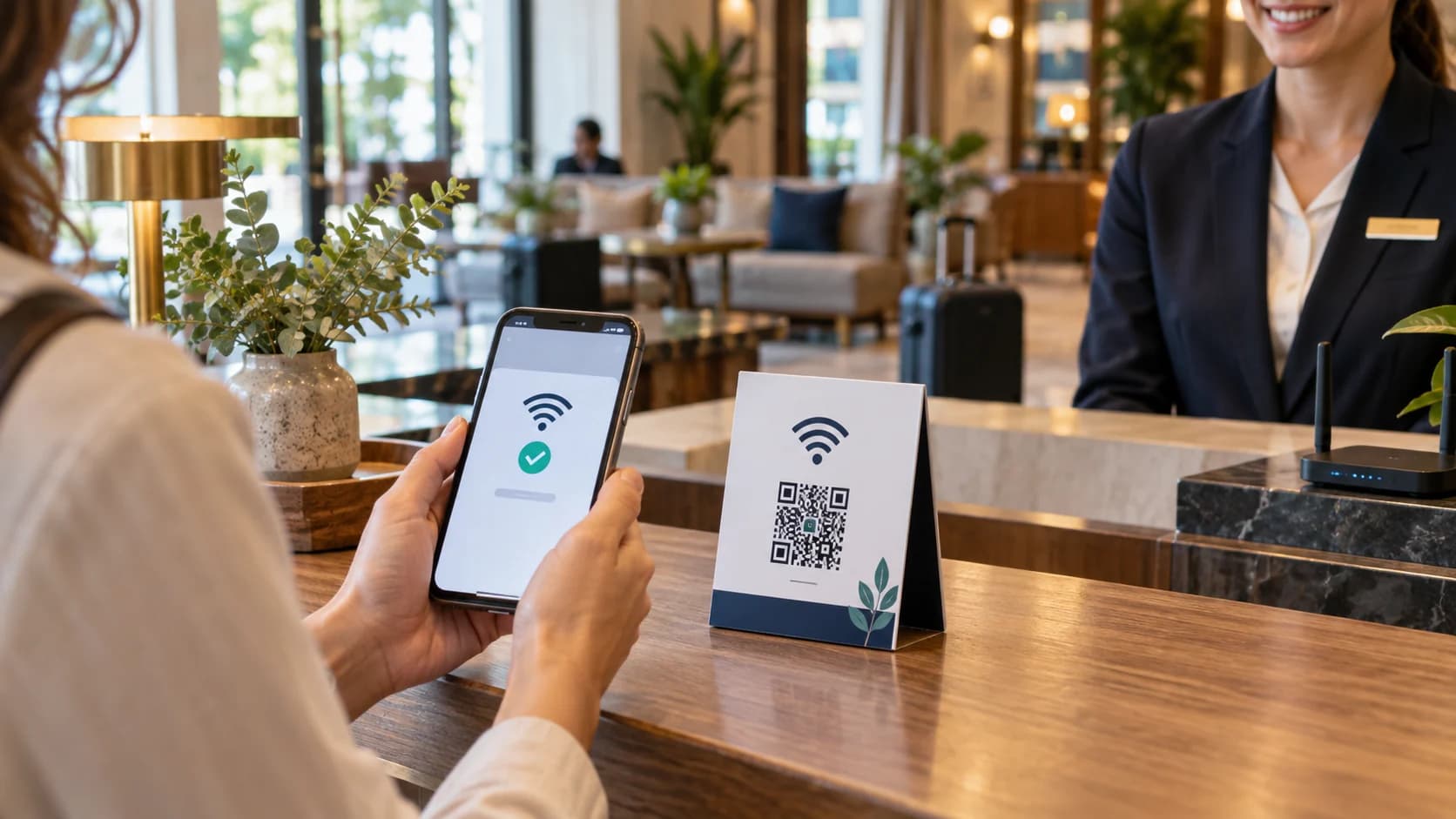
Learning how to make a WiFi QR code lets guests join a wireless network without typing a long password. A compatible phone scans the code, reads the network name, security type, and password, then offers to connect. That convenience also means the printed code contains credentials in readable form.
This guide shows how to enter the settings correctly, handle hidden networks and special characters, choose a safer guest-network policy, and test the final sign. The CraftMyQR WiFi QR code generator provides a dedicated workflow for the code itself.
How to Make a WiFi QR Code in 7 Steps
That is the core of how to make a WiFi QR code. The important work is accurate data and sensible network separation. A polished design cannot fix an incorrect password, a mismatched security mode, or unsafe access to internal devices.
- Choose the network. Prefer an isolated guest network instead of an internal business or household network.
- Copy the exact SSID. Network names are case-sensitive and may contain spaces.
- Select the security type. Match WPA/WPA2/WPA3, WEP, or no password to the router configuration.
- Enter the current password. Preserve capitalization and every symbol.
- Mark a hidden network if applicable. Use this only when the SSID is actually hidden.
- Generate and download. Keep high contrast and choose a suitable PNG, SVG, or PDF.
- Forget and retest. Remove the saved network from several phones, scan the final sign, and confirm the correct connection.
Understand What a WiFi QR Code Stores
A WiFi QR payload commonly contains the network name, authentication type, password, and an optional hidden-network flag. The phone decodes those fields locally and may display a join prompt. The code does not configure the router, improve signal strength, or bypass captive portals.
Anyone who can scan or photograph the sign may be able to recover the password. Treat the QR code like a printed credential, not encryption. Put it only where the intended audience can access it, and use a guest network with suitable isolation and rate controls.
A café, clinic, office lobby, rental property, or event can use the same pattern effectively, but each needs a different access policy. Decide whether the sign is public, staff-assisted, room-specific, or temporary before creating it.
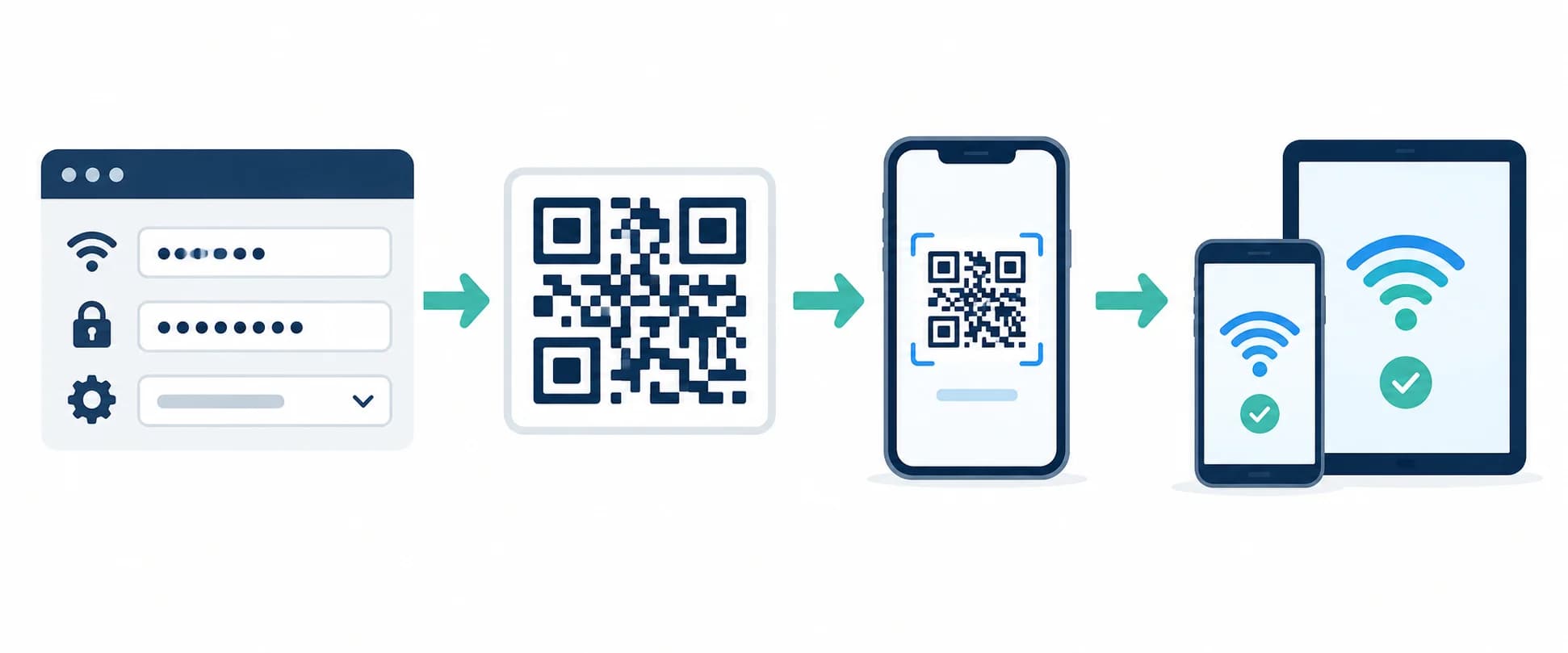
Enter the SSID, Security Type, and Password Exactly
The SSID is the visible network name. Copy it from the router or a connected device rather than retyping from memory. Capital letters, spaces, punctuation, and trailing characters matter. If several access points share one SSID and credentials, one code can serve the coverage area.
Match the security setting to the network. Most current protected networks use a WPA-family configuration. WEP is obsolete and insecure; an open network has no password but still exposes users to network risks. The QR value must describe the actual router setting.
Special characters need correct escaping inside the WiFi payload. A dedicated generator handles that formatting, but you should still test the result. If scanning fails only with a complex password, do not simplify security blindly—first confirm the exact copied value and generator behavior.
Use a Guest Network Instead of Sharing Internal Access
A guest network separates visitor traffic from computers, storage, printers, cameras, and other internal devices. Enable client isolation or equivalent controls where appropriate, apply updates to the router, and review who owns network administration.
For hospitality or rentals, rotate credentials on a documented schedule and after staff or access changes. Replacing the password will invalidate every static printed WiFi code, so include signage in the rotation checklist. Do not leave old cards in rooms or public areas.
A hidden SSID is not a meaningful security boundary. It may reduce casual visibility, but the network name still travels in connection traffic and must be stored in the QR code. Use modern encryption and a strong password rather than relying on hiding the name.
Create and Customize the WiFi QR Code
Open the CraftMyQR WiFi generator, enter the SSID, choose the authentication type, add the password, and set the hidden-network option only when required. Review every character before downloading.
Use a dark code on a light, plain background. A logo can help identify the venue, but keep it modest and away from the three finder patterns. Preserve the clear quiet zone around the symbol and never crop it to fit a tight sign.
Choose PNG for many screen and office layouts, or SVG/PDF for scalable print work. Name the source file by venue and network version without putting the password in the filename.
Design the Sign Around a Clear Expectation
Label the action with “Scan to join guest WiFi” and show the network name nearby so users can confirm the connection prompt. If a captive portal will appear after joining, say so. Provide a staff or typed-password fallback for incompatible devices.
Place the sign where people need connectivity but where credential exposure is acceptable: a reception desk, guest room, conference table, or customer area. Avoid public windows and social-media photos if access should remain limited to people on site.
Use matte material when glare is likely, keep the code flat, and choose a size that works at normal hand-held distance. A small tabletop card has different requirements from a wall sign viewed across a lobby.
Test the Connection, Not Just the Scan
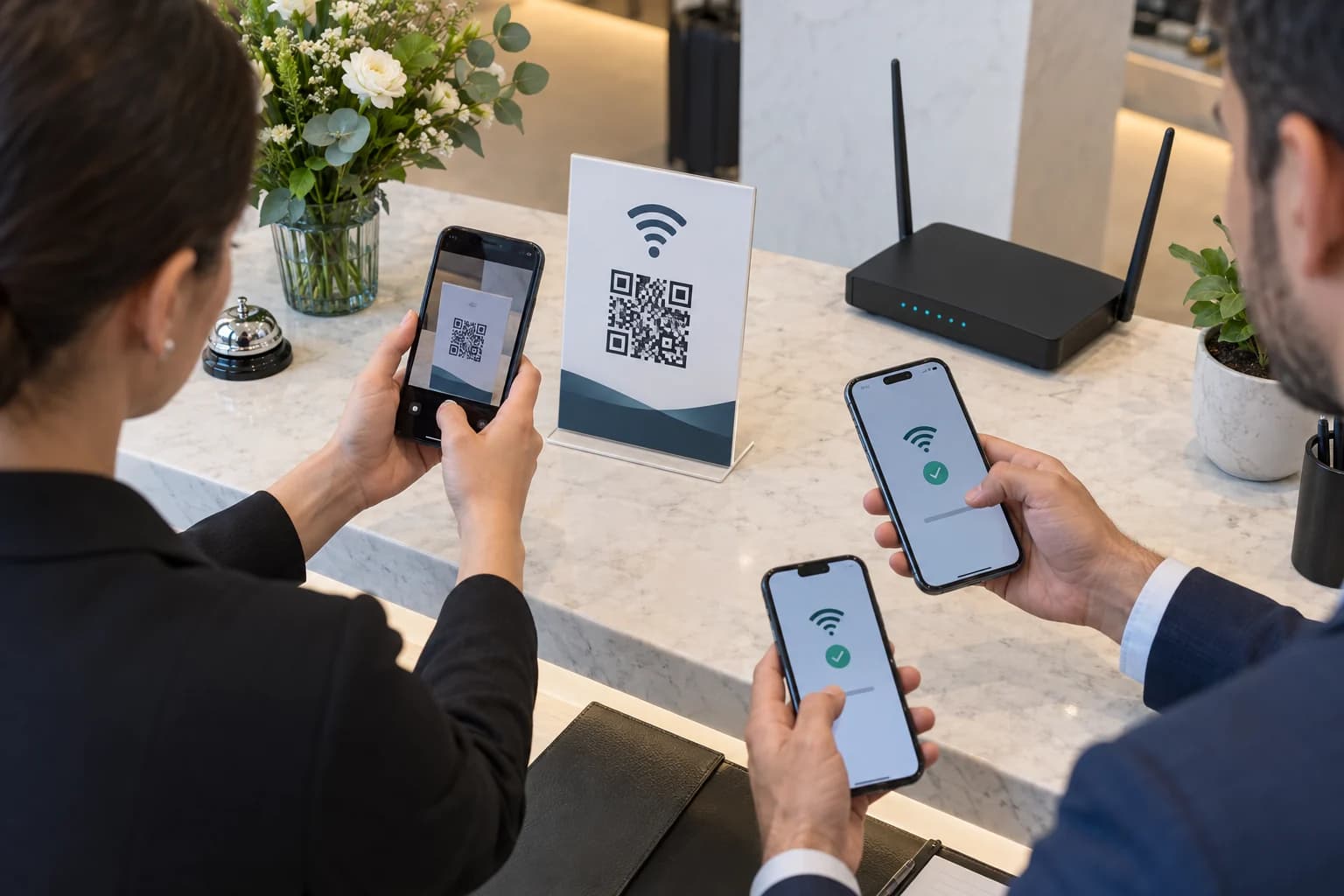
On each test phone, forget the network first. Otherwise the device may reconnect using credentials saved earlier and hide an incorrect code. Scan, accept the prompt, verify the displayed SSID, and confirm that the phone receives internet access.
Test recent iPhone and Android devices, plus any managed devices common to your audience. Some phones or enterprise policies may not accept every security combination. Also test a laptop fallback if visitors commonly need computer access.
Walk to the location where the sign will be used and check signal strength, captive-portal behavior, DNS, and basic browsing. A correct WiFi QR code cannot compensate for a weak access point or an overloaded connection.
Maintain and Rotate WiFi QR Codes
Keep an inventory of each printed sign, its network, placement, creation date, and owner. When the SSID, security type, or password changes, generate a new code and remove every old copy. A static WiFi payload cannot be changed after printing.
Do not use a dynamic web redirect for the actual WiFi credentials; compatible phones expect the WiFi payload in the QR code. A separate dynamic code can open instructions or a captive portal, but that is a different workflow from direct network joining.
Review access when staff leave, rentals turn over, events end, or a printed code appears online. Convenience should not eliminate credential lifecycle management.
Common WiFi QR Code Mistakes
Most problems become obvious when you test from a clean device and treat the sign as part of the network’s security documentation.
- Choosing the wrong security type: the payload does not match the router.
- Typing the SSID from memory: capitalization or spaces differ.
- Testing on an already connected phone: saved credentials hide an error.
- Sharing the internal network: visitors gain unnecessary access to trusted devices.
- Posting the sign too publicly: anyone can photograph reusable credentials.
- Forgetting old signs after rotation: guests repeatedly scan a dead password.
- Assuming the code fixes coverage: the network still needs a strong, stable signal.
Why Use CraftMyQR for WiFi Access?
The dedicated CraftMyQR WiFi QR code generator formats the required fields, shows a live preview, supports restrained styling, and exports PNG, SVG, or PDF. It keeps the network workflow separate from ordinary URL codes.
That is more dependable than manually constructing a payload or copying an image from a random screen, especially when the SSID or password contains punctuation. The service creates the code; your router settings and access policy remain under your control.
To complete how to make a WiFi QR code, use exact credentials, prefer a protected guest network, label the sign clearly, and test after forgetting saved access. Create the asset with CraftMyQR, then keep it in the same rotation process as the password.
Browse the CraftMyQR QR code tools to choose the generator that matches the destination and workflow.
Frequently Asked Questions
Can iPhone and Android scan the same WiFi QR code?
Many recent iPhone and Android devices recognize a standard WiFi QR payload and offer to join. Compatibility can vary by operating-system version, security mode, camera app, and device policy, so test the exact network on representative phones.
Does a WiFi QR code reveal the password?
Yes. The password is encoded in a form that scanners can decode, and anyone who photographs the sign may recover it. Use a segregated guest network, limit where the code appears, and rotate credentials according to a documented policy.
Can I make a WiFi QR code for a hidden network?
Yes. Enter the exact SSID and credentials, then mark the hidden-network option. Hiding an SSID is not strong security, however. Keep modern encryption and a strong password, and test because device support can differ.
Why will my WiFi QR code not connect?
Common causes include a misspelled SSID, wrong capitalization, mismatched security type, outdated password, incorrectly marked hidden network, unsupported device policy, or weak signal. Forget saved access, scan again, and compare every field with the router configuration.
Can I change the WiFi password without reprinting the code?
No. A direct WiFi QR code statically contains the credentials. Changing the SSID, security type, or password requires a new code. Replace every old sign so guests do not continue scanning an obsolete credential.
Should I print the WiFi password beside the QR code?
A visible password provides a useful fallback for laptops and incompatible phones, but it also increases exposure. Decide according to the venue and access policy. If the sign is controlled, showing the guest password may reduce support requests.
Does a WiFi QR code work with a captive portal?
The code can join the wireless network, after which the device may still need to accept terms or sign in through the captive portal. Explain that extra step on the sign and test that the portal opens reliably.
What is the safest network to use for a guest WiFi QR code?
Use a dedicated guest network with current encryption, a strong password, suitable client isolation, maintained router firmware, and only the access visitors need. Avoid exposing internal computers, storage, cameras, printers, or administrative interfaces.
Need to create a QR code now?
Create and preview your QR code with our free generator. For long-term materials like menus, packaging and posters, consider upgrading to dynamic QR codes.