
A Google Drive QR code opens the sharing link of a file or folder. Choose the resource, grant the intended audience access, copy its sharing link, and paste that URL into the CraftMyQR generator. Download the symbol and test it with someone who does not already own the resource.
The important work happens around the generator. A successful scan can still lead to an access request, an editable document, the wrong revision, or a folder containing unintended files. This guide provides a recipient test matrix, an update decision table, and a record you can keep with the printed artwork. These are practical planning tools, rather than claims from an unperformed device experiment.
Choose the Right Google Drive QR Code Destination
Use a single-file link when the reader needs one brochure, schedule, worksheet, or instruction sheet. A folder link suits a collection, such as press materials or conference handouts. The difference affects both maintenance and the reader’s next decision.
A folder is a browsing experience, so name its files for readers. Names such as 01-Programme.pdf and 02-Venue-Map.pdf communicate more than internal production filenames. Keep working drafts outside the shared collection.
If the task is collecting responses, use the Google Form QR workflow. A folder that exposes documents does not automatically provide an appropriate submission process.
| Reader’s task | Best starting destination | Acceptance check |
|---|---|---|
| Read one brochure | Shared PDF file | Correct edition opens on mobile |
| Read a changing schedule | Shared document | Latest information is visible |
| Browse several resources | Dedicated shared folder | Every visible item belongs there |
| Submit answers | Form’s responder link | Submission works for the intended audience |
| Upload files | Approved collection workflow | Upload works without granting broad editing |
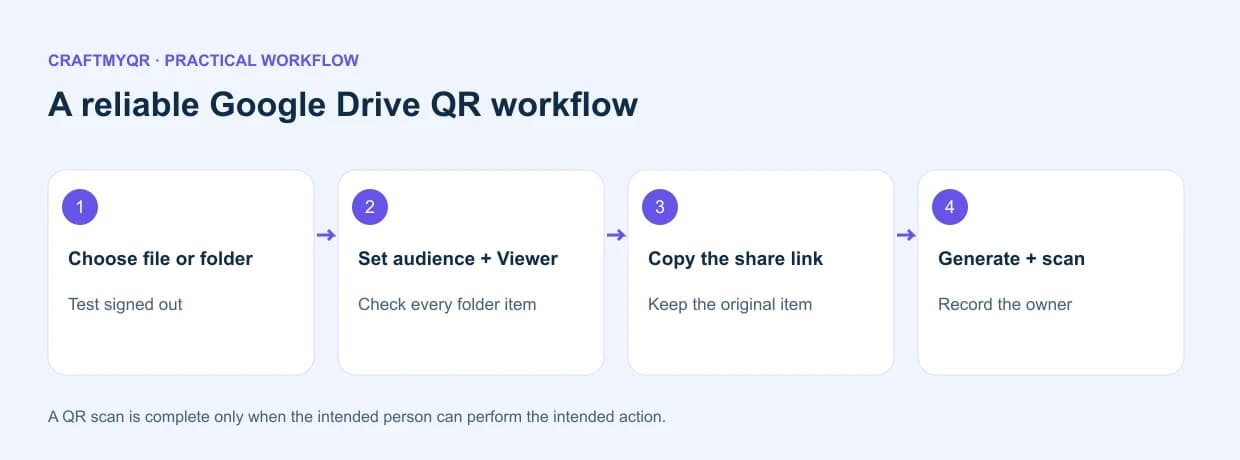
1. Prepare a dedicated resource
Choose the actual file or create a folder for this audience. Open every item, remove outdated copies, and confirm who will maintain it. A public campaign should have an accountable owner who can respond when access changes.
2. Set the intended audience
In Drive, select the item and open Share. For public material, choose Anyone with the link where your account permits it, and use Viewer when people only need to read. For internal material, retain the required restricted audience and tell recipients which account they need.
Google explains these roles and sharing options in its official file-sharing instructions. Work or school administrators can restrict external sharing. A QR generator cannot override that policy, and publishing a redirect does not add authorization.
3. Copy the sharing link
Use Copy link from the sharing dialog. Avoid a local file path, an account dashboard URL, or the address of a search result. Keep the complete copied URL, including any parameters that Google supplied.
Do not mechanically replace every /edit ending with /preview or force a direct download. An editor-shaped URL does not itself grant editing rights; permissions govern access. Begin with the supported sharing link, then change presentation only when a documented workflow and recipient test justify it.
4. Generate the QR image
Choose the URL option in CraftMyQR, paste the link, and inspect the preview. Use dark modules on a plain light background. Download a sharp image and keep the full clear margin around the code.
For a long-lived campaign, consider the dynamic QR option. Its managed destination can change while the printed symbol remains the same. That helps when a resource moves, but the destination still needs its own valid access settings.
5. Scan as the recipient
Use the downloaded image, then the final artwork. Open the destination in a signed-out browsing session for public material. For restricted material, test with a permitted recipient and a separate unauthorized account so the intended access boundary is clear.
A Recipient Test Matrix That Catches Hidden Errors
Testing only as the owner conceals permission problems. Use separate identities and record observable results:
Add columns for the displayed filename, revision date, available actions, and actual mobile result. A pass means the intended reader reaches the correct resource with the intended role. A visible link banner proves only that the QR decoded.
For a folder, repeat the check for every listed file. Folder inheritance and individual restrictions can interact, so a visible folder title alone is insufficient evidence that its entire collection works. Test new additions through the same recipient path.
This matrix is a proposed acceptance method. It does not report measured compatibility or predict every organization’s account policy. Its value is that each result can be reproduced and explained.
| Test identity | Public handout expectation | Internal document expectation |
|---|---|---|
| Owner | Opens | Opens |
| Signed-out visitor | Reads without requesting access | Access prompt is expected |
| Authorized recipient | Reads | Reads using the approved account |
| Unrelated account | Reads if intentionally public | Cannot read |
Update Files Without Losing the Printed Link
The printed symbol encodes a URL, not a filename. Changing a filename does not deliberately rewrite the payload. Replacing a file by deleting it and creating another can produce a different resource, even when both have identical names.
Use this update decision table:
Google documents its upload-new-version workflow in Drive file-version help. Google-native documents and uploaded PDFs use different version histories. Check the actual item after updating, rather than assuming a familiar filename proves link continuity.
Save the original sharing URL before each change. Afterward, open that exact saved address as a recipient. This small comparison distinguishes maintaining an existing resource from accidentally creating a replacement.
| Intended change | Safer maintenance approach | Recheck |
|---|---|---|
| Revise a Google document | Edit the existing document | Content and recipient access |
| Replace an uploaded PDF | Use the existing item’s version-management workflow | Original link and new revision |
| Add a handout | Add it to the dedicated collection | Folder listing and item access |
| Move to another host | Update a managed redirect if used | Full redirect and destination |
| Retire the resource | Provide a useful replacement or closure notice | Existing printed scans |
A Folder QR Code Needs a Publication Boundary
A collection can change after printing. That is useful for event materials and manuals, but it also creates a maintenance responsibility. Treat the destination folder as a published collection with a clear purpose.
For example, a hypothetical training folder might contain the participant guide, slides, and feedback instructions. Keep attendance lists, answer keys, and internal planning documents elsewhere. Do not rely on visitors ignoring filenames that look private.
Before adding an item, answer three questions: does it belong to this audience, does its access match the intended policy, and will its title make sense on a phone? After adding it, repeat the signed-out or authorized-recipient check.
For a large set of unrelated audiences, separate collections are easier to maintain than one broad folder with complicated exceptions. Give each printed code an audience-specific caption so staff can identify the matching destination.
The camera never recognizes the code
Check image sharpness, contrast, dimensions, and the clear border. Try the original exported image before blaming Drive. Use the QR code not scanning checklist to isolate rendering problems.
The link opens but requests access
The QR has decoded. Inspect the resource’s sharing settings, the signed-in identity, and any organization restriction. Generating another symbol from the same address will reproduce the access problem.
The folder opens but one file fails
Inspect that item’s permissions and location. Test the individual resource through the same identity. Record whether the visitor can list the file, preview it, or download it; these are different outcomes.
Visitors see old content
Confirm the exact URL, visible revision, and whether someone uploaded a separate replacement. Reopen in a fresh session. If a managed redirect is involved, verify its current target independently of the saved artwork.
Print and Mobile Checks
A Google Drive QR code should have a caption describing the result, such as “Scan for the workshop handouts.” Include a readable fallback address when the setting permits it. Keep the instruction outside the symbol’s clear margin.
Scan the final printed proof at its intended distance, under typical lighting, with representative phones. Confirm that text is readable after opening and that large images or files do not make the mobile experience unnecessarily slow. A technically accessible spreadsheet can still be uncomfortable to use on a small display.
Archive a destination record with the artwork: campaign name, encoded URL, resource owner, expected audience, expected revision, proof date, and maintenance contact. That record lets another person diagnose the campaign after its creator leaves.
Conclusion: Approve the Whole Google Drive QR Code Journey
A Google Drive QR code works well when you choose a focused resource, set the intended permissions, generate a clean symbol, and verify the recipient’s actual experience. The recipient matrix, update table, and publication boundary above make those decisions reviewable.
Use CraftMyQR to turn the approved sharing link into a QR image. Its static URL workflow suits a stable resource; its managed destination option suits campaigns that may move. Keep a named owner and test the original printed route whenever the file, folder, or audience changes.
Frequently Asked Questions
Can I make a Google Drive QR code for free?
You can create a static URL QR using the sharing link and CraftMyQR’s generator. The destination’s access and availability remain controlled by Drive, while optional managed QR features depend on the current product offering.
Does scanning require a Google account?
An intentionally public Anyone with the link resource can support signed-out access. Restricted resources may require an authorized account. Test the exact item as the intended recipient because organizational rules can affect the available sharing options.
Can one code open a whole folder?
Yes. Encode the folder’s sharing link and check its contents through the recipient’s identity. Keep the collection dedicated to its audience, and verify both the folder listing and the individual resources inside it.
Why does my code show Request access?
The scanner reached Drive, but the current visitor lacks access. Check sharing settings, organization policy, and the signed-in account. Recreating the image does not change the permissions of the linked file or folder.
Can I change a PDF without reprinting?
Use the existing uploaded item’s supported version-management workflow, or update a managed QR destination if you created one. After changing anything, test the original printed link and verify the new visible revision.
Is a folder code suitable for collecting uploads?
A shared folder link alone does not define a safe collection workflow. Choose an approved upload or submission process, set the intended permissions, and test an actual submission without unnecessarily exposing the full collection.
Does a dynamic QR code bypass Drive permissions?
No. A managed redirect changes where the visitor goes, but Drive still evaluates access to the final resource. The destination must remain available to the intended audience after every redirect or file update.
What should I record before printing?
Save the encoded URL, resource owner, intended audience, expected file revision, proof date, and approved artwork. Record a maintenance contact so someone can resolve access or update problems throughout the printed campaign’s lifetime.
Need to create a QR code now?
Create and preview your QR code with our free generator. For long-term materials like menus, packaging and posters, consider upgrading to dynamic QR codes.