
A QR code on TV has to succeed before the scene changes. Viewers must notice it, reach a phone, open a camera, frame the screen, wait for recognition, and tap the result. A code that decodes perfectly in a paused design file can still fail during a short broadcast placement. This guide combines CraftMyQR’s deterministic size-and-distance lab with a timing method you can run in the actual room.
The practical starting point is to size the displayed code from viewing distance, not from television diagonal or video resolution alone. Then test the exact delivered video after scaling, compression, overscan, motion, and platform processing. You can build the destination with CraftMyQR and keep the encoded data short enough to preserve larger modules.
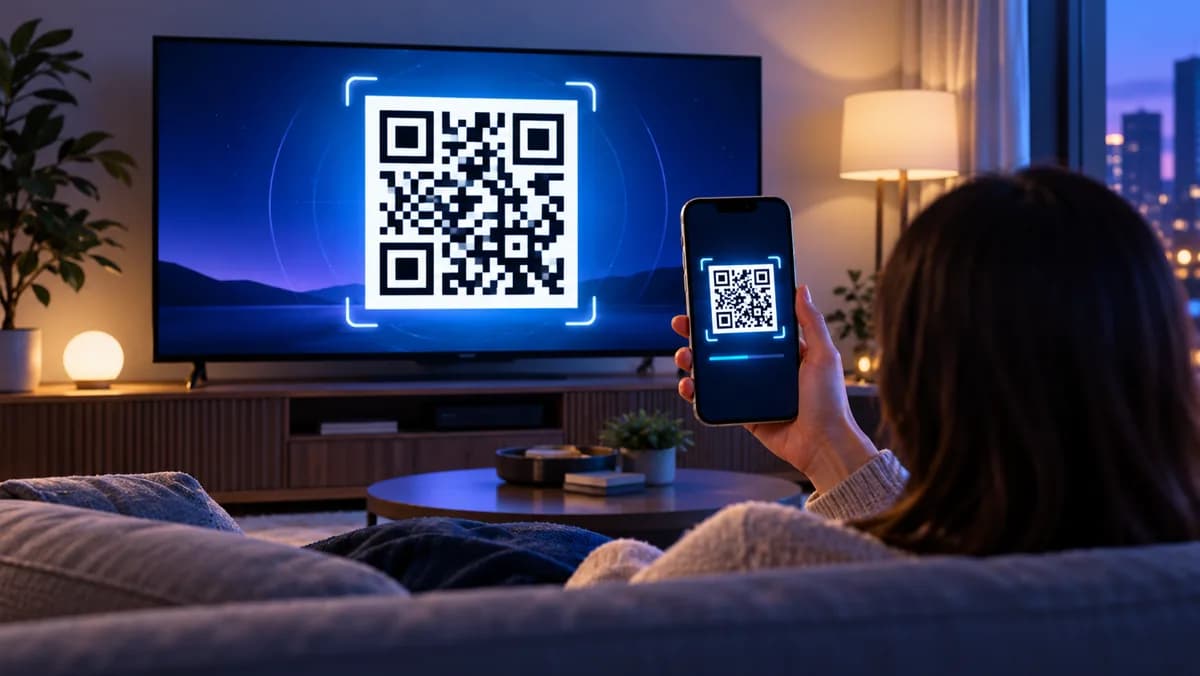
Size a QR Code on TV by Viewing Distance
Use this planning equation:
displayed QR width = farthest intended viewing distance ÷ chosen distance-to-code ratio
At a conservative 10:1 ratio, a viewer 3 meters away needs a code about 0.30 meters wide. At 15 feet, the starting width is 1.5 feet. Measure the QR’s complete displayed square, including its quiet zone, rather than the diagonal of the television.
The ratio is a design input, not a universal guarantee. Phone optics, display brightness, reflections, video compression, payload density, autofocus, and viewing angle can all change the result. A 55-inch and a 75-inch television can show the same physical QR width if the layout scales it accordingly.
What Our Size-and-Distance Lab Found
CraftMyQR ran a deterministic rendering test with a 1920-pixel reference width and a modeled 65-degree horizontal field of view. Each symbol used error correction level M and a four-module quiet zone. We evaluated three payloads at distance-to-code ratios from 5:1 through 30:1 under eight image conditions.
The conditions were clean, JPEG quality 70, low contrast, 0.6-pixel blur, 1.0-pixel blur, two-degree rotation, 30-degree horizontal foreshortening, and foreshortening plus blur. A condition passed only when jsQR 1.4.0 and ZXing 0.21.3 both returned the exact original payload.
The difference is not merely URL aesthetics. The longer payload produced a denser Version 7 symbol. At the same displayed width and modeled distance, its modules occupied fewer image pixels. It crossed a sharp failure boundary earlier than the two lower-density symbols in this particular test.
These are condition counts, not scan-success percentages. The lab used deterministic renders and software decoders, not physical televisions or a representative phone fleet. It did not model panel reflections, rolling shutter, camera optics, autofocus hunting, room brightness, motion, or a viewer’s reaction time. Reproduce the final test on real screens before release.
| Payload | QR version | Clear modules across | Strict result |
|---|---|---|---|
| Short managed URL | 3 | 37 | 8/8 through 15:1; 7/8 at 20:1–30:1 |
| Product-page URL | 4 | 41 | 8/8 through 15:1; 7/8 at 20:1–30:1 |
| Long campaign URL | 7 | 53 | 8/8 through 12.5:1; 0/8 at 15:1 and beyond |
Convert the Lab Result Into a TV Starting Size
Use 10:1 as a cautious initial ratio when you have little device control, then adjust through real testing. The calculation produces these starting widths:
Choose the farther, more conservative condition when viewers occupy a range of distances. If the destination is long, use a managed short URL or make the symbol larger rather than trusting the 12.5:1 column. The dynamic QR code workflow keeps the printed value concise while allowing an authorized destination change later.
Do not extrapolate beyond the room. A conference display viewed from 20 meters needs a different layout from a living-room television. If the calculated code overwhelms the creative, the call to action may not fit that shot or placement.
| Farthest viewer | 10:1 starting width | 12.5:1 starting width |
|---|---|---|
| 2 m | 20 cm | 16 cm |
| 3 m | 30 cm | 24 cm |
| 5 m | 50 cm | 40 cm |
| 10 ft | 12 in | 9.6 in |
| 15 ft | 18 in | 14.4 in |
| 25 ft | 30 in | 24 in |
Pixel Size Still Matters
Physical width solves only part of the problem. Each QR module must survive rasterization and video encoding. Divide the code’s pixel width by the number of clear modules across, including the four-module quiet zone on each side.
For example, a 37-module-wide Version 3 symbol rendered at 370 pixels provides about 10 pixels per module. A 53-module-wide Version 7 symbol needs 530 pixels to preserve the same sampling. If an editor scales a small bitmap upward, the visual square becomes larger but the original sampling detail does not return.
Export the QR at its intended on-screen pixel dimensions or larger, keep edges aligned to whole pixels where possible, and avoid repeated resizing. Use PNG or another lossless master inside the edit. Inspect the final encoded video, because the delivery platform may introduce ringing, blur, or chroma artifacts even when the source file is clean.
The QR standard and symbol structure are defined by ISO/IEC 18004; the current standard listing is available from ISO. For design implementation, DENSO WAVE explains the required quiet zone on its official QR Code site.
Protect the Quiet Zone and Screen Safe Area
A QR symbol needs a clear four-module margin around all sides. That quiet zone belongs to the code; it is not optional spacing that a designer can fill with a logo, caption, video texture, or animated border.
Place the complete symbol inside the platform’s safe area. Television overscan is less common than it once was, but broadcast chains, venue processors, and player layouts can still crop or mask edges. Lower-thirds, subtitles, channel bugs, and interactive overlays can also collide with the code.
Use a solid light panel behind the complete QR when the scene changes underneath it. A white code panel stabilizes contrast and protects the quiet zone from moving texture. Keep the call to action nearby but outside that panel.
Measure QR Code Screen Time Instead of Guessing
No universal duration fits every context. A phone already in hand at a kiosk differs from a relaxed viewer across a living room. Measure the task as a sequence:
required duration = notice time + phone reach time + camera launch time + framing/focus time + tap allowance
Run at least five timed attempts per representative participant using the delivered video at normal playback speed. Start the timer when the code appears and stop when the result banner becomes actionable. Record incomplete attempts rather than extending the scene mid-test.
Report the distribution, not only the fastest scan. A release duration should cover the slower intended viewers and leave a reasonable tap window. If the creative cannot hold the code long enough, repeat it later, add a persistent end card, or provide a readable fallback URL.
This method creates first-party evidence for your audience without inventing a generic “five-second rule.” Keep the screen, room, distance, devices, playback file, and participant instructions in the test record.
Avoid Motion That Competes With Detection
Keep the broadcast QR code stationary while it is available. Animation can attract attention before the code settles, but scanning should begin only after the symbol reaches its final size and position. Do not continuously pulse, rotate, warp, or slide it.
The background should also calm down near the code. Fast cuts, flashes, highly detailed footage, and moving objects can change exposure or distract autofocus. If a transition is necessary, reserve a clean end card with a stable panel.
Avoid placing the QR over a face, product detail, or essential subtitle. Competition weakens both the creative and the scan task. A clear hierarchy works better: short instruction, stable code, concise fallback.
A Reproducible TV Preflight
Use the following release process for every QR code on TV asset:
When a scan fails, vary one factor at a time. Pause the video to separate duration from image quality. Move closer to test apparent size. Remove reflections or change angle to test the panel. Scan the master PNG to test whether video processing introduced the failure.
- Encode the shortest approved destination and archive its exact value.
- Calculate physical width from the farthest intended viewing position.
- Render enough source pixels for the symbol’s clear-module count.
- Place the full quiet zone inside the safe area on a solid panel.
- Export the final delivery codec, resolution, frame rate, and bitrate.
- Play that delivered file through the actual television or venue chain.
- Test near, typical, and far positions, including off-axis seating.
- Time complete human attempts from appearance through an actionable result.
- Repeat with older and current representative phones.
- Preserve the tested video checksum and approved QR asset.
What This Adds Beyond Common TV QR Rules
Generic guidance often gives one size ratio and one display duration. This article adds three things those rules omit: measured payload-density differences under identical rendering conditions, a clear conversion from distance to displayed width and pixels per module, and a human task-time method that produces evidence for the actual room.
The limitations are equally important. Software-decoder counts do not prove phone performance, and timed room trials do not generalize to every household or broadcast platform. Together, however, they give you a defensible starting design and a release gate.
Conclusion: Test the Delivered QR Code on TV
A dependable QR code on TV begins with physical width based on viewing distance, enough pixels for the symbol’s module count, a protected quiet zone, and adequate human response time. CraftMyQR’s lab shows why a short managed URL retained more margin than a long campaign URL under the same modeled conditions.
Create the destination with the CraftMyQR QR generator, use a managed link when it fits the workflow, and approve the exact exported video on the real screen. The safest number is not a universal ratio or duration; it is the smallest design that still passes your recorded worst-case test.
Frequently Asked Questions
How large should a QR code on TV be?
Start by dividing the farthest intended viewing distance by 10, then test the resulting physical width on the real screen. Longer payloads, older phones, oblique seats, reflections, or compressed video may require a larger code.
How long should a TV QR code stay visible?
Measure notice, phone reach, camera launch, framing, focus, and tap time with representative viewers. Use a duration that covers slower successful attempts, and provide a repeated placement or fallback URL when the scene cannot remain long enough.
Does television screen size determine QR size?
No. The important variables are the QR’s physical displayed width and the viewer’s distance. Two televisions with different diagonals can show the same code width, while the farther audience still sees a smaller apparent symbol.
Why should I use a short URL in a TV QR code?
A shorter payload can produce fewer modules. At the same on-screen width, that gives each module more pixels and visual angle, leaving more margin for compression, blur, camera distance, and imperfect focus.
Can I place the QR code over moving video?
You can, but a solid light panel behind the complete symbol is safer. It stabilizes contrast, protects the quiet zone, and prevents changing scene detail from competing with exposure, autofocus, and finder-pattern detection.
Should the QR code animate onto the screen?
An entrance animation can attract attention, but the symbol should become fully stationary before scanning time begins. Avoid pulsing, rotating, warping, or continuously resizing the code while viewers are trying to frame it.
Is testing a paused frame enough?
No. A paused frame checks image decodability but misses human reaction time, playback scaling, transitions, motion, and the short availability window. Test the final encoded video at normal speed through the actual display chain.
What fallback should appear with a TV QR code?
Use a short, readable URL or another concise instruction that remains useful when scanning fails. Keep it outside the QR quiet zone and large enough to read from the same intended seating area.
Need to create a QR code now?
Create and preview your QR code with our free generator. For long-term materials like menus, packaging and posters, consider upgrading to dynamic QR codes.