Facebook QR Code Generator
Create a custom QR code for a public Facebook Page, profile, group or post URL. Paste the link, test access and download PNG, SVG or PDF.
Create a QR code for a Facebook link
Paste the public Facebook URL you want people to open, customize the QR design and test it outside your signed-in session.
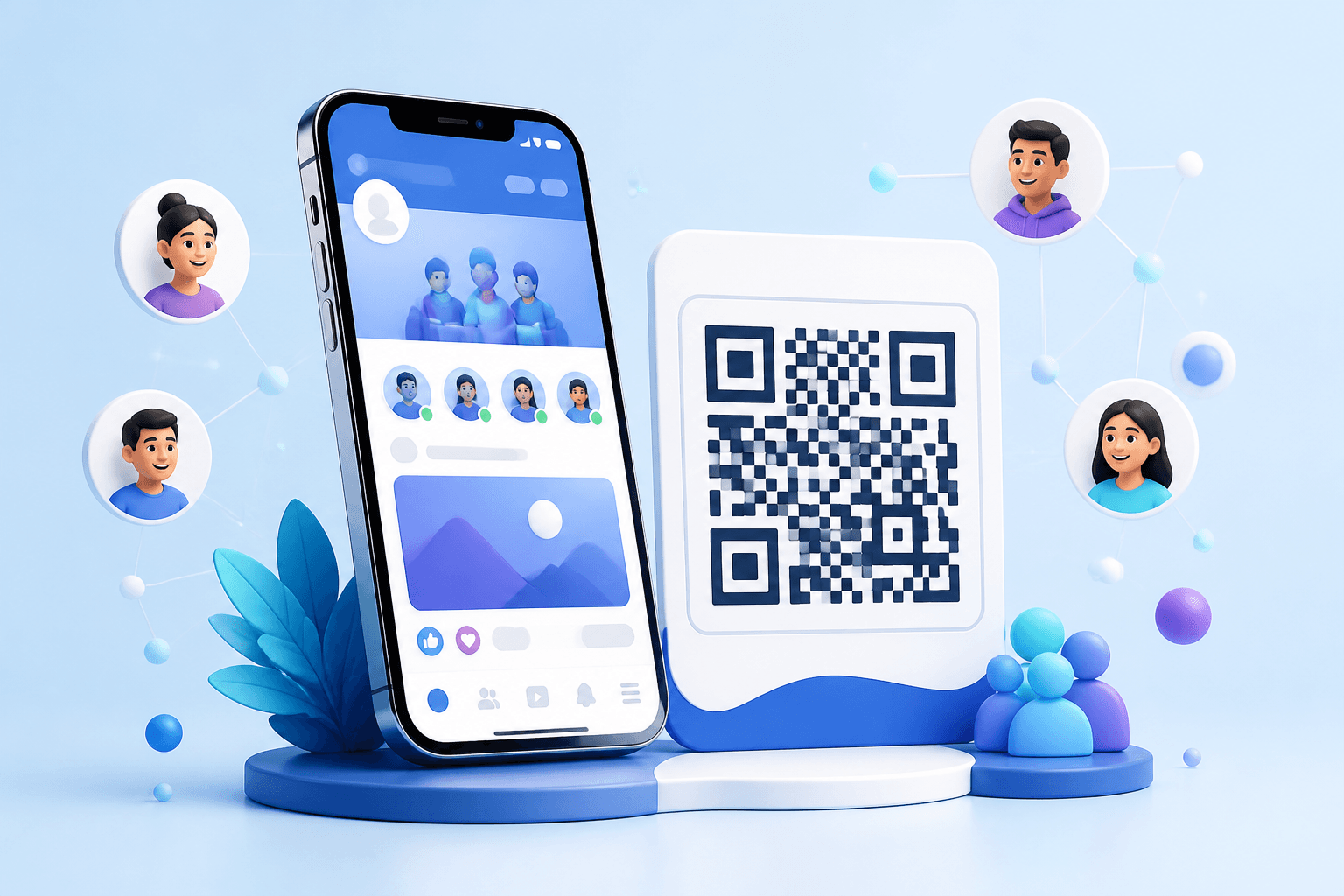
Quick answer: Copy the public Facebook Page, profile, group or post URL, paste it below, customize the QR code, test the link while signed out, then download the artwork for print or digital use.
How to make a QR code for Facebook
- Open the Facebook destination. Choose the Page, profile, group, event or post that people should see.
- Copy its public URL. Use a shareable web address rather than an admin, editing or temporary session link.
- Paste the URL into the generator. Check the complete address before designing the code.
- Customize carefully. Apply colors, module styles or a logo while keeping a clear quiet zone and strong contrast.
- Test access while signed out. Confirm the intended content is visible to someone who is not an administrator or member.
- Download PNG, SVG or PDF. Add the file to signs, packaging, cards or campaign materials.
The QR code is simply a convenient way to open the Facebook URL you provide. It does not change Facebook visibility, login, age, regional or membership rules.
Which Facebook link should you use?
| Destination | Useful for | Check before printing |
|---|---|---|
| Facebook Page | Businesses, organizations, venues and public brands | The Page is published and the public URL is correct |
| Profile | Creators or professionals using a public-facing profile | The intended content is visible to the audience |
| Group | Communities, classes, clubs or member discussions | Whether the group is visible and whether joining requires approval |
| Event or post | A specific announcement, campaign or activity | The content is public, durable and unlikely to be removed |
For an evergreen sign or package, a stable Facebook Page URL is usually safer than a single post. A post can be deleted, restricted or become irrelevant while the printed code remains in circulation.
How to copy and verify the right URL
Use Facebook's share or copy-link control when available, or copy the address from the browser after opening the public destination. Avoid URLs that contain an admin workflow, notification state or unnecessary tracking parameters.
Then open a private browsing window, paste the URL and review the experience. The test should answer four questions:
- Does it open the correct Page, profile, group, event or post?
- Can a visitor see enough content before any login request?
- Does the mobile page make the intended action clear?
- Would the destination still make sense months after the material is printed?
Some visitors may be asked to sign in or use the Facebook app. That behavior is controlled by Facebook and the destination's settings, not by the QR image.
Static vs dynamic Facebook QR code
| Feature | Static URL QR | Dynamic URL QR |
|---|---|---|
| Facebook URL stored directly | Yes | No — uses a CraftMyQR managed short link |
| Change final destination later | No | Yes |
| Managed scan analytics | No | Available at the redirect |
| Best for | A permanent, verified Facebook URL | Long-running campaigns or changing destinations |
A dynamic code can later point from a Facebook Page to a campaign post, event or another destination without reprinting. It can measure redirect activity, but it cannot report follows, likes, joins or other Facebook actions. Those actions occur after the visitor leaves CraftMyQR. Read the dynamic QR code guide for the operational tradeoffs.
Where to use a Facebook QR code
- Storefront signs: connect foot traffic to a public business Page.
- Product packaging: link customers to community updates, support content or campaigns.
- Event materials: open an event page, organizer Page or attendee group.
- Menus and table cards: offer a social channel without requiring people to search by name.
- Business cards and flyers: give a direct path to a creator or organization profile.
- Presentation slides: let an in-person audience open the destination from a second screen.
Design and campaign best practices
Explain the destination
Pair the code with a label such as “Scan to visit our Facebook Page” or “Scan to view the event.” Do not imply that scanning automatically follows, likes or joins anything.
Keep the design scannable
Use strong contrast, preserve the quiet zone and keep logos modest. Test the exported code at the final printed size under realistic lighting.
Offer a readable fallback
Print the Page name or short human-readable address nearby. This helps visitors understand the destination and provides another way to find it.
Review long-lived materials
Periodically scan codes on permanent signage and packaging. Confirm the Facebook destination is still published, appropriate and accessible to the intended audience.
Facebook QR Code FAQ
Can I create a QR code for my Facebook Page?
Yes. Paste the public Page URL into the generator, customize the design and test the result while signed out before printing.
Can a Facebook QR code link to a group or event?
Yes, if you use the correct shareable URL. Visibility, membership and login requirements still depend on Facebook and the destination settings.
Does scanning automatically follow or like the Page?
No. The QR code opens the URL. The visitor chooses whether to follow, like, join or take another action inside Facebook.
Why does Facebook ask people to log in?
Facebook controls its login and content-access experience. Test the destination while signed out so you understand what a visitor is likely to see.
Can I change the Facebook link after printing?
Not with a static URL QR code. Use a managed dynamic QR code if you need to replace the final destination later.
Can I track Facebook follows with the QR code?
No. A dynamic QR can record redirect scans, while follows, likes, joins and other actions occur within Facebook.
Facebook and Meta are trademarks of Meta Platforms, Inc. CraftMyQR is not affiliated with or endorsed by Meta.